Help · For couples · Getting started
Your Home screen, explained
What every part of Home does: your photos and names, the countdown, the planning tiles, the menu and the guest preview.
Home is where every part of your wedding starts. This guide goes through it from top to bottom, on a phone and on a computer.
The three tabs at the top
Under The Veil there's a switch with three tabs:
- Your Wedding lists the weddings you own under Your Weddings. Tap one to open its dashboard. Each card shows Primary Host (or Secondary Host if it's your partner's wedding) and the city, or Location Pending if you haven't set one.
- Co-Planning lists weddings you've been invited to help with, under Co-Planning Passports, with your role: Partner, Secondary Host, Co-Planner or Day-of Coordinator.
- Guest lists weddings you're attending, under Your Guest Passports. Add one with Scan Code or Enter Link.
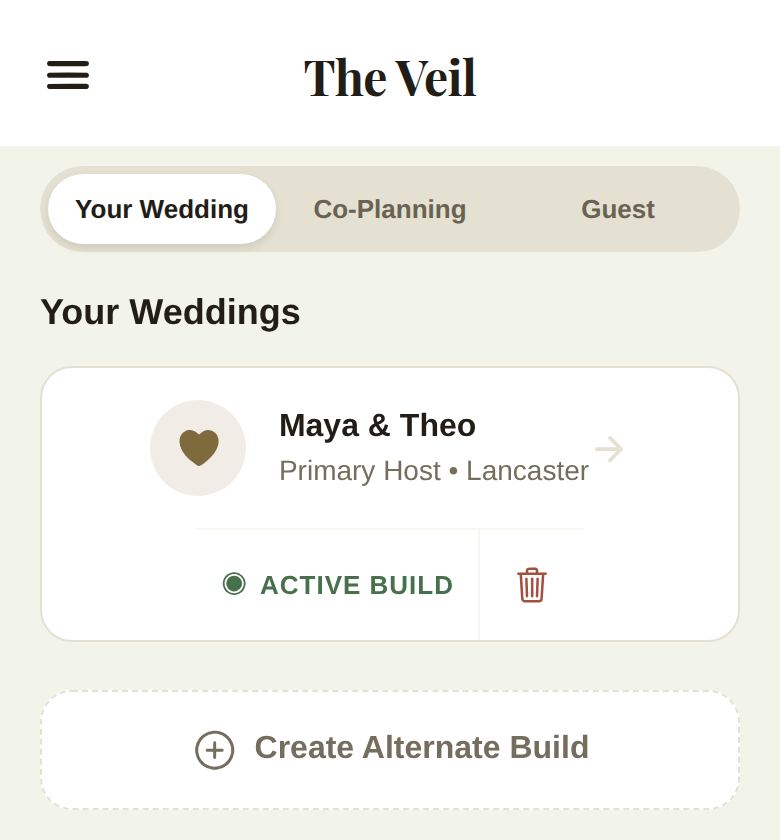
Tap the Home button in the bottom bar at any time to come back to this list.
Your wedding at a glance
Open your wedding and the dashboard starts with your pictures and your key numbers.
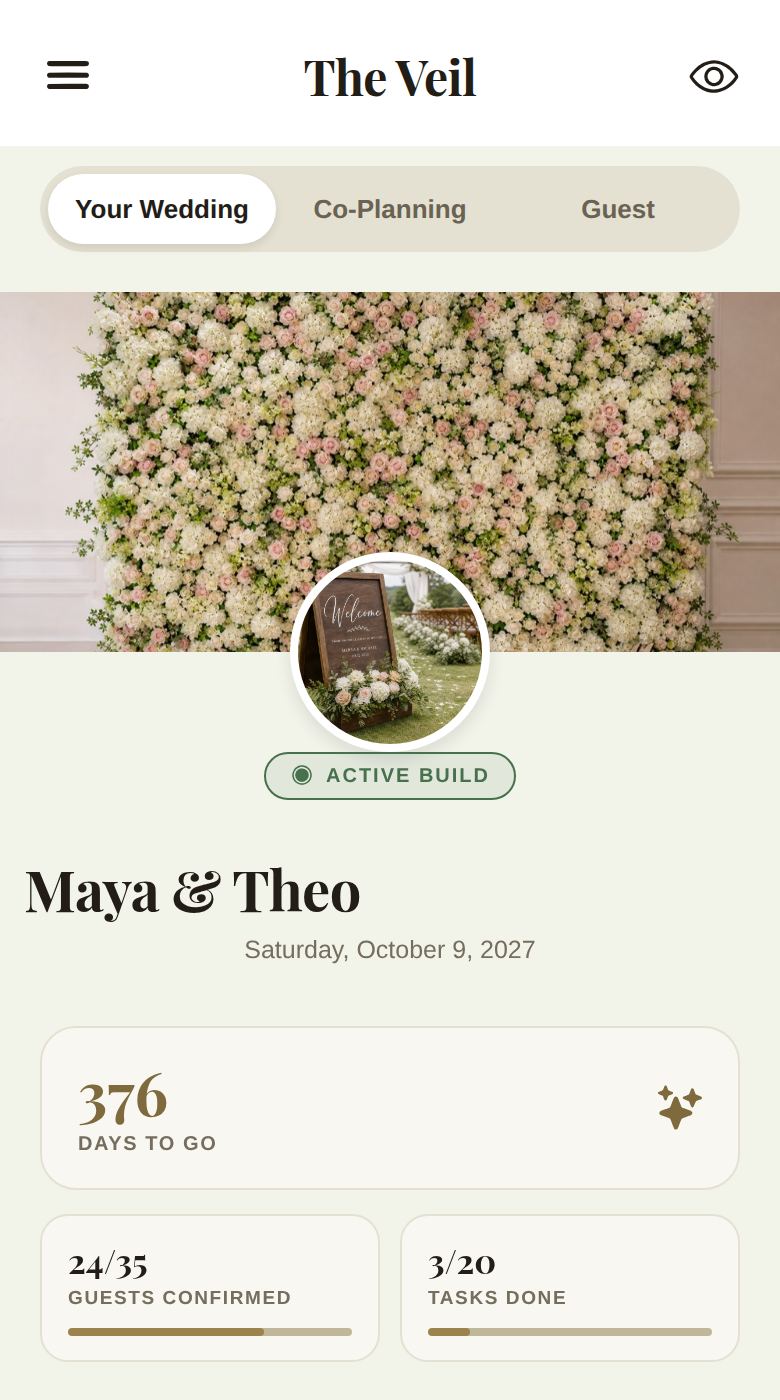
- The banner. Tap the wide picture at the top to choose a new one.
- Your wedding photo. Tap the round picture to change it. This is the photo guests see on their passport. Only the couple can change it; co-planners are told it's host only.
- Active Build or Inactive Build. Shows whether this is the version of your wedding that your partner, co-planners and guests see. It only matters if you keep more than one version. See Plan more than one version of your wedding.
- Your names. Tap them to edit, right there on the screen.
- The date. Your full date, like "Saturday, October 9, 2027". With only a month and year it shows those, and with nothing set it says Date not set. Change it in Wedding Vibe.
- The countdown, such as 376 Days to go. It appears only once you've set a full date, because a guessed day would be wrong.
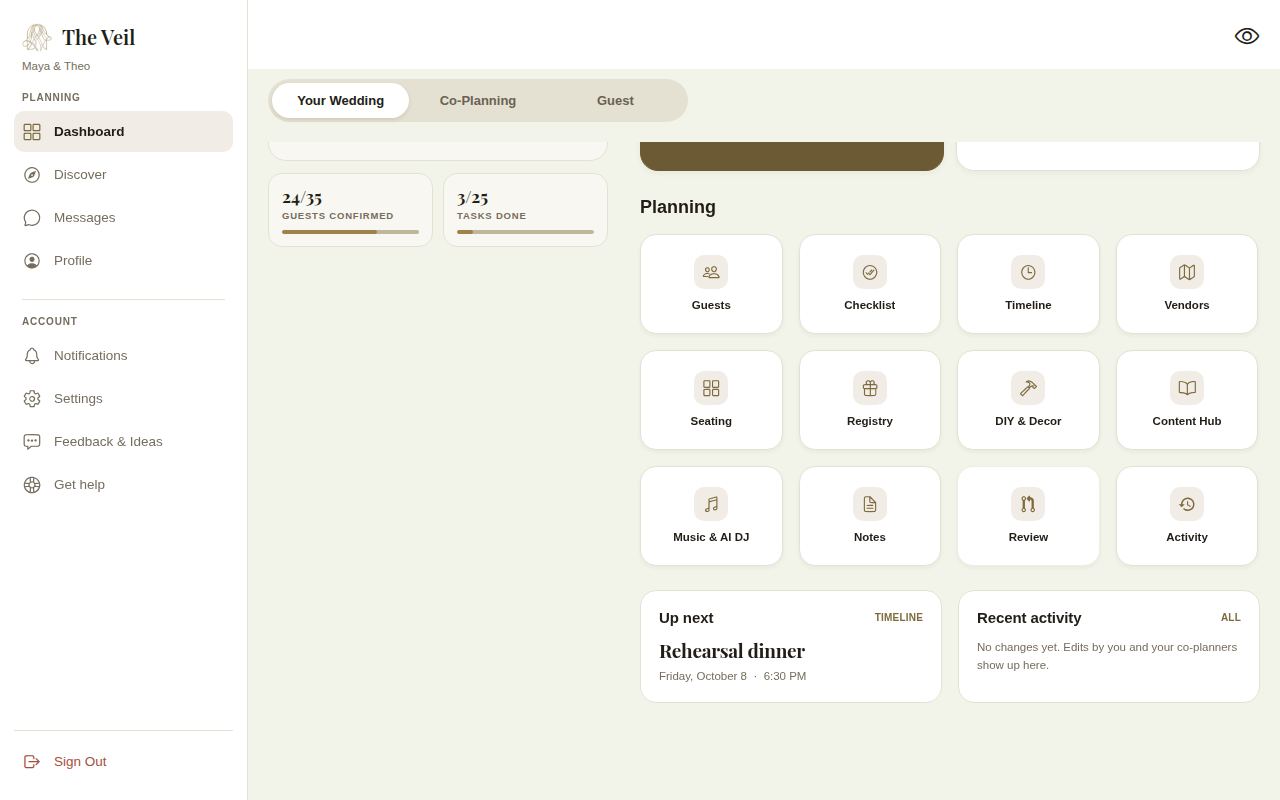
- Guests confirmed counts everyone who has said yes, including plus-ones, plus the two of you, against everyone invited. Tasks done counts finished checklist tasks. Each one appears once there's something to count.
Core Systems and Planning
Below the numbers are two large cards under Core Systems:
- Wedding Vibe: your style, colors, date, guest estimate, location and moodboard. See Wedding Vibe.
- Budget: your categories, costs and vendor payments. See Your budget.
Then the Planning tiles, in the order most couples use them:
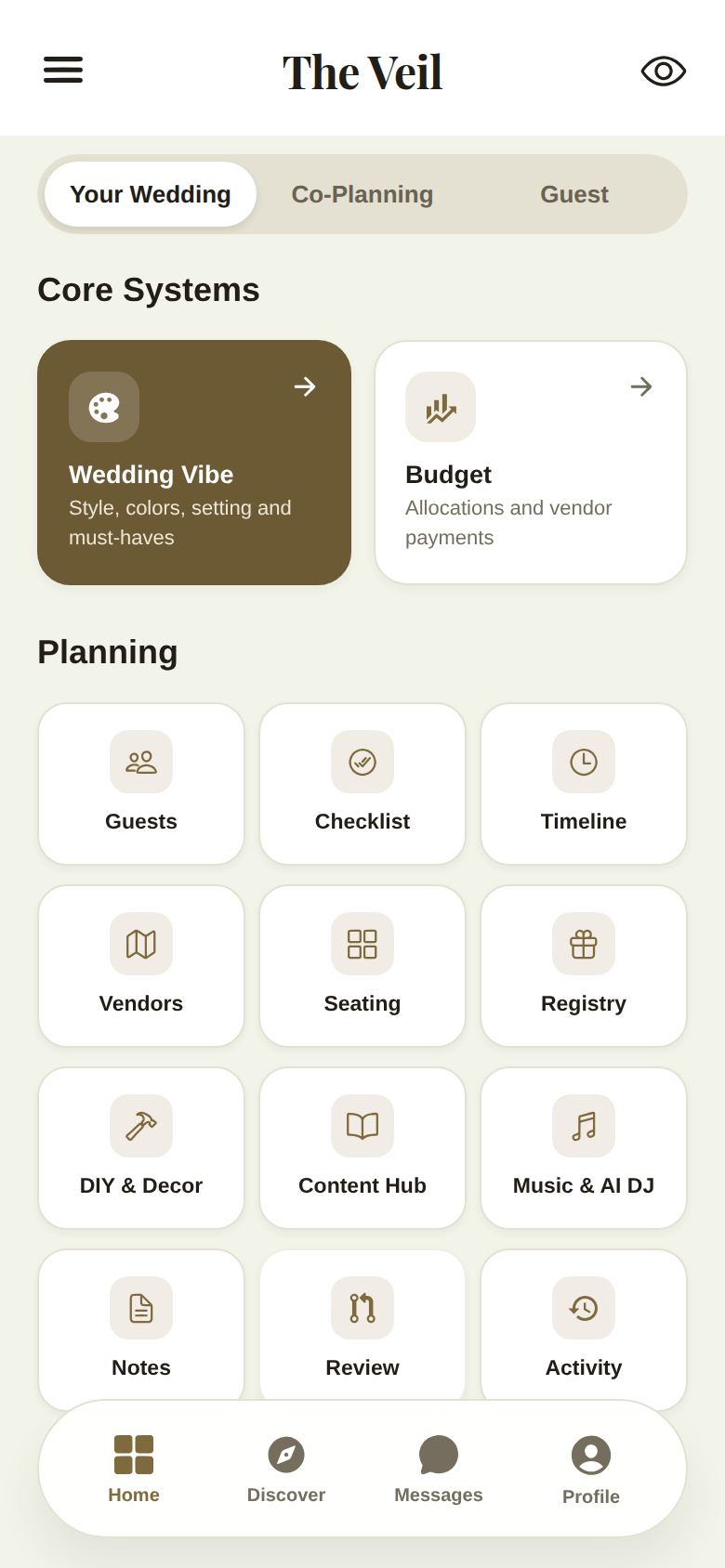
- Guests: your guest list, parties, RSVPs and invitations. See Add guests and parties.
- Checklist: your to-do list with due dates. See A checklist that keeps up with you.
- Timeline: the wedding day hour by hour. See Build your wedding-day timeline.
- Vendors: find, save and compare vendors. See Find and compare vendors.
- Seating: your floor plan and seating chart. See Floor plan and seating.
- Registry: gifts and cash funds. See Registry and cash funds.
- DIY & Decor: the DIY workbench, a Plus feature. On the free plan the tile shows a lock. See The DIY workbench.
- Content Hub: your vows, your story and the dress code. See Content Hub.
- Music & AI DJ: songs for every moment. See Music and song requests.
- Notes: answers for guests and private notes. See Notes Hub.
- Review: changes your co-planners have asked to make, waiting for you to approve. During day-of mode your coordinator sees this tile too.
- Activity: a log of changes made by you, your co-planners and your coordinator.
If day-of mode is on, a Day-of mode is on banner sits above these cards and explains what that means for you. See The wedding day.
The menu and the bottom bar
Tap the three lines at the top left to open the menu.
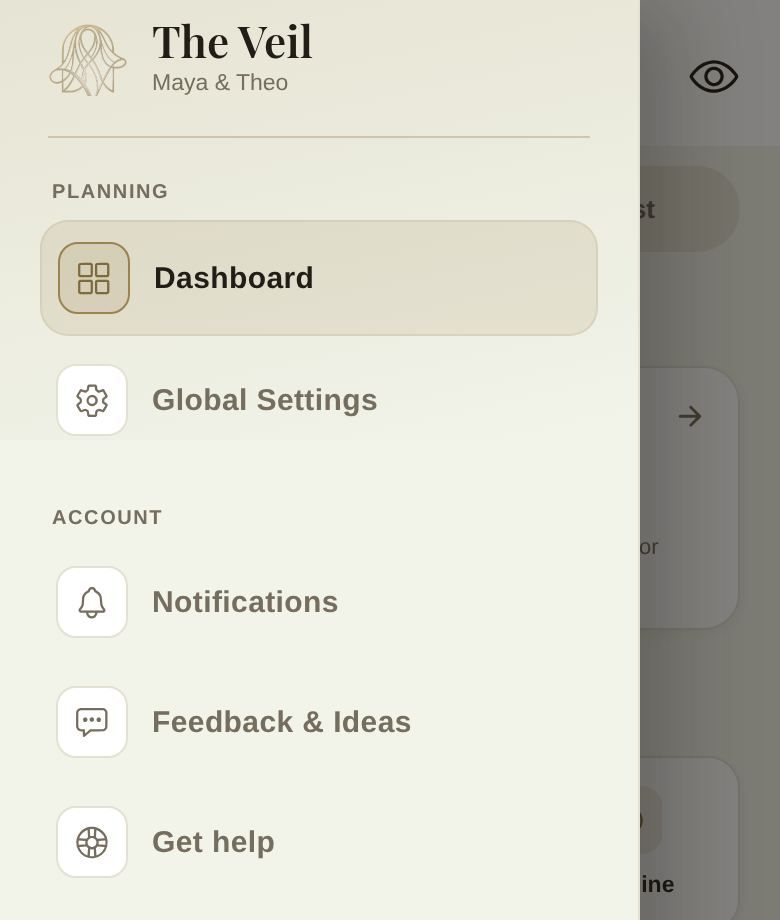
- Dashboard brings you back here.
- Global Settings opens your account, plan, theme, day-of mode and notification settings.
- Notifications, Feedback & Ideas and Get help do what they say. See Get help or report a problem.
- Sign Out signs you out on this device.
The bar along the bottom has Home, Discover, Messages and Profile. A number on Messages shows unread conversations.
See it the way guests do
Tap the eye icon at the top right to preview your wedding as a guest sees it on their passport. If you're looking at a version that isn't your active build, the preview is marked Inactive build preview. Tap Exit preview to go back to planning.
On a computer
In a wide browser window, the menu becomes a sidebar on the left, and the dashboard adds two panels under the tiles: Up next (the next event on your timeline, with a Timeline link) and Recent activity (the last five changes, with an All link).
Good to know
- Home saves as you go. There's no save button.
- If we know about a problem that affects you, a Known problem note appears at the top of the dashboard. Write to us from it and you'll hear when it's fixed.
- Co-planners see the same dashboard for your wedding, but some tiles may be closed to them. They see Not Shared With You and are asked to check with you. See Co-planners and your day-of coordinator.
Did this answer it?
Updated September 30, 2026