Help · For couples · Budget, checklist and timeline
Build your wedding-day timeline
Plan the day hour by hour, from the rehearsal to the last dance. Guests see it on their passport.
The Timeline (called Live Itinerary on screen) is your schedule for the wedding weekend: the rehearsal, the ceremony, dinner, the send-off and the brunch the next morning. Guests see it on their passport, and you can share single moments with the vendors you've booked. It's free.
Add an event
- Open Timeline from Home and tap + at the top right. On a computer, the form is always open on the left.
- Event Title: what's happening, like "Cocktail hour" or "First look".
- Date: filled in with your wedding date. Change it for rehearsal or day-after events. Type it as year-month-day, like 2027-10-08.
- Start Time and End Time (Optional): type them the way you'd say them. Accepts 4pm, 4:30 PM, or 16:30.
- Where: if you've booked a venue, tap its name to tag it. Every guest then gets that venue and a directions button on their passport. Tap again to clear it.
- Where exactly (Optional): the spot within the venue, like "the orchard gate" or "bridal suite".
- Share this with your vendors: see below.
- Tap Add Event.
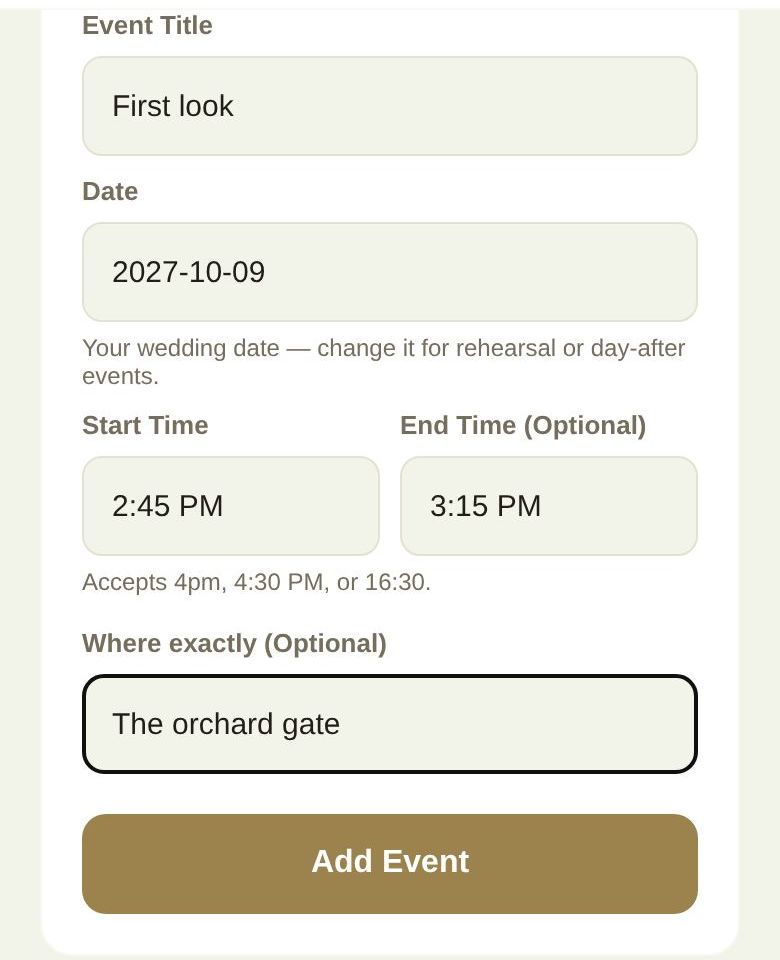
If something's off, the form tells you, for example that an end time is before the start (check am and pm) or that a date isn't in the right format.
Your schedule
Events are grouped by day, like Friday, October 8 and Saturday, October 9 · Wedding Day. Each shows its start time, when it ends and where. Tap the pencil to edit an event and Save Changes, or the trash icon to delete it. Deleting removes it from every guest passport too.
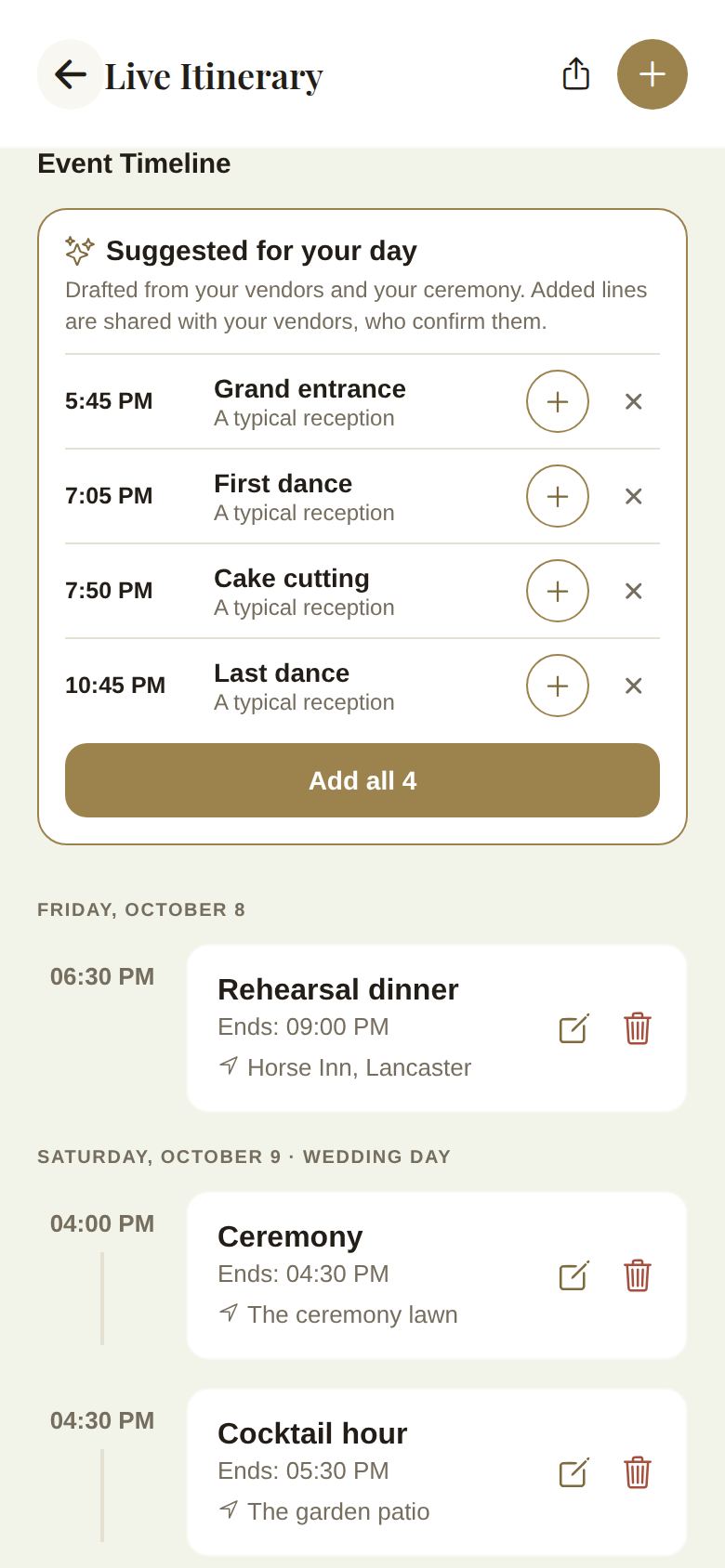
At the top, Next up shows the next event and how long until it starts, such as "in 3 hours". On the wedding day, that's the whole point of the screen.
Let the timeline draft itself
Under Suggested for your day, The Veil drafts lines for you from your ceremony and your booked vendors: vendor arrivals, hair and makeup, cocktail hour, dinner, toasts, the first dance, golden hour and more. Tap + to add one, × if it's not for you, or Add all. See Suggested lines and vendor confirmations.
Share with your vendors
Once you've booked and paid at least one vendor through The Veil, each event has Share this with your vendors. It's off by default, one event at a time, because the 7am hair appointment isn't the caterer's business. The screen names exactly who will see it, like "Light & Co Photography and 3 others". They see the time and place of that moment, nothing else, and they're told if it moves. Shared events show Shared with your vendors.
Share the day as an image
Tap the share icon at the top to make a picture of your wedding day's schedule for Stories.
On the wedding day
While day-of mode is on, saving a change shows Tell guests about this change. Leave it ticked and everyone with the app gets a notification; untick it to update passports quietly. Deleting an event asks Tell guests? with Notify guests or Delete quietly. See The wedding day.
Working with helpers
- Your partner can do everything you can.
- A co-planner's changes go to you for approval. They see Submitted for review, and pending events are marked Pending.
- Your day-of coordinator's changes go straight in. They see Your changes save immediately — nothing waits for approval. and guests are always told about their changes on the day.
Good to know
- Times show in the time zone of the device you're using.
- Up next on your Home screen, on a computer, reads from this timeline.
Did this answer it?
Updated September 30, 2026