Help · For couples · Your style and story
Notes Hub: answers for guests and private notes
Public notes become the Good to know section on every invitation and passport. Private notes stay with you.
The Notes Hub has two kinds of notes. Public (Guests) notes are your wedding's FAQ: they appear on every guest's invitation page under Good to know and on their passport under Need to Know. Private (Host) notes are for you, your partner and your co-planners only. Open Notes from Home.
Answer the questions guests always ask
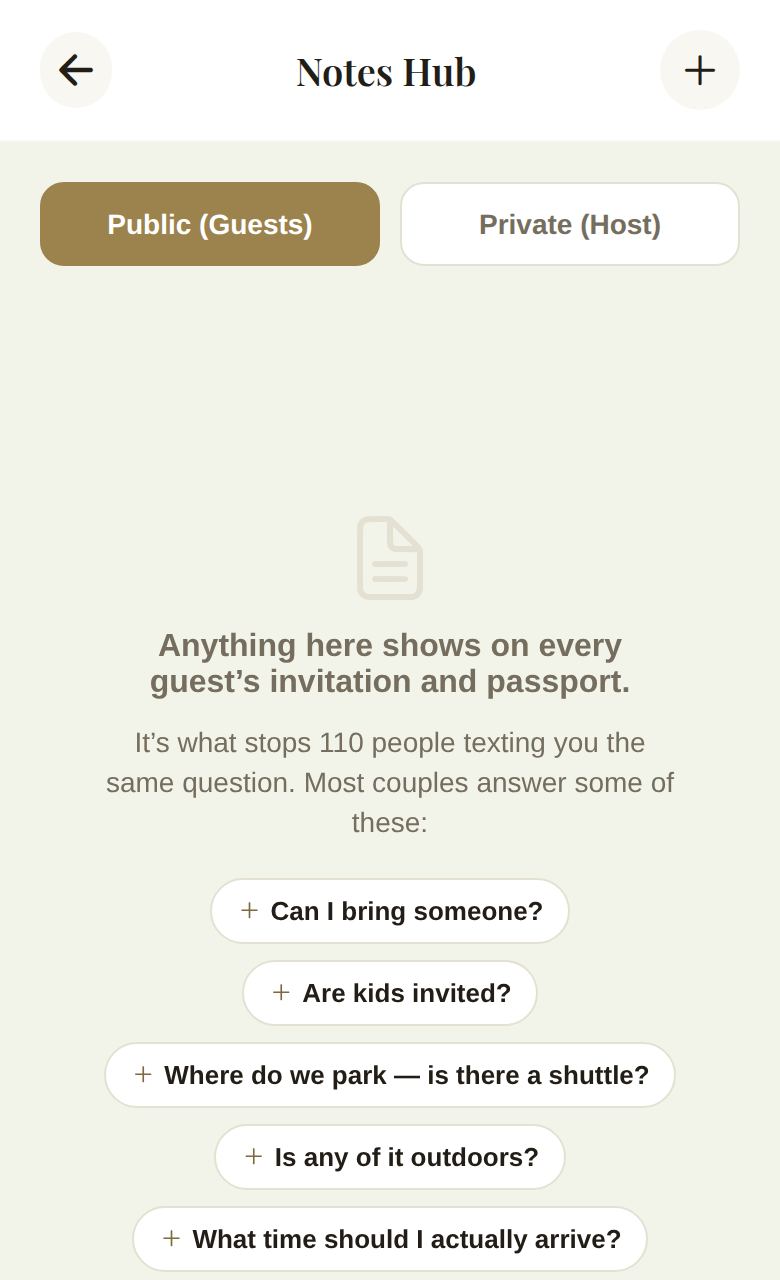
If you don't have any public notes yet, the Notes Hub suggests questions most couples answer:
- Can I bring someone?
- Are kids invited?
- Where do we park — is there a shuttle?
- Is any of it outdoors?
- What time should I actually arrive?
- Is there an open bar?
- Can we post photos?
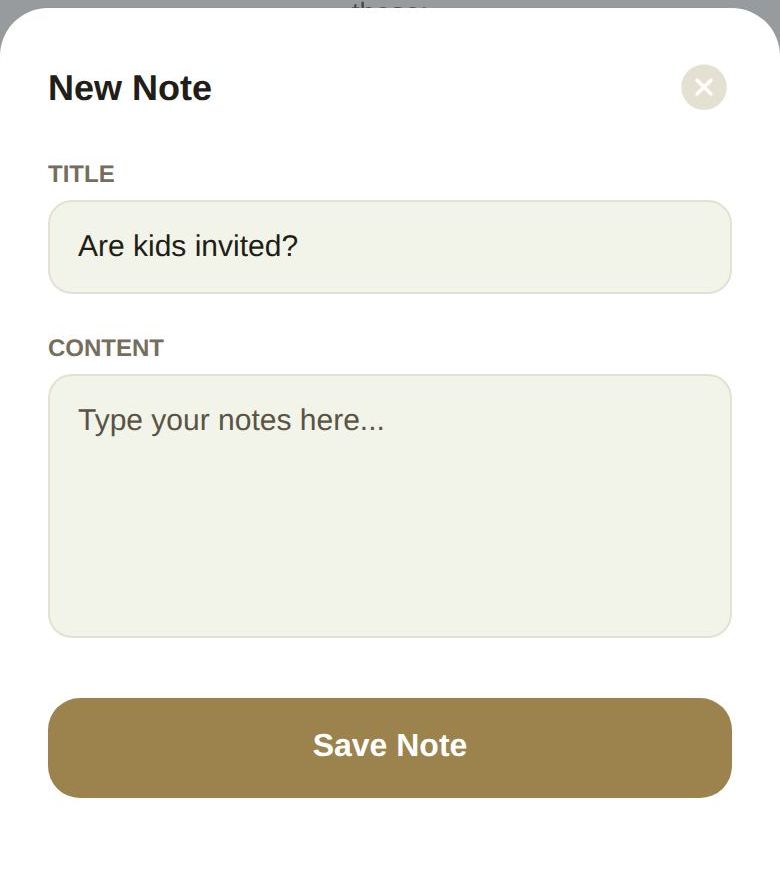
Tap one and a new note opens with that question as its title. You only write the answer.
Write a note
- Choose the tab first: Public (Guests) or Private (Host). The note is saved to the tab you're on.
- Tap + at the top right.
- Add a Title and the Content. Both are needed.
- Tap Save Note.
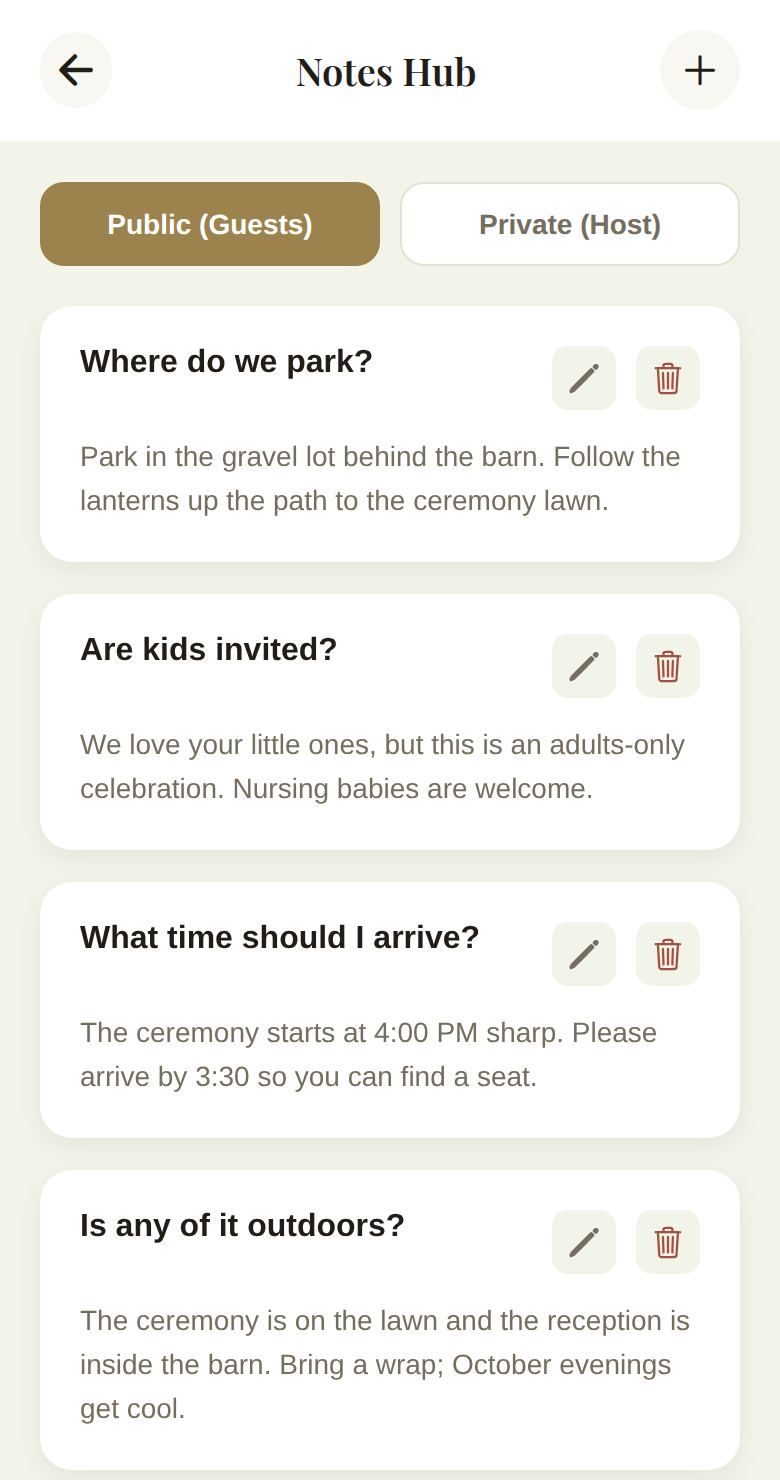
Keep public answers short and practical: where to park, what time to arrive, what to wear on grass. Guests read them on their phones.
Edit or delete
Tap the pencil on a note to change it, then Save Note. Tap the trash icon and Delete to remove it. Changes to public notes show on guests' invitations and passports straight away.
Private notes
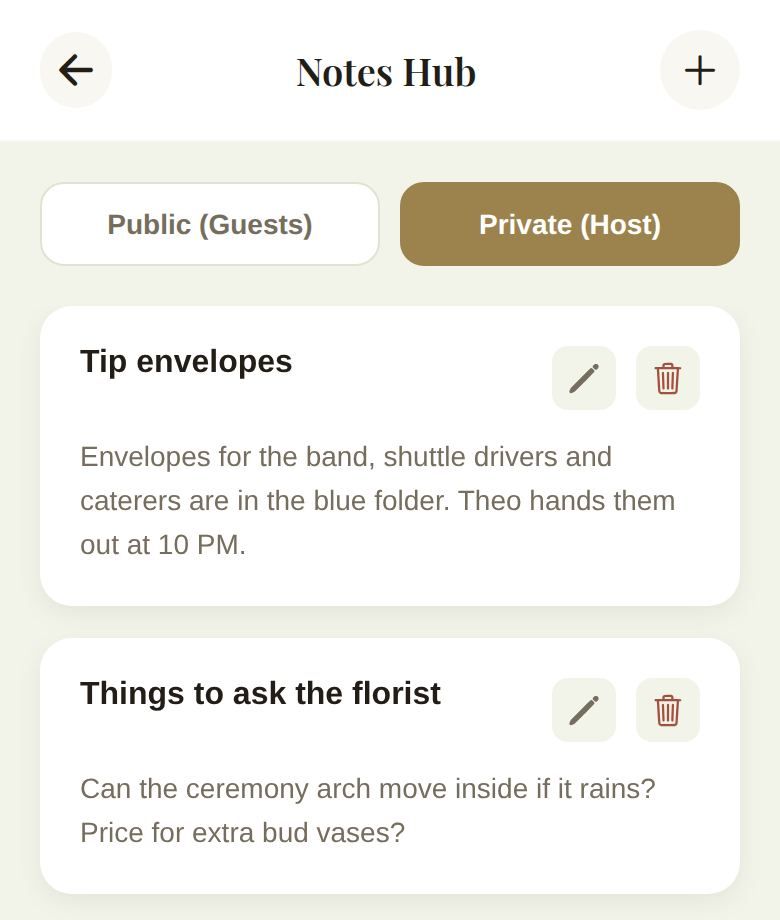
Use Private (Host) for things guests shouldn't see: tip envelopes, questions for the florist, a seating worry. They never appear on an invitation or passport.
Working with helpers
- Your partner can add, edit and delete notes just like you.
- A co-planner's note goes to you for approval. The button reads Submit Request, they see Submitted for Review, and the note shows Pending until you decide.
- During day-of mode, your coordinator's note changes go straight in.
Good to know
- Notes belong to your account, so every alternate build shares them.
- For your love story and dress code, use Content Hub. Guests see those on their passport too.
Did this answer it?
Updated September 30, 2026