Help · For couples · Getting started
Plan more than one version of your wedding
Try a second venue, budget or date side by side with alternate builds, and choose which one is live.
Not sure between a barn in October and a city hotel in May? An alternate build is a full copy of your wedding plan that you can change freely without touching the original. With Plus you can keep up to five side by side. This guide covers creating, switching, choosing the live one, and deleting.
Who can do this
- Your first wedding is free for everyone.
- Create Alternate Build needs Plus, and you can own up to five builds. On the free plan, tapping it shows Unlock Multiple Weddings.
- If you've joined your partner's wedding as their Secondary Host, you use their wedding, so you won't see Create Alternate Build.
Create an alternate build
- Tap Home in the bottom bar so you see Your Weddings.
- Tap Create Alternate Build under your weddings.
- A copy of your active build opens straight away, marked Inactive Build. Change anything you like.
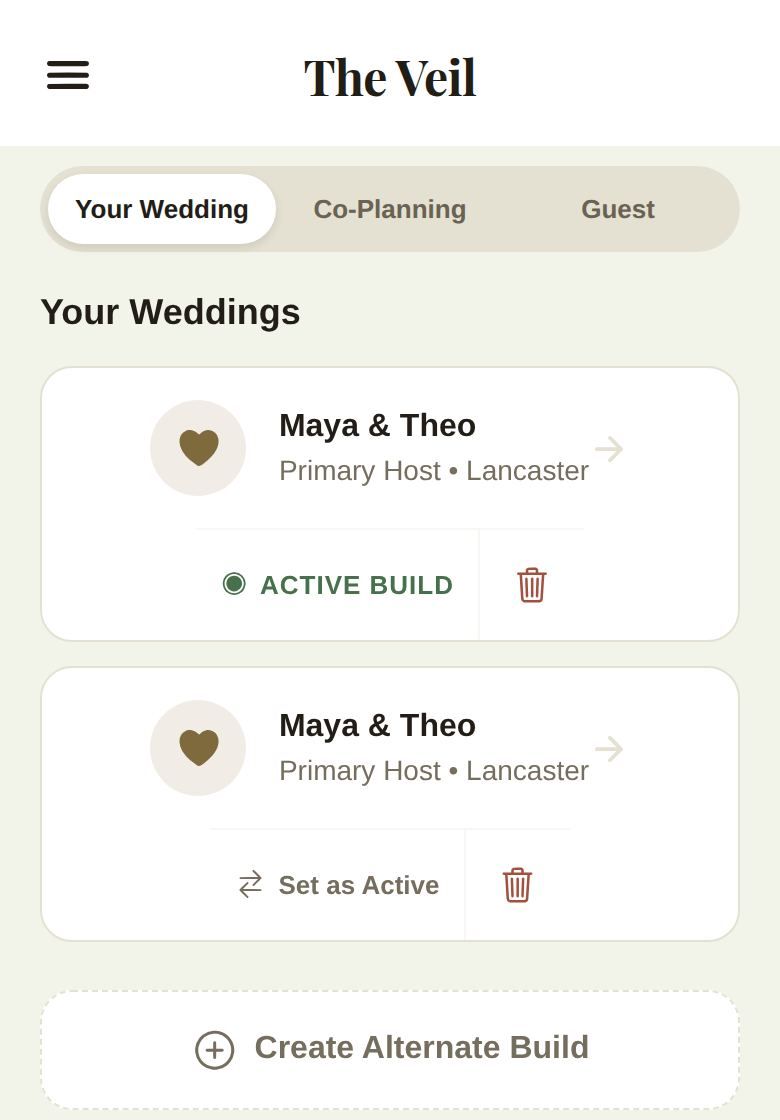
The copy includes your names, photos, budget and costs, Wedding Vibe, DIY projects, music and your floor plans with every table and seat. Change a copy and the original stays exactly as it was.
Some things belong to your account rather than to one build, so every build shares them: your guest list and RSVPs, checklist, timeline, notes, Content Hub and the vendors you've booked.
Switch between builds
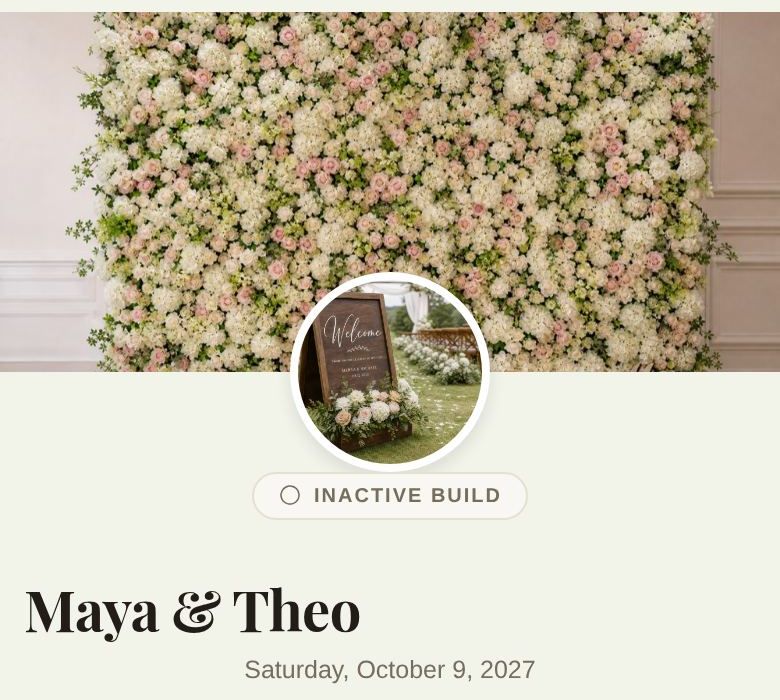
Tap any card under Your Weddings to open it. The badge under your wedding photo shows Active Build or Inactive Build, so you always know which one you're changing.
Choose which one is live
One build is always the Active Build. It's the version your partner and co-planners work on and the one your guests see. To change it, tap Set as Active on another card. The badge moves to it and the old one becomes inactive.
Before you switch, it's worth checking the new one with the eye icon on Home, which previews your wedding as a guest sees it. See Your Home screen, explained.
Delete a build
- Tap the trash icon on the build's card.
- Tap Move to Trash. The build moves to a Trash section at the bottom of the list, with the date you deleted it.
- Changed your mind? Tap Restore.
- To remove it for good, tap Delete Forever, then confirm. This permanently deletes the build and its floor plans and can't be undone.
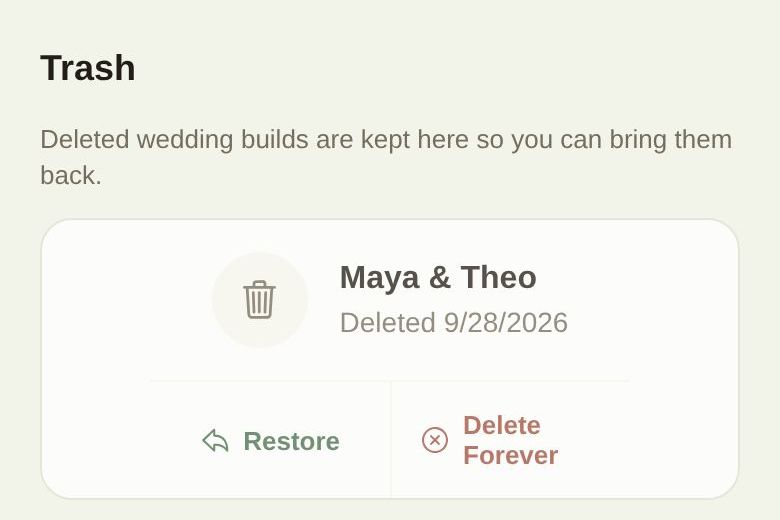
Deleting a build frees its slot, so you can create another.
If you join your partner's wedding
If you had started a wedding of your own and then join your partner's as Secondary Host, your own build is kept safely in Trash, labelled Stored while you Secondary Host · returns on disconnect. Its button shows Locked, because it comes back automatically if you ever disconnect. See Invite your partner.
Good to know
- The trash icon only appears on builds you own. To leave someone else's wedding, remove its passport from the Co-Planning or Guest tab instead.
- If you stop paying for Plus, your extra builds stay where they are. You just can't create new ones until you're back under the free limit of one.
- Co-planners only ever see your active build.
Did this answer it?
Updated September 30, 2026