Help · For couples · Budget, checklist and timeline
A checklist that keeps up with you
Your tasks move with your date, tick themselves off as you plan, and grow when you book vendors.
The Live Checklist is a to-do list for the whole engagement, with a due date on every task. It isn't a static list: it moves when your date moves, ticks things off when you've already done them elsewhere in the app, and adds follow-ups when you book vendors. It's free, AI and all.
Make your checklist
Open Checklist from Home. The first time, you'll see Your Intelligent Checklist. Tap Generate Custom Checklist.
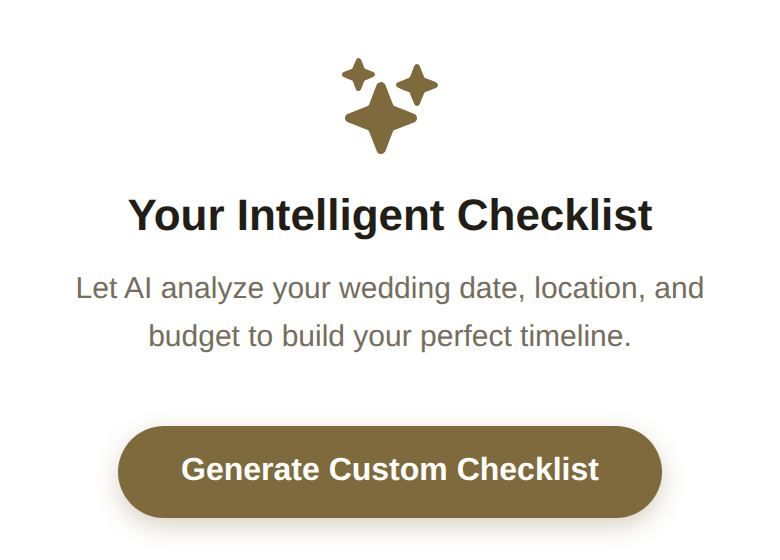
The AI reads your wedding date, budget and location and writes a detailed list, usually 60 to 80 tasks, from booking the venue to packing an emergency kit. Each task gets a category and a due date counted back from your wedding. No due date is ever set in the past: anything that should already have happened is due today. If you haven't set a date, the list is built for a wedding a year from now; set your date in Wedding Vibe and the tasks move.
Reading a task
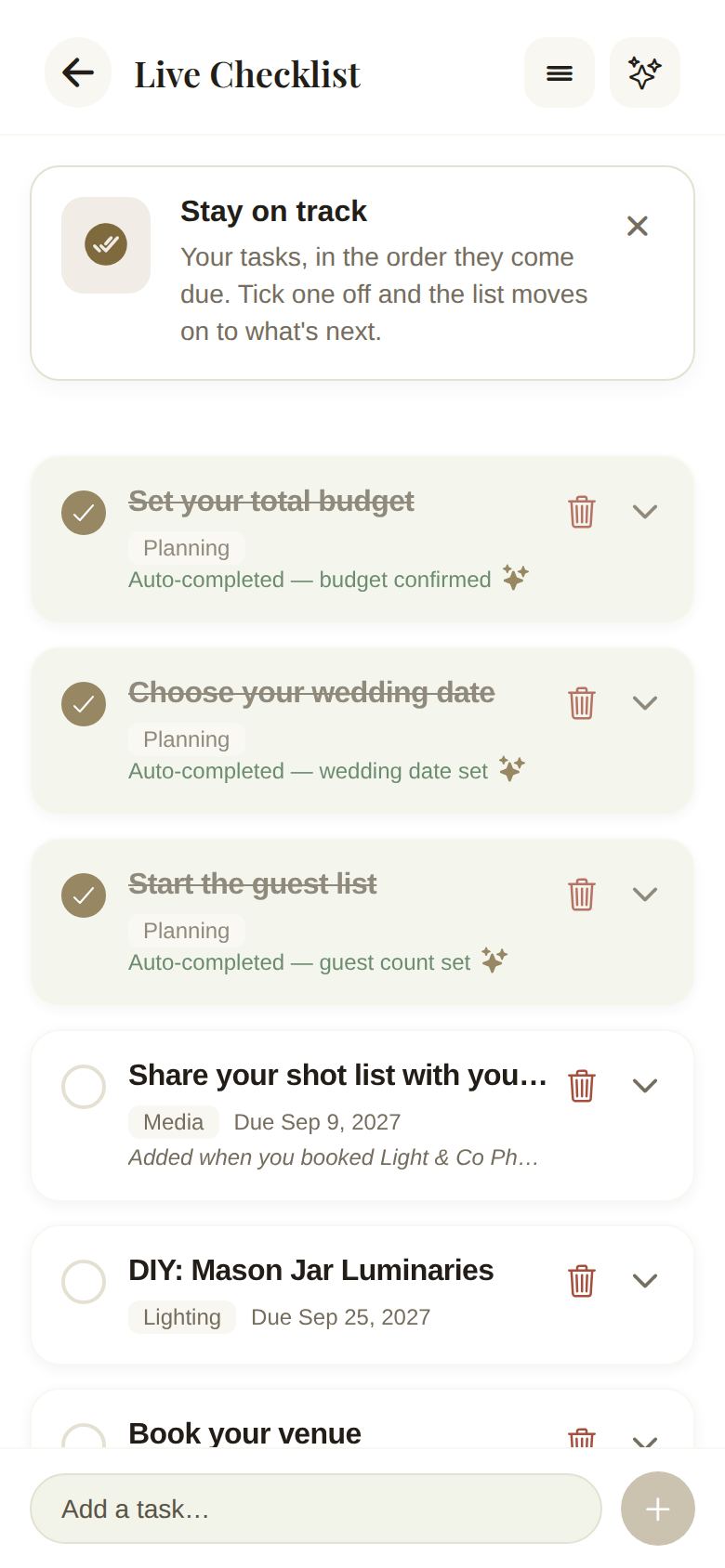
- Tap the circle to mark a task done. Tap again to undo.
- Each task shows its category and Due and a date. Done tasks show Completed and a date, or the reason they were ticked off for you.
- A sparkle icon marks tasks the AI wrote.
- Tap the arrow on the right (or the task) to open it and see the details and, where there is one, an Estimated Cost.
It ticks things off for you
Each time you open the checklist, it checks what your plan already shows and completes matching tasks, with the reason:
- Auto-completed — budget confirmed once you've set a budget.
- Auto-completed — wedding date set once your date is set.
- Auto-completed — venue booked once you've booked a venue.
- Auto-completed — guest count set once you've started your guest list.
- Auto-completed — registry started once your registry has items.
- Done — vendor booked when you book a vendor, for the matching "book a…" task.
Tasks you added yourself are never ticked off for you.
It moves with your date
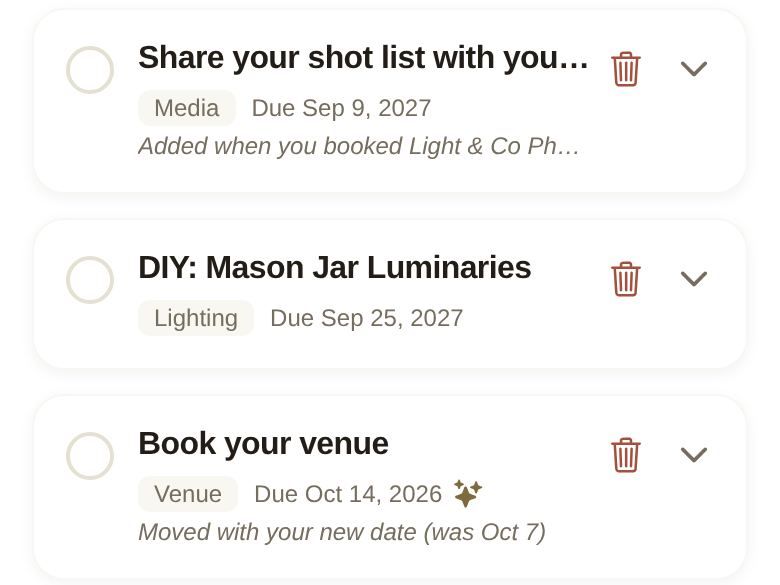
Change your wedding date and the plan's own tasks move with it, keeping the same distance from the day. A moved task shows Moved with your new date and the old date, like "(was Oct 7)". When something moved, a note at the top says how many tasks moved, and reminds you that Tasks you wrote or changed stay where you put them.
If the deadlines ever look out of step with your date, you'll see Your wedding date changed with a Resync button. Tap it to move them.
It grows when you book vendors
Book a vendor and their "book a…" task is done, and the follow-ups for that kind of vendor appear, each saying Added when you booked and the vendor's name. For example:
- A caterer brings a tasting and sending dietary needs from your RSVPs.
- A photographer brings sharing your shot list and going over the day's timing.
- Hair and makeup bring a trial and confirming the morning schedule.
- A venue brings a final walkthrough and sharing your floor plan.
- An officiant brings planning the ceremony and getting your marriage license.
- A florist, DJ or band, videographer, stationer, cake baker, transport company, planner or rental company each bring their own.
DIY build days
Every project in your DIY workbench gets a task like "DIY: Mason Jar Luminaries", due two weeks before the wedding, with how long it takes and how many materials to gather. Deleting the project doesn't delete the task, in case you've already started; delete it yourself if you don't need it. See The DIY workbench.
Good to know
- Your partner and co-planners see the same checklist, and changes appear for everyone live.
- To add your own tasks, reorder or regenerate, see Add, reorder and regenerate tasks.
- Tasks done on your Home screen counts from this list.
Did this answer it?
Updated September 30, 2026