Help · For couples · Budget, checklist and timeline
Your budget
See your target, what's allocated and what's spent, category by category, with vendor payments added for you.
Budget keeps your total, your categories and every cost in one place, and it fills itself in as you pay vendors through The Veil. Open it from the Budget card on Home. The screen is called Budget Analyzer and has three tabs: Categories, Vendors and Allocation & AI.
The Financial Overview
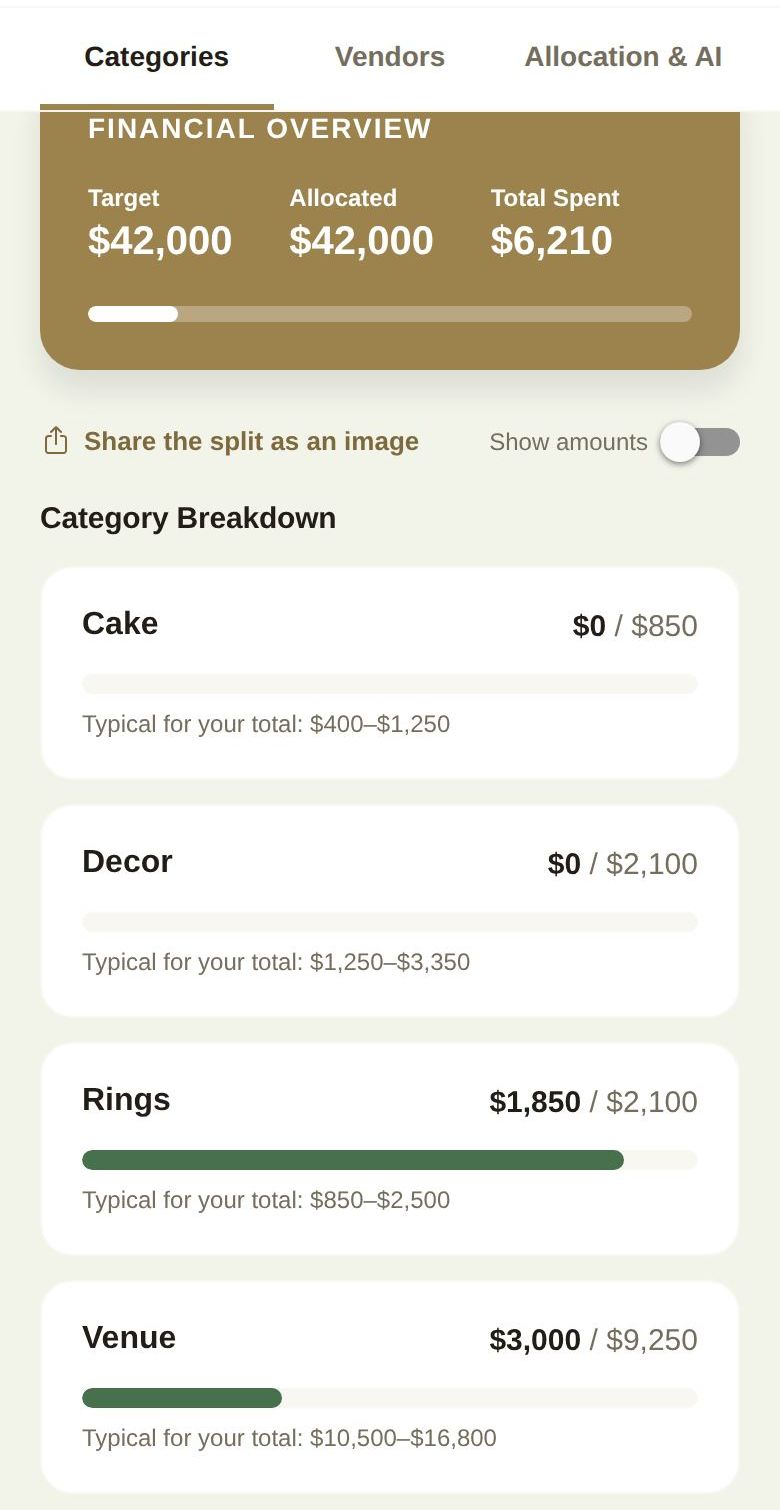
At the top of Categories is your Financial Overview:
- Target: the total you set.
- Allocated: the sum of every category.
- Total Spent: everything logged, plus what you've paid vendors through The Veil. If it goes over your target you'll see Over budget.
The bar underneath fills as you spend.
The Category Breakdown
Each category shows what's spent against what's allocated, like "$3,000 / $9,250", with a bar that turns red when you go over. A small briefcase with a number shows how many booked vendors sit in that category. With Plus, each category also shows a typical range; see Is our budget split normal?
Your categories come from setup: Venue, Catering, Photography, Attire, Florals, Decor, Entertainment, Stationery, Makeup, Rings, Transport, Cake, Favors, DIY Projects and Buffer. If nothing has been logged yet you'll see No expenses logged yet.
Log a cost
Tap any category to open it.
- Tap Log Custom Cost.
- In Log a Cost, type a Vendor or Item Description and the Total Cost ($).
- Tap Save Cost.
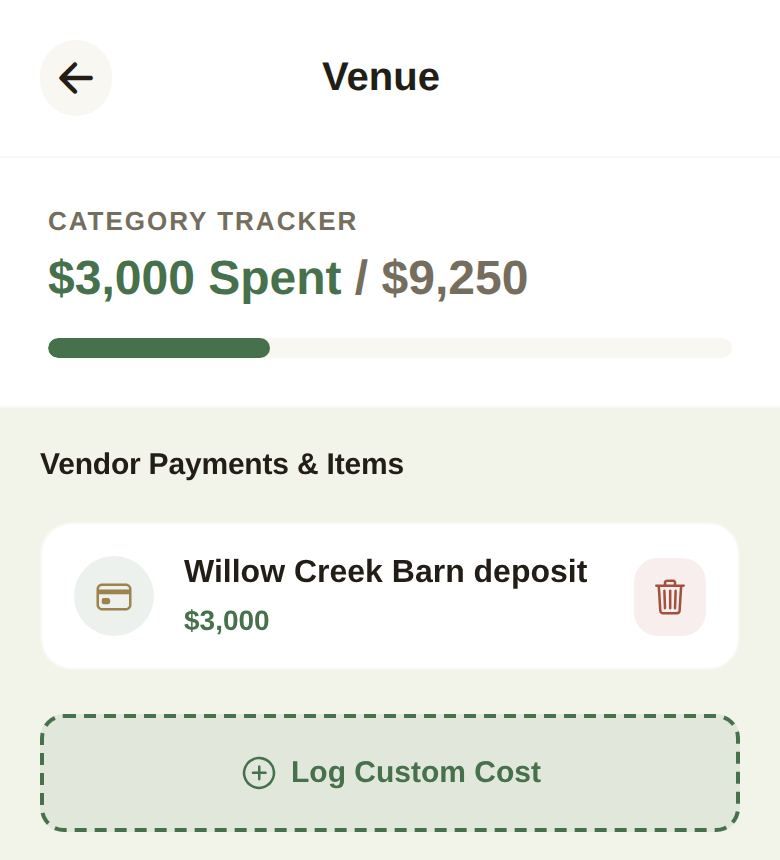
To change a cost, tap it and use Update Cost, or Delete Item to remove it. The trash icon on each line removes it too. See Log costs in a category.
Vendors you book are added for you
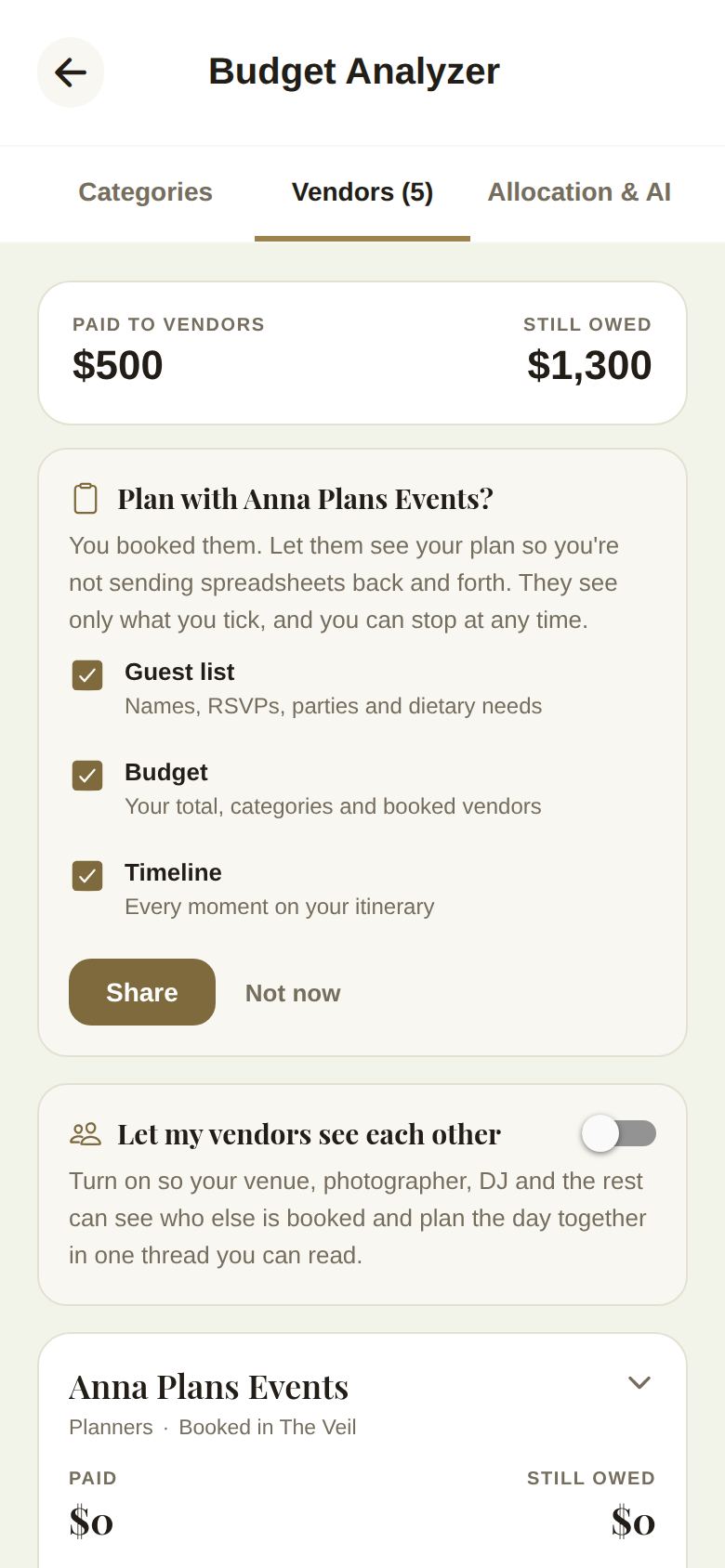
When you pay a vendor through The Veil, the payment counts toward that vendor's category automatically. Inside the category, booked vendors appear at the top under Vendors, and your own costs under Other costs. The Vendors tab lists everyone you've booked with what you've paid, what's still owed and any document waiting for your signature. See Pay, sign and book and Vendors you booked elsewhere.
Change your total or the split
The Allocation & AI tab is where you change your Total Budget Target, let AI rebalance everything with Auto-Reallocate via AI, or move money by hand with sliders. See Change your total and rebalance.
Share the split as an image
Under the overview, tap Share the split as an image to make a picture of your categories for Stories. By default it shows proportions only. Switch on Show amounts first if you want the dollar figures on it.
Working with helpers
- Your partner has full access, just like you.
- Co-planners you've given budget access can make changes, but they go to you as a request. They tap Send Request, and you see Changes are pending Host approval until you review it from Review on Home.
- Your day-of coordinator can see the budget and what's owed, but can't change it or send requests.
- If someone else has Budget open, you'll see who, and can come back in a moment.
Good to know
- DIY projects add an AUTO line called "DIY projects & materials" to the DIY Projects category. It updates from the DIY workbench and can't be deleted here.
- Budget is free. Only the typical-cost ranges need Plus.
Did this answer it?
Updated September 30, 2026