Help · For wedding businesses · Getting started
Your page: what couples see
The storefront couples open when they find you, how to edit it, and where they see it.
Your page is your storefront on The Veil. Couples see it when they find you in the app, and anyone can open it at your public link. You edit it under Page in the portal. Owners and managers can edit it.
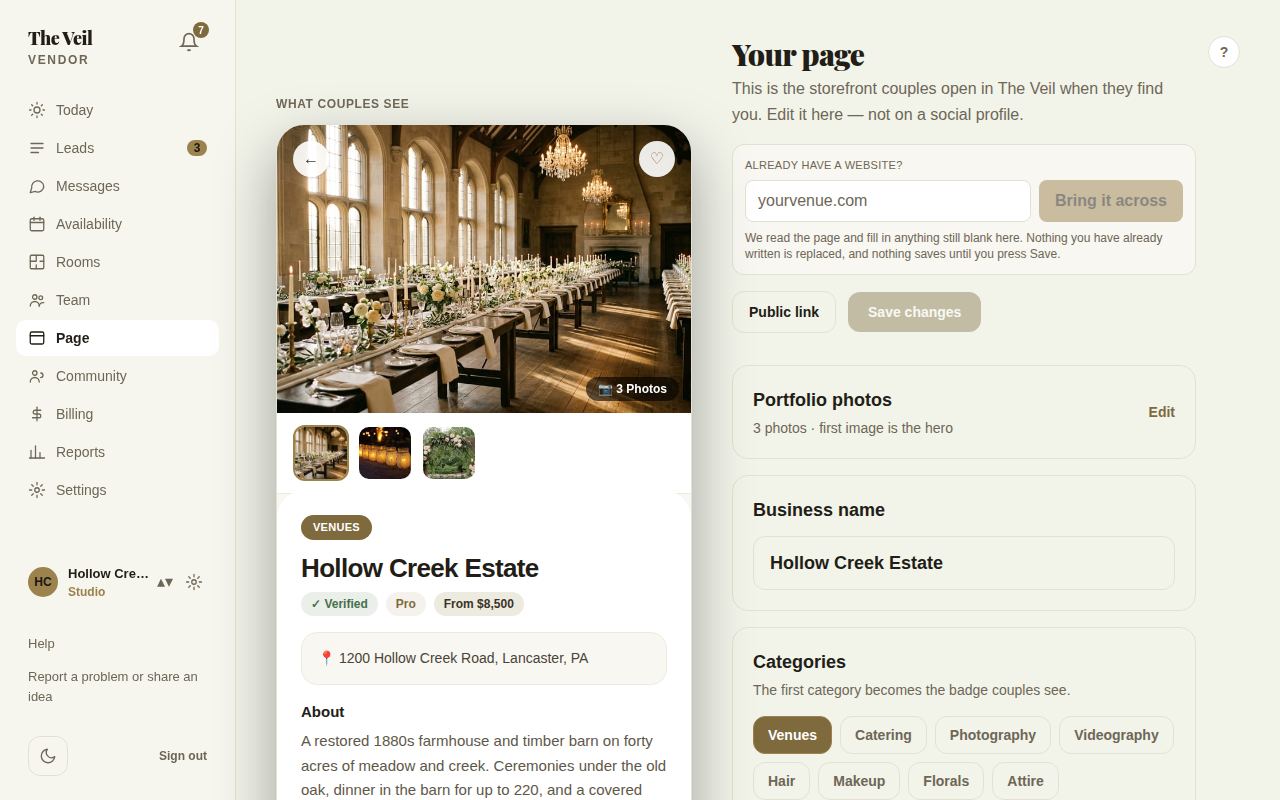
The two halves of the screen
- What couples see, on the left, is a live picture of your page on a couple's phone. It changes as you type, and it's always in light colors because that's what couples see.
- The edit panels on the right: photos, name, categories, starting price, website, address and About.
Most panels save together with Save changes, which lights up once you've changed something. Photos are the exception: each photo you add or remove saves straight away. When it's saved you'll see Saved, couples will see this on refresh.
Everything on your page
Further down the same screen, each in its own section:
- Photos and details: portfolio photos, name, categories, price, address and your description.
- Events you take: Weddings, Corporate events, Social events and Other events. Tap to turn each on or off; it saves at once and shows on your page. At least one stays on.
- Your inquiry form: your own questions, logo and button color.
- Hand couples the app: a QR code and printable card.
- Packages and questions: where you work, up to six packages and up to twelve FAQs.
- Insurance and licenses.
- Reviews, with your replies.
What couples see
On the public page, in this order: your photos, your first category, your name, badges (Verified on Pro and Studio, Usually replies within … if you've earned it, your starting price and the events you take), your address, About, your availability calendar on Pro and Studio, Where they work, Packages, Questions, Paperwork, and reviews. At the bottom, couples choose Open in The Veil, or Or send a message without the app, which opens your inquiry form.
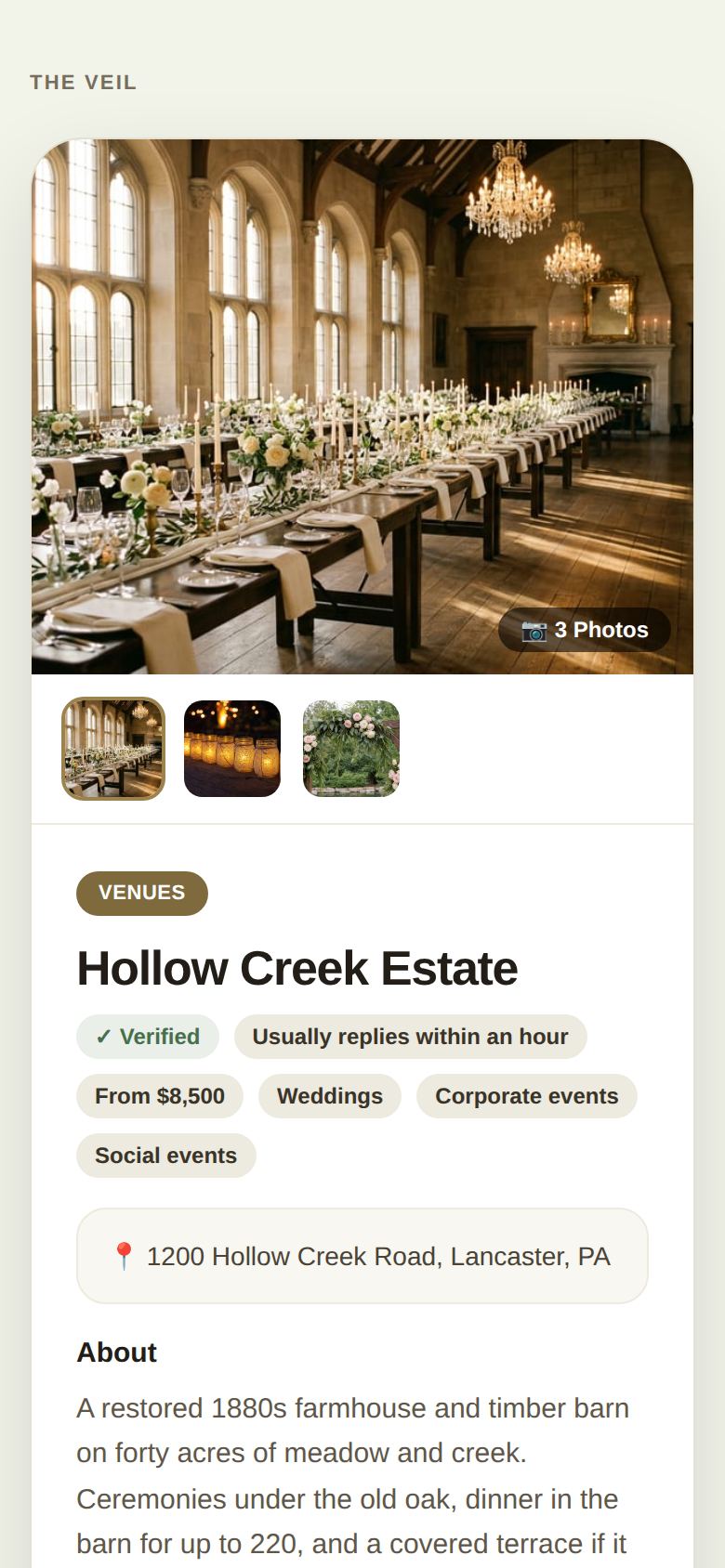
On Free, the preview shows where the availability calendar would be, with Upgrade. Blocked dates are managed under Availability; see Availability and blocking.
Your public link
Public link at the top opens your page as a stranger sees it. To share it, see Share your page and badges. Your link works as /v/ followed by your business's short name, and the older /v/ link with a long code keeps working too, so printed cards never break.
Good to know
- Your page is only visible once setup is finished. Before that, the link shows a "not available" page.
- A separate Social profile under Community is how you appear in the Discover feed. It is not your storefront; see Community.
- Coordinators and day-of staff can't change your page.
Did this answer it?
Updated September 30, 2026