Help · For wedding businesses · Getting started
Finish setup and go live
The five things couples need before they can find and book you, and what happens when you go live.
Once your claim is confirmed, the portal opens Set up {your business}. Couples can't find or book you until this is finished, and it usually takes five minutes.
What to fill in
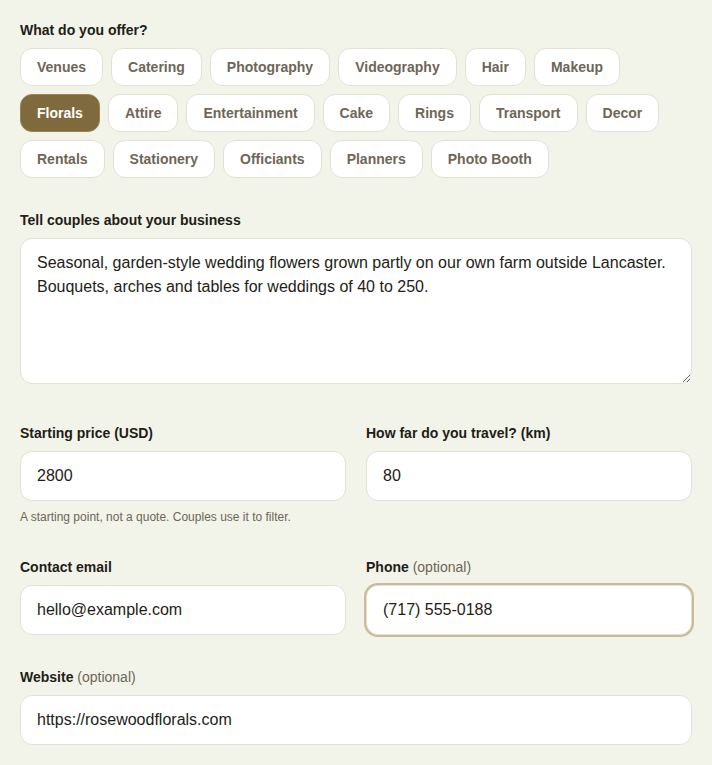
- What do you offer? Pick every category you work in: Venues, Catering, Photography, Videography, Hair, Makeup, Florals, Attire, Entertainment, Cake, Rings, Transport, Decor, Rentals, Stationery, Officiants, Planners or Photo Booth. Categories are how couples filter, so without one you don't appear in searches. Your first category is the badge on your page.
- Tell couples about your business. At least a couple of sentences (20 characters is the minimum; 120 or more reads far better). What makes you different, and what should a couple know before they write?
- Starting price (USD). A starting point, not a quote. Couples use it to filter by budget.
- How far do you travel? (km). This decides which weddings you're shown for.
- Contact email. Where we send new lead alerts.
- Phone and Website are optional.
- Portfolio photos. Optional here, but couples decide on photos first. You can add up to 12; see Photos and details on your page.
The Getting paid box is a reminder, not a step. You can take inquiries now and set up payouts any time from Billing; see Connect payouts.
Go live
Choose Save and go live. If something is missing, a box lists exactly what: Add a starting price, Set how far you travel, Write at least a couple of sentences, Add a contact email or Pick at least one category. Everything you did fill in is saved.
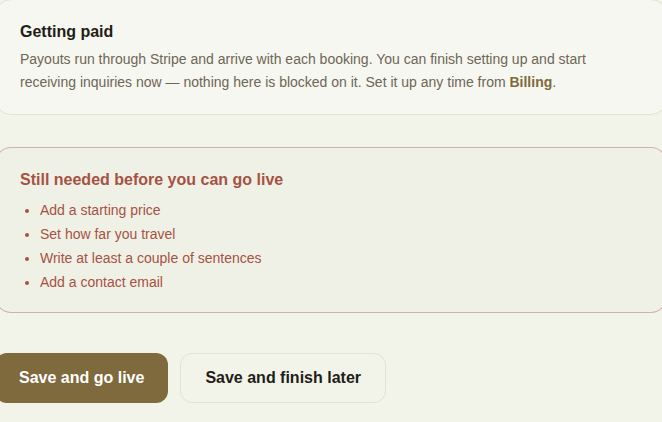
Not ready? Save and finish later keeps what you've written. Come back to it from Settings, Finish setup, or just open the portal again.
What going live does
- Your page appears to couples in The Veil app and at your public link.
- Your name in messages becomes your business name, and your first portfolio photo becomes your picture.
- If your categories have a starter kit, the portal offers it next. See Start with a kit for your trade.
Good to know
- Everything here can be changed later on your Page, except the travel distance and contact email, which live on this setup screen. Open it again from Settings if you need to.
- The Profile strength card on Leads and in Settings tells you the next most useful thing to add. See Profile strength and badges.
Did this answer it?
Updated September 30, 2026