Help · For wedding businesses · Getting started
Switch to The Veil from HoneyBook, Dubsado or a spreadsheet
Bring your clients, balances, contract, packages and payment plan across in an afternoon, and take everything with you whenever you like.
Switching is one screen: Leads, Import or export (in the app: More, Switch to The Veil). Owners and managers can use it. It has four parts, top to bottom.
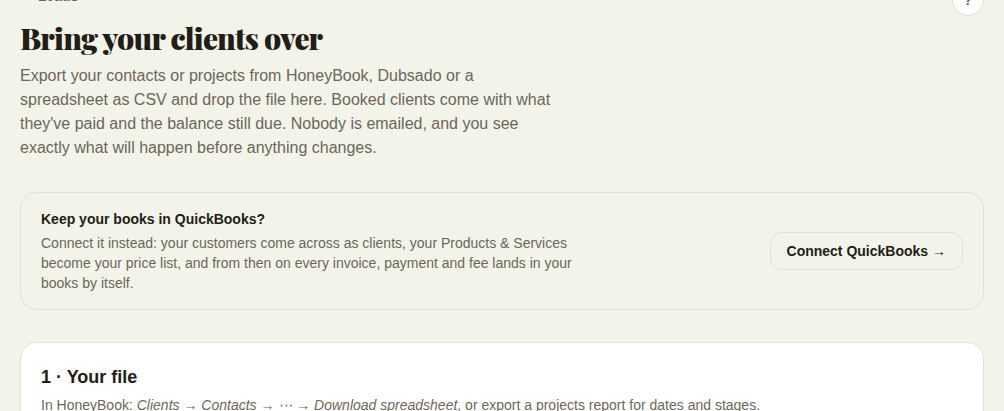
1. Your clients
Export your contacts or projects from HoneyBook, Dubsado or a spreadsheet as a CSV file and drop it in. You tell us which column is which and what your stages mean, see exactly what will happen, then import. Booked clients come across with what they've paid and the balance still due. Nobody is emailed.
Step by step: Import your clients from a spreadsheet.
2. Keep your books in QuickBooks?
If you use QuickBooks Online, Connect QuickBooks is the shortcut: your customers come across as clients, your Products and Services become your price list, and from then on every invoice, payment and fee lands in your books by itself. QuickBooks is on Pro and Studio. See Reports and QuickBooks.
3. Your contract, packages and payment plan
Upload the contract and price list you use now, as PDF or Word, or paste the text. We read them and draft your contract template, packages, invoice fees and usual payment plan. Your contract's wording stays exactly as it is. You check everything before it's saved.
Step by step: Bring your contract and price list across.
4. Take everything with you
Every lead, invoice, payment, refund, appointment and contract as spreadsheets, whenever you want them. See Export your data.
A switching plan that works
- Import your booked clients first, so balances and dates are right.
- Bring your contract and price list across, and check the drafts.
- Put the inquiry form on your website, so new inquiries land here.
- Point The Knot, WeddingWire or Zola emails at your forwarding address, if your portal shows one.
- Send each booked client their client page, so they pay and sign in one place. See Clients without an account.
Good to know
- Coordinators and day-of staff don't see this screen.
- Nothing here sends anything to your clients.
Did this answer it?
Updated September 30, 2026