Help · For wedding businesses · Your page
Community: post your work
Share photos from real weddings, show up in couples' Discover feed with a Vendor badge, and edit your social profile.
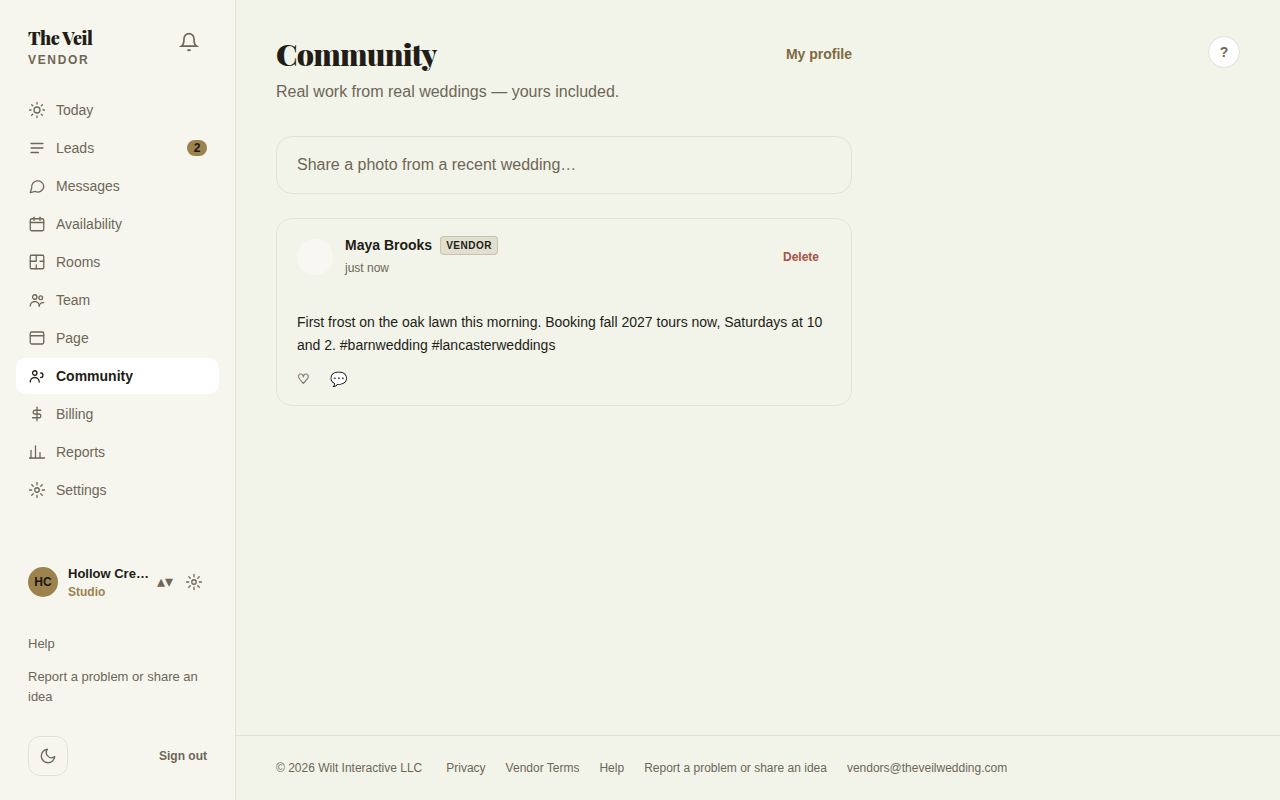
Community is the portal's feed of real work from real weddings. What you post there can appear in couples' Discover feed in The Veil app with a Vendor badge, and couples can message you from it. It uses the same login as the rest of the portal.
Your social profile is separate from your storefront. Your prices, packages and reviews live on your Page.
Post something
- Open Community.
- Choose Share a photo from a recent wedding…
- Write a caption, up to 2,200 characters. Use #hashtags to get discovered.
- Add photos: up to 10.
- Choose who sees it: Public or Followers.
- Choose Post.
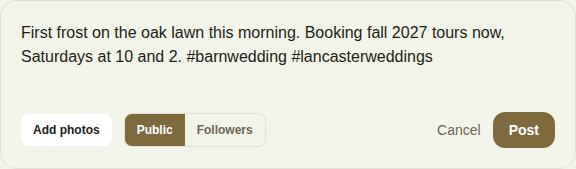
A post needs a caption or at least one photo. Photos are added in the order you pick them, and the ✕ on a photo removes it before you post.
Likes, comments and messages
Tap the heart to like a post and the speech bubble to see comments. Tap a name to see that person's profile and message them.
Delete a post
Choose Delete on your own post. Its comments and likes go with it, and it can't be undone.
Your social profile
Choose My profile, then edit it at Community, Profile, Edit.
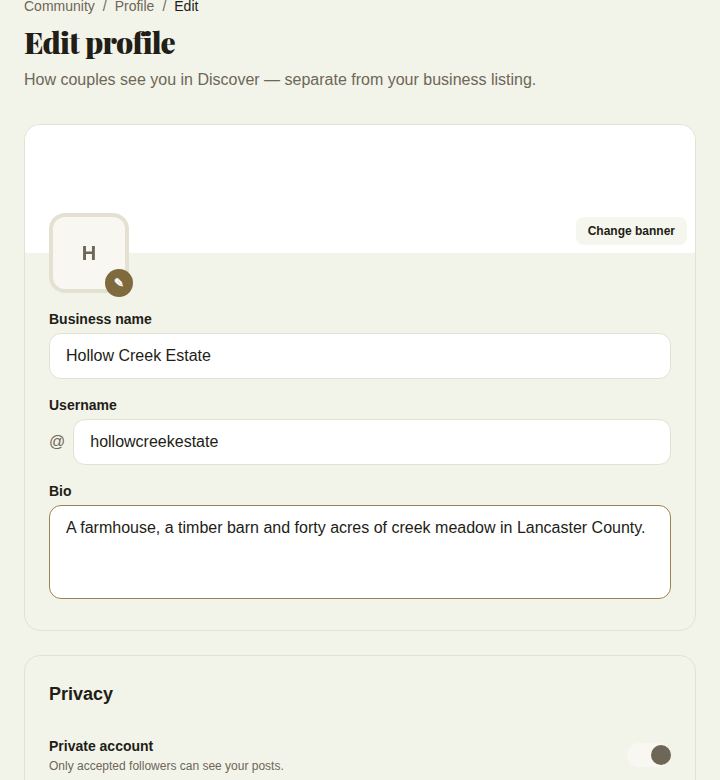
- Change banner and Change avatar for your pictures.
- Business name (can't be empty), Username and Bio.
- Private account: only followers you accept see your posts.
- Default post visibility: who sees a new post unless you change it when posting.
- Show liked posts: lets people who can see your profile see what you've liked.
Choose Save profile.
Good to know
- You can also reach Community from Settings, Community, Open community feed.
- Only post photos you have the right to share, and that the couple is happy to see online.
- Public posts can appear in couples' Discover feed. Followers posts only reach people who follow you.
- Posts are shown under the name on your social profile, which can be different from your storefront's.
Did this answer it?
Updated September 30, 2026