Help · For wedding businesses · Getting started
Sign in, reset your password and turn on two-factor
Getting into the portal, getting back in when you forget, and protecting it with a code from your phone.
The portal lives at theveilwedding.com/portal. You sign in with the email and password you registered with. The same login works in The Veil Vendors app.
Sign in
- Open the portal and enter your Business email and Password.
- Choose Sign in.
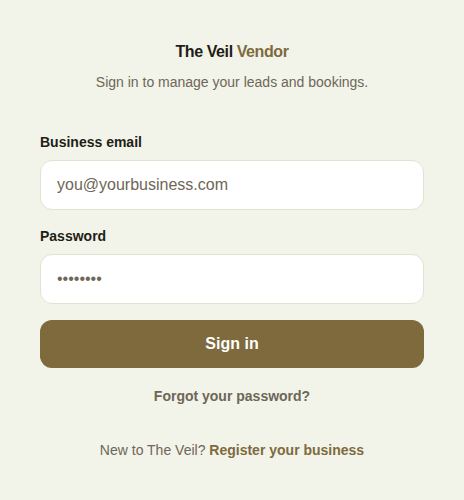
After several wrong passwords in a row, the button shows Try again in …s and counts down. Wait, then try again.
Forgot your password
- On the sign-in screen, type your email and choose Forgot your password?
- If there is an account for that email, a reset link arrives. It lasts one hour.
- Open the link. Under Set a new password, enter and confirm a password of at least 8 characters, with a letter and a number, then choose Save new password.
If the page says the link has expired or was already used, request a new one from the sign-in screen.
Two-factor authentication
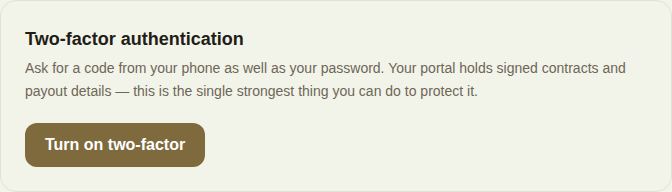
Two-factor asks for a 6-digit code from your phone as well as your password. Your portal holds signed contracts and payout details, so this is the single strongest thing you can do to protect it.
- Open Settings and find Two-factor authentication.
- Choose Turn on two-factor.
- Scan the QR code with an authenticator app, such as 1Password, Google Authenticator, Authy or your password manager. Can't scan? Type the key shown under it into the app instead.
- Choose I've scanned it, enter the 6-digit code the app is showing, and choose Turn on.
- Save your ten backup codes. Choose Copy all codes, keep them somewhere safe, then Done — I've saved them. Each works once, and this is the only time you see them.
From then on, after your password the portal asks you to Enter your code.
If you lose your phone
At the code screen, choose I've lost my authenticator and enter one of your backup codes (they look like XXXX-XXXX). Using a backup code switches two-factor off, so you can set it up again on your new phone. Do that straight away.
Managing two-factor
When it's on, the card shows On and how many backup codes you have left.
- New backup codes replaces the old ones. The old ones stop working.
- Turn off asks for a current code from your app.
Good to know
- Each person on your team has their own login and sets up their own two-factor. Nobody else can see or set your password.
- Signing out of The Veil Vendors app doesn't sign you out of the portal on your other devices.
Did this answer it?
Updated September 30, 2026