Help · For wedding businesses · Getting started
Sign up and claim your business
Create a vendor account, find your business, and prove it's yours so you can take bookings on The Veil.
The Veil lists wedding businesses from public map data, so your business may already have a page waiting for you. Claiming it puts you in charge of that page, its leads and its bookings. It takes a few minutes, and listing is free.
This guide is for the owner. If a colleague already runs your business on The Veil, ask them to add you instead; see Invite your team.
1. Create your vendor account
- Go to theveilwedding.com/business and choose Claim your business, or open the portal at theveilwedding.com/portal.
- On the sign-in screen, choose Register your business at the bottom.
- Enter your Business email and a Password of at least 8 characters, then choose Create vendor account.
- If we ask you to confirm your email, open the link in your inbox, then come back and sign in.
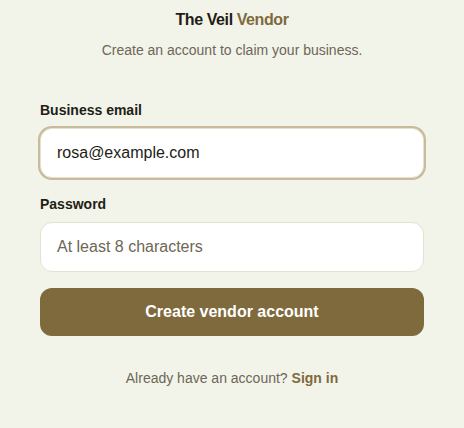
A vendor account is separate from a couple's account. If you are also planning your own wedding, keep using The Veil app for that; the portal is only for your business.
If you try to register with an email that already has a Veil login, the portal switches you back to Sign in and tells you so. If you were invited to a team, use Forgot your password? to set a password; you land on your invitation afterwards.
2. Find your business
After you sign in, the portal opens Find your business.
- Type at least three letters of your business name, as it appears on Google. Results appear as you type.
- Find your business in the list and choose This is mine.
- Can't find it? Open Can't find it? Paste a Google Maps link instead, paste the link to your business from Google Maps (a maps.app.goo.gl link or a maps.google.com/maps/place link) and choose Find it.
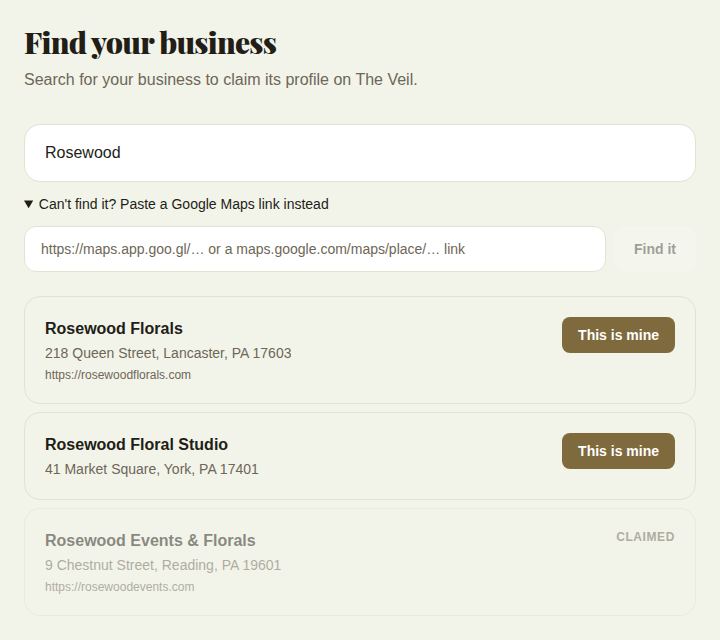
A result marked Claimed already belongs to someone. If that is your business and you don't know who claimed it, write to us from Help.
3. Prove it's yours
How we confirm depends on your listing.
- Your listing has a website. We send a confirmation link to an address on that website's domain, for example you@yourbusiness.com. The portal asks for that address under Confirm you work at, and it has to be on that domain. That is what proves the business is yours. Choose Send confirmation link.
- Your listing has no website. We review the claim by hand and email you once it's approved, usually within a business day. The portal shows We're reviewing it.
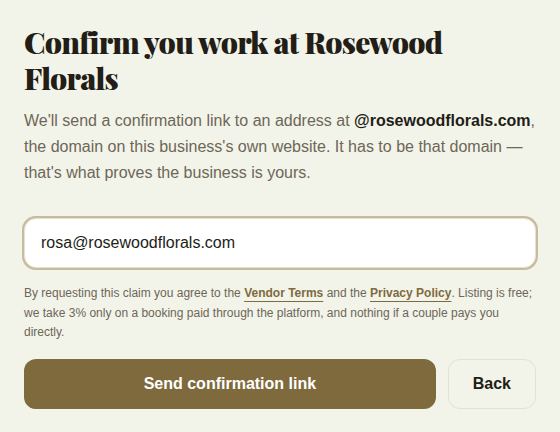
The note above the button is the moment you agree to the Vendor Terms and the Privacy Policy. Listing is free; we take 3% only on a booking paid through The Veil, and nothing when a couple pays you directly.
4. Open the link
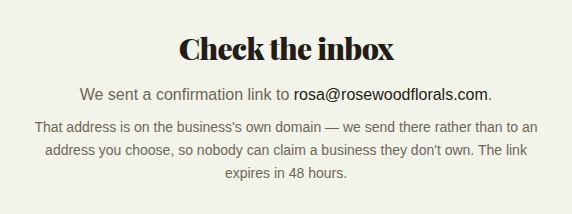
The portal shows Check the inbox with the address we wrote to. The link lasts 48 hours. Open it on any device, and you'll see Business confirmed: you now manage the business on The Veil.
Next, finish your page so couples can find you: see Finish setup and go live.
Troubleshooting
- "That address isn't on the business's own domain." Use an address that ends in the domain shown in bold, not a Gmail or Outlook address.
- The link says it has expired. Links last 48 hours. Start the claim again from Find your business to get a new one.
- "This business was claimed by someone else before you confirmed." Two people tried at once and the other confirmed first. Write to us under Help and we'll sort out who it belongs to.
- "You've already claimed a business on this account." One login owns one business. To run more than one venue or brand from the same login, see Locations.
- Nothing arrives. Check spam, and that the mailbox on your domain receives mail. If the portal says delivery failed, write to us.
Good to know
- Claiming is free and there is no contract. Your plan starts on Free; see Plans and prices.
- Your business name, address and Google listing come from the claim. You can change the name and address later on your Page.
Did this answer it?
Updated September 30, 2026