Help · For wedding businesses · Your page
Photos and details on your page
Portfolio photos, your name, categories, starting price, website, address and About, and bringing it all across from your website.
These are the first things a couple reads. All of them are under Page in the portal.
Bring it across from your website
Already have a website? Put its address in Already have a website? and choose Bring it across. We read the page and fill in anything still blank here: your name, description, website and photos from the page.
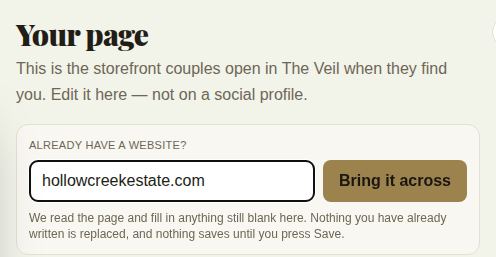
Nothing you've already written is replaced, and nothing saves until you choose Save changes. A note says what was filled in, or that there was nothing new to bring across.
Portfolio photos
Choose Edit on Portfolio photos.
- Add photos (or Add more photos) opens your files. Pick several at once.
- You can show up to 12. The count shows as 3/12 and so on.
- The first photo is your Cover, the big picture at the top of your page. Choose Make cover on any other photo to move it first.
- Remove takes a photo off.
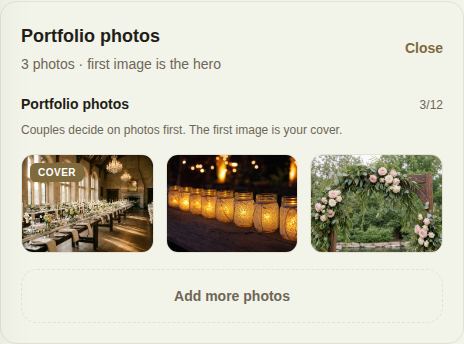
Photos save as soon as they upload; you don't need Save changes for them. Large photos are resized for you. JPG and PNG work best; a photo straight off an iPhone in HEIC format may be refused with "isn't a format we can read". Each file can be up to 15 MB.
Five or more photos is what the Profile strength card asks for, because profiles with five or more get more inquiries.
Name, categories, price, website and address
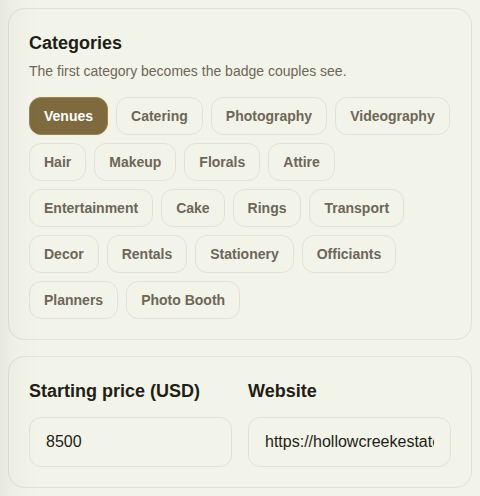
- Business name: how couples see you, in search and in messages.
- Categories: tap each one you offer. The first one you picked becomes the badge couples see, so if you do several things, pick your main one first.
- Starting price (USD): shows as From $… on your page. A starting point, not a quote.
- Website: shows as Visit Website on your page.
- Address: street, city and state, shown with a pin.
About
Your description, shown under About. Say what makes you different and what a couple should know before they inquire. Line breaks are kept.
Save
Choose Save changes at the top or the bottom. Edit availability at the bottom goes to your calendar.
Good to know
- How far you travel and your contact email are set on the setup screen, not here. Open it from Settings, Edit your page, or see Finish setup and go live.
- Changes show to couples the next time they open your page.
Did this answer it?
Updated September 30, 2026