Help · For wedding businesses · Leads and replies
The lead page, from top to bottom
Everything about one client on one screen: who they are, what they asked, the conversation, the money and the facts of the day.
Tap any lead to open it. On a computer the page has two columns: what they asked for and your conversation on the left, the money and the facts of the day on the right. On a phone the right-hand column comes first.
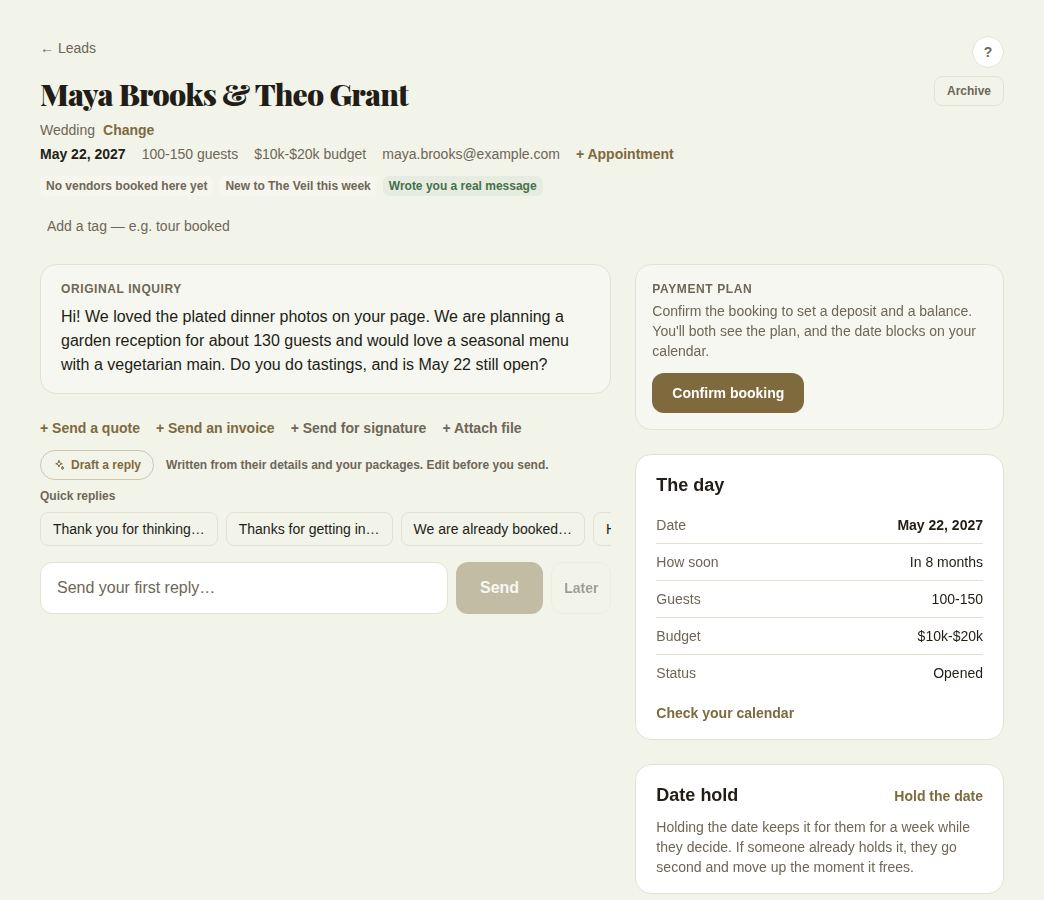
The header
- The names (or the event's name), with labels for where the lead came from and Not on The Veil yet when the client has no account.
- Archive in the corner, or Cancel booking once it is booked (owners and managers). See Archive a lead and Cancel a booking.
- Wedding · Change: the kind of event. Change lets you switch to Corporate, Social or Other and add an event name and organization.
- The date, guests, budget, email and phone. Tap the email or phone to write or call.
- + Appointment books a tour, tasting or call on this lead. See Tours, tastings and appointments.
- Signals: every fact we know about how far along they are, such as "Booked 4 vendors here", "No budget shared" or "Answered your questions". The list card shows three; the lead page shows them all.
- Looking after this (on a team): who owns the lead. See Your team, roles and who gets new leads.
- Tags: your own labels. See Tags, notes and the activity feed.
The left column
- What they sent: their answers to your inquiry questions, their style and colors.
- Original inquiry: their first message, kept here even after the conversation starts.
- Payment terms: whether they pay by autopay, chose their own plan, or have a late fee in their contract (only shown when one of those applies).
- Scheduled: messages and quotes waiting to go out. See Send later.
- The conversation, then + Send a quote, + Send an invoice, + Send for signature and + Attach file, then the reply box. For a client with no account, Their client page replaces the conversation.
Once a lead is booked, the left column also fills with the working parts of the day: the checklist, the run sheet, final counts, dietary needs and anything your trade uses. See What the couple shares with you.
The right column
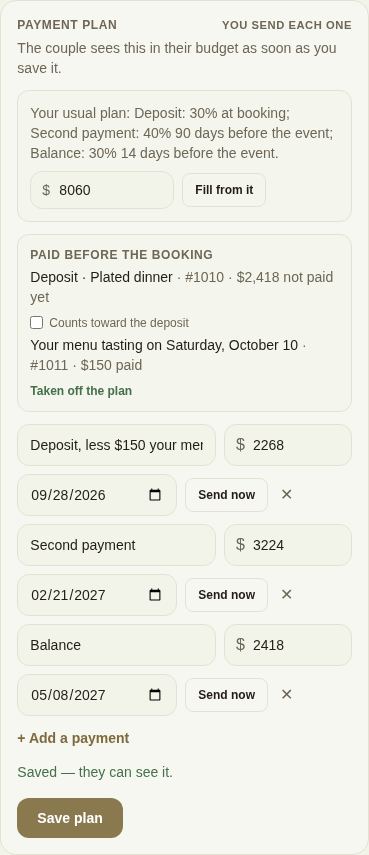
- Payment plan: Confirm booking, then the deposit and balance. See Confirm a booking and set its payment plan.
- Invoices: every invoice on the lead, with PDF, Record a payment and Refund. See Invoices.
- The day: date, how soon, room (for venues), guests, budget and status, with Check your calendar and, once booked, Print the day sheet.
- Date hold: keep the date for them while they decide. See Hold a date.
- Damage deposit (booked leads). See Damage deposits.
- Notes (team only) and Activity.
In the phone app
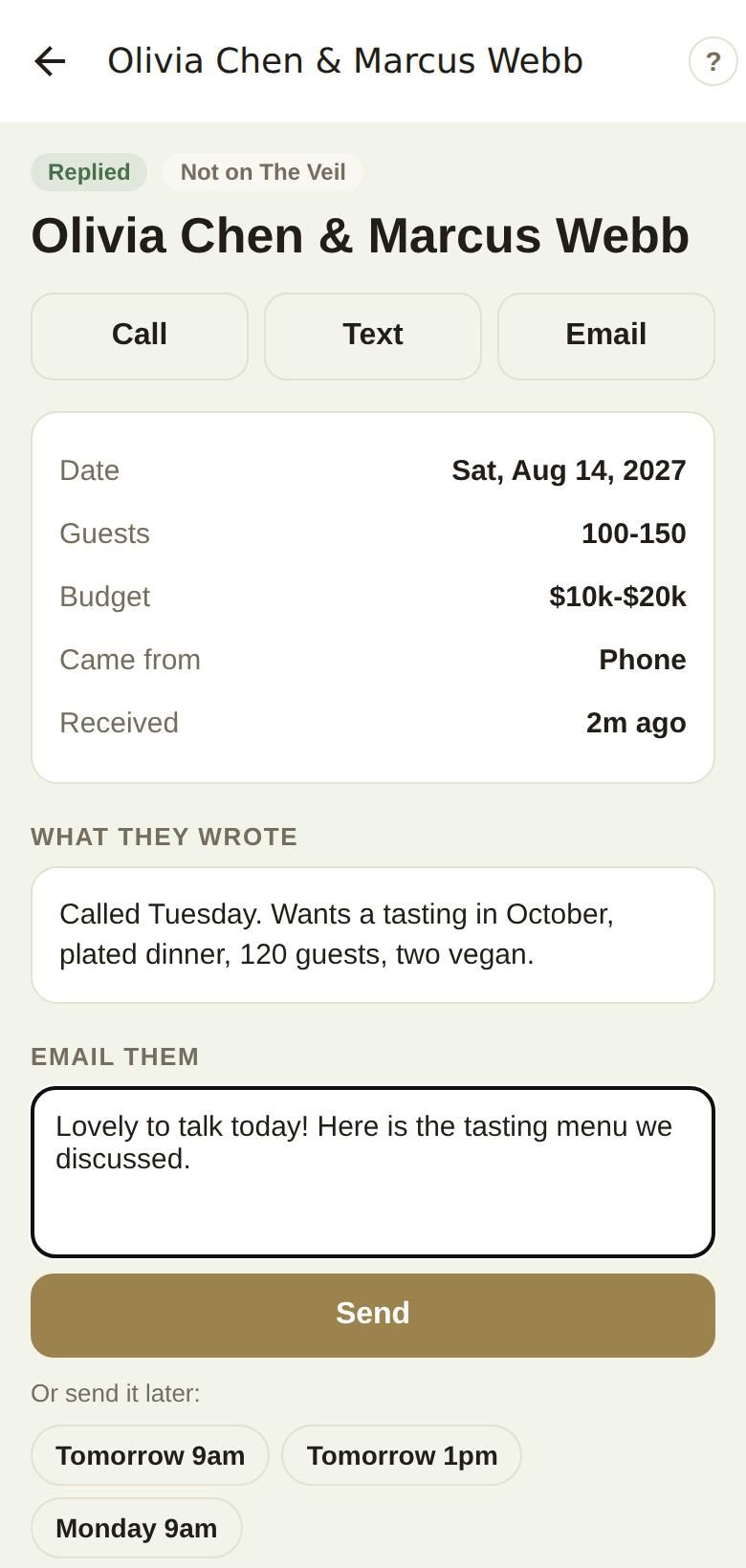
The Lead screen shows the status, Call, Text and Email buttons, the facts (date, guests, budget, where they came from, when it arrived) and What they wrote. Below that:
- Reply for a couple on The Veil, or Email them for everyone else, with Or send it later: under the box.
- Date hold: one tap holds the date for 7 days, and shows where the lead is in line.
- Waiting to send, Invoices (with Send a quick invoice and They paid me directly) and, once booked, Deliveries and Day sheet.
- Open the full lead opens this portal page inside the app, for quotes, contracts and itemized invoices.
Good to know
- Opening a lead marks it Opened for your records. It does not count as a reply.
- "Inquiry not found" means the lead doesn't exist or belongs to another business.
Did this answer it?
Updated September 30, 2026