Help · For wedding businesses · Quotes, contracts and getting paid
Confirm a booking and set its payment plan
Mark a lead booked, lay out its deposit and balance from your usual plan, take earlier payments off the deposit, and send each payment when it's due.
Every booking has a Payment plan on its lead: the payments the client owes you and when. The client sees it too, in their budget if they're on The Veil or on their client page if not.
Confirm the booking
A lead becomes Booked in one of two ways: the client pays an invoice through The Veil (usually the deposit from your quote), or you confirm it yourself.
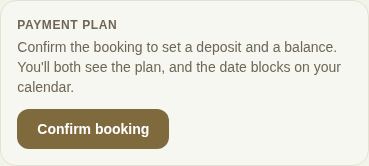
- On the lead, find Payment plan at the top of the right-hand column.
- Click Confirm booking.
The lead moves to Booked and the date blocks on your calendar. A couple on The Veil also sees you as booked in their vendor list.
Lay out the payments
- If you've saved a usual plan, it's shown at the top ("Your usual plan: Deposit: 30% at booking; …"). Type the Booking total and click Fill from it. The payments are filled in with amounts and dates. Payments due before the event need an event date on the lead.
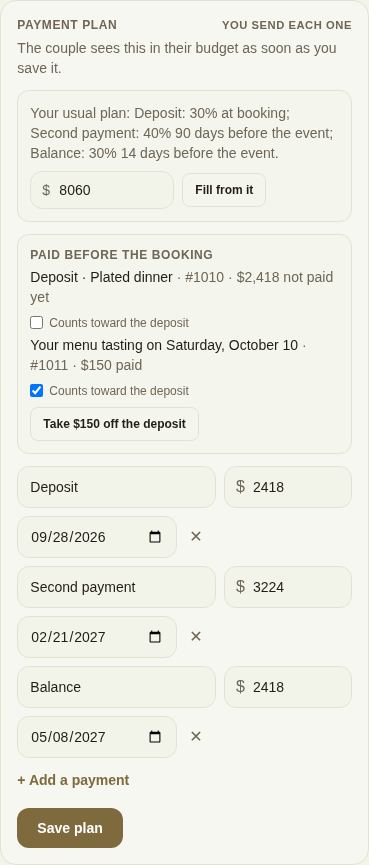
- Adjust any row: its name, the amount and the due date.
- + Add a payment adds a row; ✕ removes one.
- Click Save plan. "Saved — they can see it."
Payments they made before booking
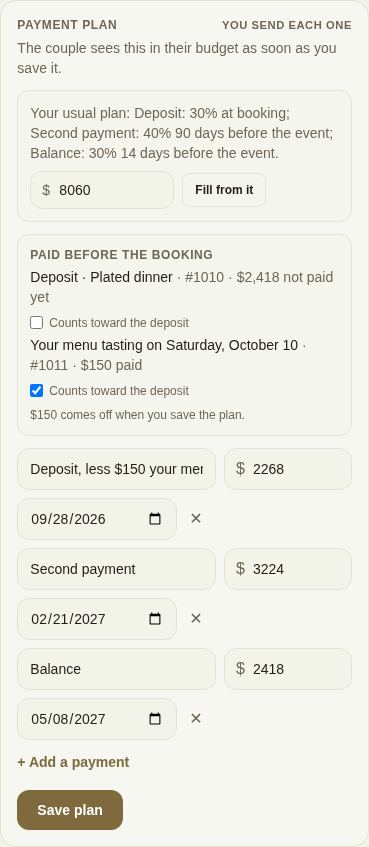
If the client already paid something, such as a tasting you marked Counts toward their deposit if they book, it's listed under Paid before the booking. Tick or untick Counts toward the deposit on each. Then click Take $150 off the deposit, and the first payment is reduced and relabeled, for example "Deposit, less $150 your menu tasting". It's recorded as used when you save.
Sending each payment
The corner of the panel shows your payment timing:
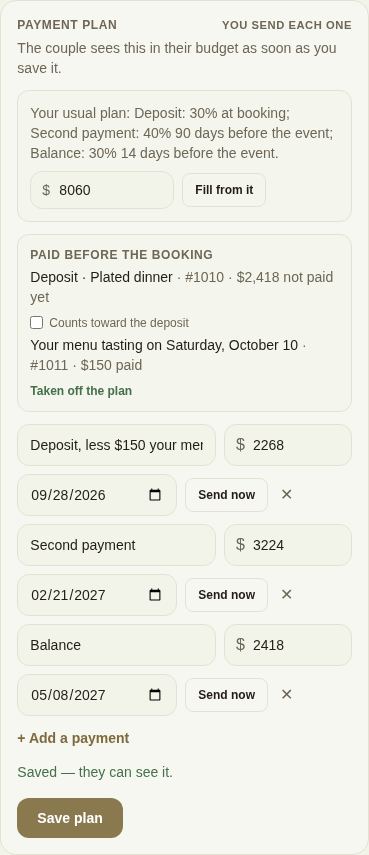
- You send each one: each saved payment has Send now. Press it when you want the client to pay it.
- Sends on the due date or Payable straight away (Pro and Studio): payments become payable by themselves.
Payments already sent or paid move to the top of the panel and can't be edited, marked Sent, Paid or Paid offline. Change your timing in Settings. See Payment plans, autopay and late fees.
What the client sees
A couple on The Veil sees each payment in their budget with its due date, and pays from the app when it's payable. A client without an account sees upcoming payments on their page as "Coming up" with the date, and Pay once it's due. Clients get automatic email reminders. See Payment reminders.
Good to know
- The deposit from a quote is its own invoice. If you also fill a plan with a deposit row, check you aren't asking for the deposit twice: remove one, or take the paid deposit off with Paid before the booking.
- Changing the plan only changes payments that haven't gone out yet.
- To end a booking, use Cancel booking. See Cancel a booking.
Did this answer it?
Updated September 30, 2026