Help · For wedding businesses · Leads and replies
Quick replies: your usual answers, one tap away
Write the replies you send most, in your own words, and fill the reply box with one tap (Pro and Studio).
Quick replies are the chips under the reply box on every lead. Tapping one fills the box with that message so you can finish it and send. They never send by themselves.
What you get on each plan
- Free: five standard replies, such as "Yes — we're available for that date! Would you like to set up a call?" and "Sending a quote over now — let me know if you'd like anything adjusted."
- Pro and Studio: your own replies, in your own voice.
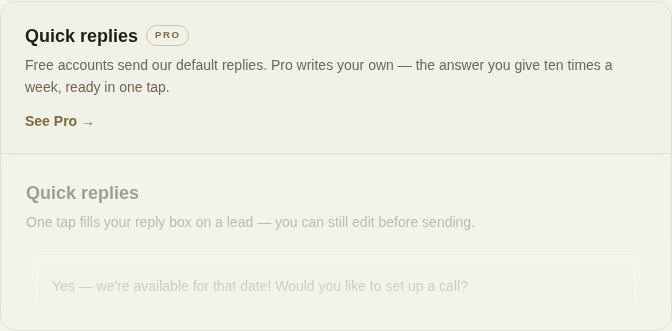
On the free plan, Settings shows the editor under a Pro label with See Pro.
Write your own
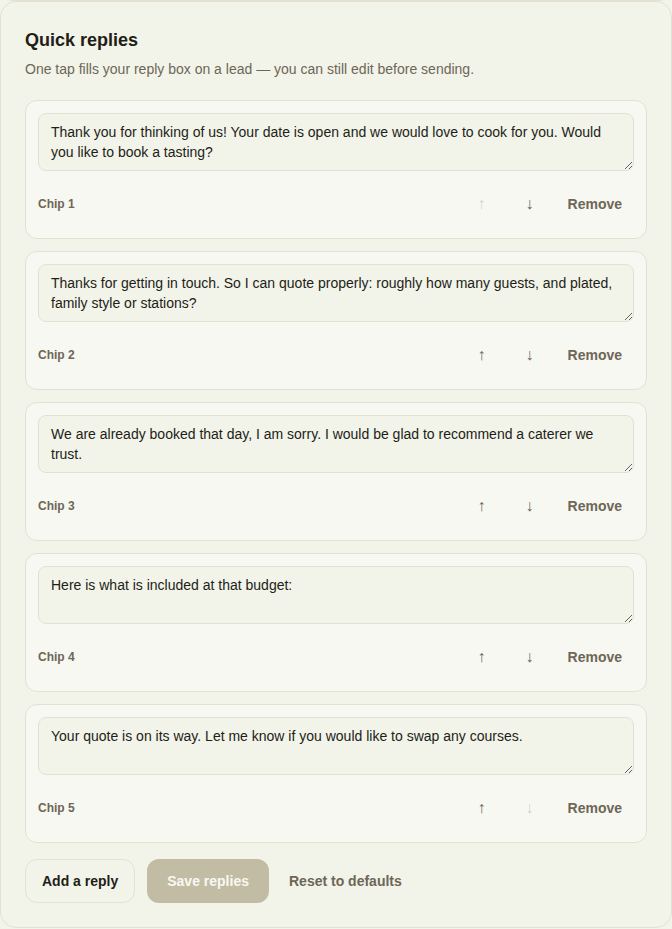
- Open Settings and find Quick replies.
- Edit any reply in its box. Each can be up to 400 characters.
- Use the arrows to change the order. The order here is the left-to-right order of the chips.
- Remove drops one; Add a reply adds another, up to six.
- Click Save replies. "Saved" confirms it.
Reset to defaults brings back the standard five. Emptying a box and saving removes that reply.
Use them
On a lead, tap a chip. The first few words show on the chip; hover to see the whole reply. The text lands in the reply box with the cursor at the end, ready for the couple's name or a detail. Then press Send.
Troubleshooting
- Add a reply reads Maximum 6: remove one first.
- Save replies is greyed out: nothing has changed since you last saved.
- The editor is faded with a Pro label: you're on the free plan, so the chips use our standard replies.
Tips
- Write the replies that save you the most typing: availability, the questions you always ask before quoting, a polite no, what's included at a common budget.
- Leave room to personalize. A reply that reads like a form gets fewer answers.
- The starter kit in Settings can fill your replies with a first draft for your trade while they are still empty.
Did this answer it?
Updated September 30, 2026