Help · For wedding businesses · Leads and replies
Tags, notes and the activity feed
Label leads your own way, keep notes only your team can read, and see everything that has happened on a lead at a glance.
Three small tools on every lead help you and your team keep track without rereading the whole conversation.
Tags
Tags are your own labels: "tasting booked", "friday", "florist referral", "vegan menu". They appear on the lead card and you can filter and search by them on Leads.
- On the lead, click Add a tag under the name.
- Type the tag and press Enter (or a comma). It is saved straight away.
- To remove one, click the × next to it.
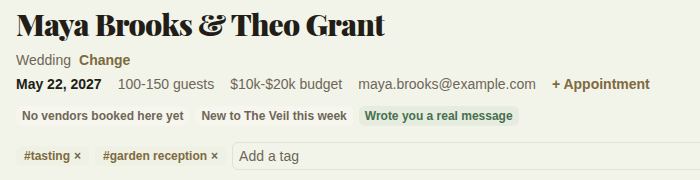
Tags are saved in lower case, up to 32 characters each, and a lead can have up to 12. The same tag is never added twice. The lead card shows the first three; the lead page shows them all. Day-of staff don't see tags.
Notes (team only)
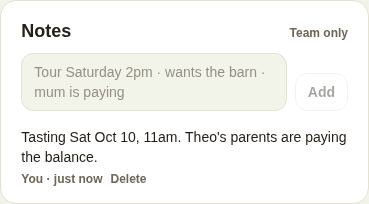
Notes in the right-hand column are for your team: "Tour Saturday 2pm, wants the barn, her mother is paying". The client never sees them, and neither do day-of staff.
- Type in the note box.
- Click Add, or press Ctrl+Enter (Cmd+Enter on a Mac).
Each note shows who wrote it and when. You can Delete your own notes; owners and managers can delete anyone's. Coordinators, managers and owners can read and add notes.
Activity
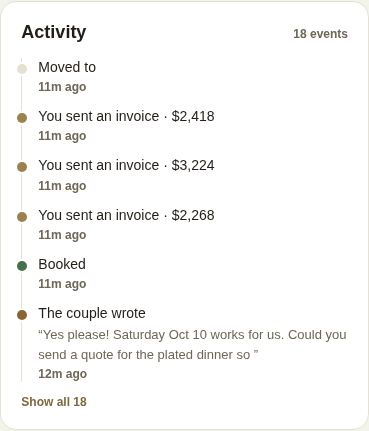
Activity lists what has happened on the lead, newest first: the inquiry arriving, replies, quotes and invoices sent, a contract sent to sign, the quote accepted, the lead handed to a colleague, holds, bookings. It is written automatically, whether the action came from the portal, the phone app or a payment, so it is complete even when the conversation is long. It shows six events; Show all opens the rest.
Good to know
- Notes are deliberately kept out of the activity feed: the feed is what happened, notes are what someone thinks.
- On a team, the last activity also appears on the lead card on Leads, so a manager can scan the whole pipeline.
Did this answer it?
Updated September 30, 2026