Help · For wedding businesses · Leads and replies
Your leads: the pipeline, search and filters
Every inquiry in one list, grouped by what needs you next, with search across every stage, filters, tags and the numbers that show how you are doing.
Leads is the first screen in the portal. Everyone who has asked about you lands here: couples who tapped Inquire on your page in The Veil, people who filled in your inquiry form, marketplace leads you brought over, and anyone you added by hand. It is built to answer one question fast: who needs you right now?
The top of the page
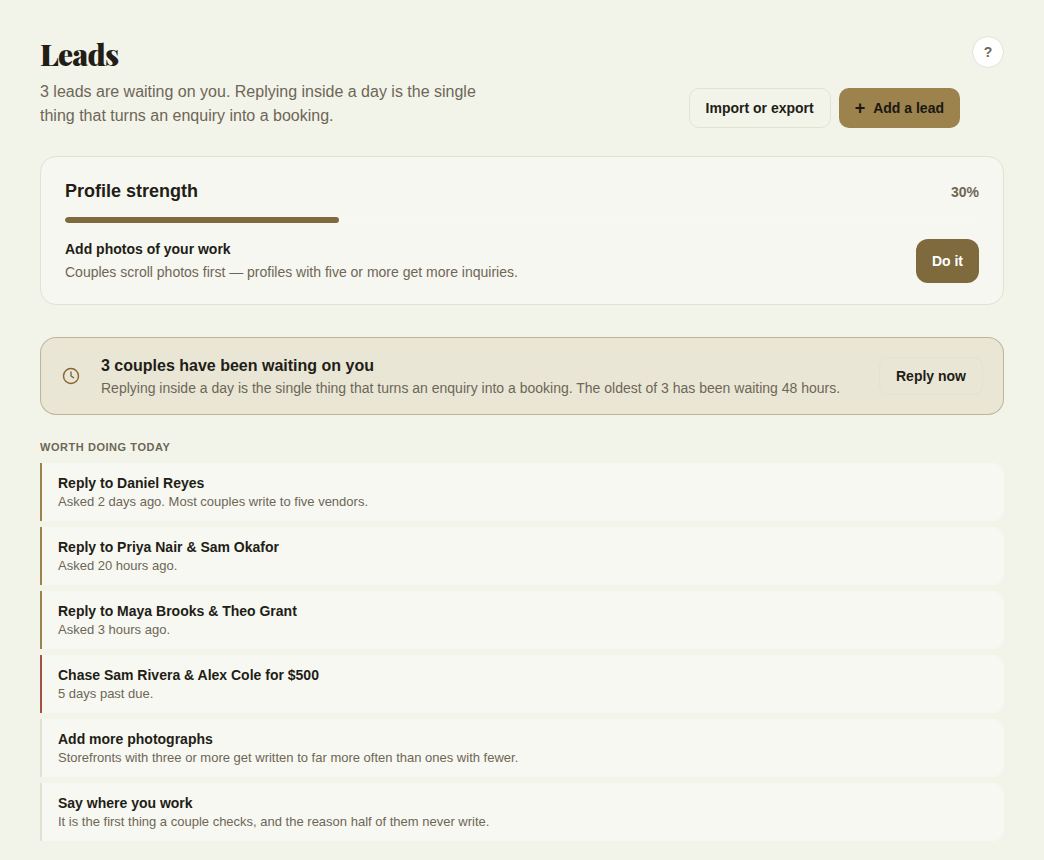
Under the Leads heading, one line tells you how many leads are waiting on you. Two buttons sit on the right:
- + Add a lead puts a couple who called, toured or wrote into the same pipeline. See Add a lead by hand.
- Import or export (owners and managers) opens the switch kit for bringing clients over from a spreadsheet or another CRM. See Switch from HoneyBook.
Below them you may see a few cards. Each one only appears when it has something to say:
- The reply clock says how many couples have been waiting and for how long, with a Reply now button that opens the oldest one. Once you have a median reply time, it shows that too, and whether it keeps you under the 12 hours that earns the "Responds fast" badge.
- Worth doing today is a short to-do list: leads nobody has answered, invoices that are late ("Chase Sam Rivera & Alex Cole for $500"), and gaps on your page. Each line opens the exact screen that finishes it.
- Owed to you is what clients owe you in the next 90 days, with anything late in red. Tap it to open Money coming in on Billing.
Performance (Pro and Studio)
Six tiles show Leads (30d), Response rate, Avg first reply, Booked, Conversion and Profile views, followed by Where they came from (and By event once you have more than one kind of event). Response rate only counts leads more than a day old, and conversion needs at least three leads in the last 30 days. On the free plan the tiles still show their labels, with dashes instead of numbers.

The four stages
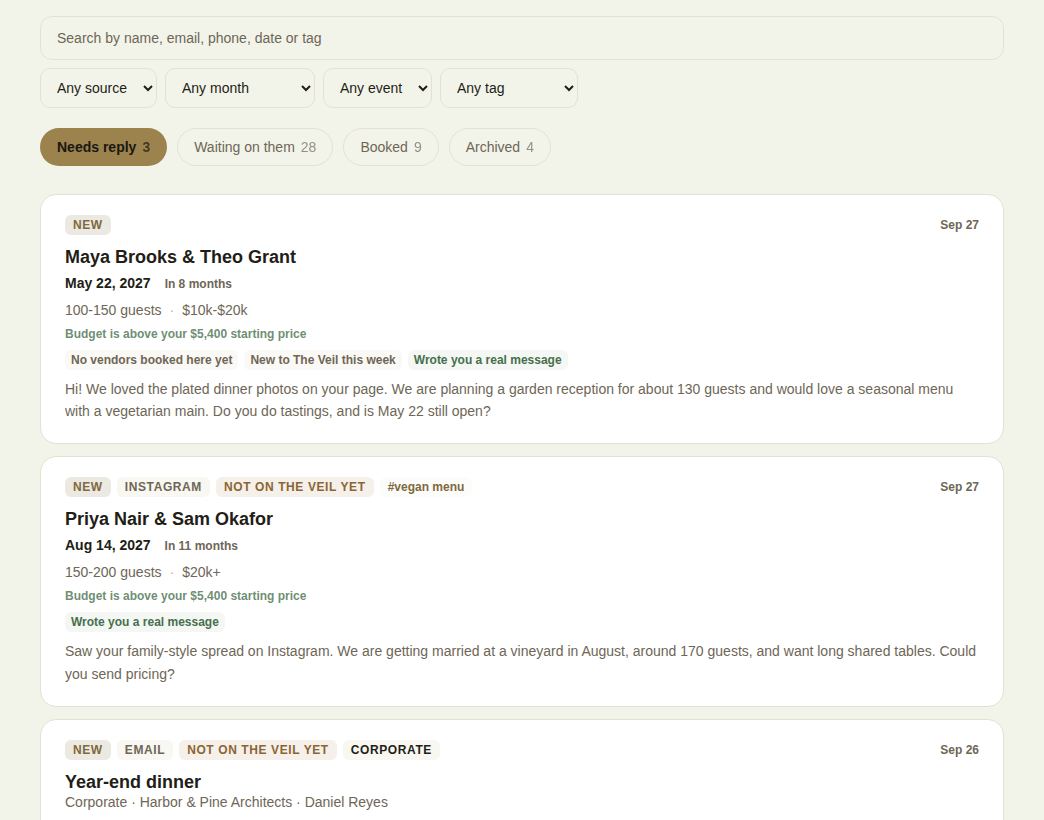
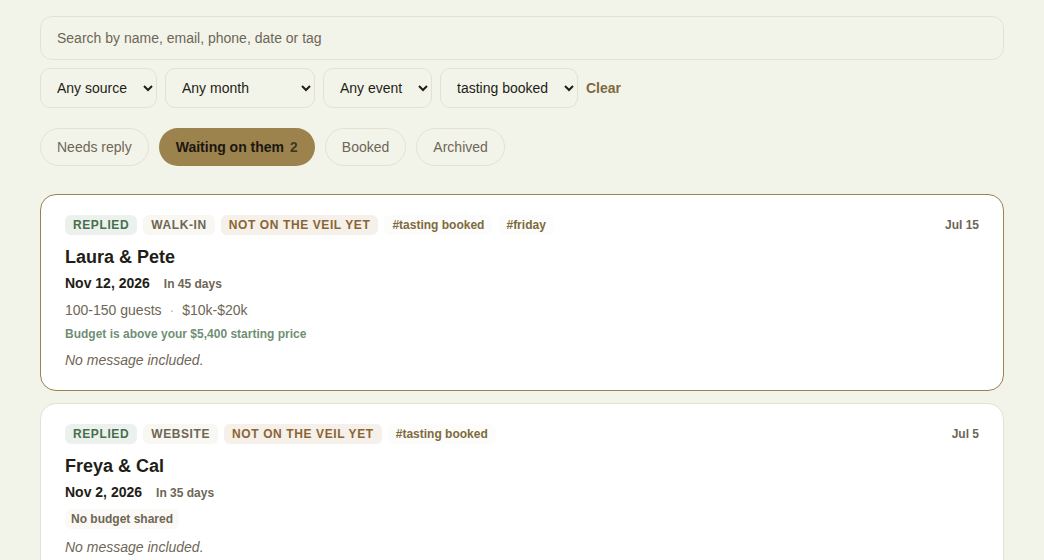
The pill tabs group your leads by where they stand. The number in each pill is how many are in it.
- Needs reply: new leads, including ones you have opened but not answered. Opening a lead is not replying to it, so it stays here.
- Waiting on them: you have replied or sent a quote, and the next move is theirs.
- Booked: the client paid through The Veil or you pressed Confirm booking on the lead.
- Archived: leads that didn't work out. See Archive a lead.
The page always opens on Needs reply, because that is the work. An empty stage says so plainly: "You're all caught up" on Needs reply is a good thing.
Reading a lead card
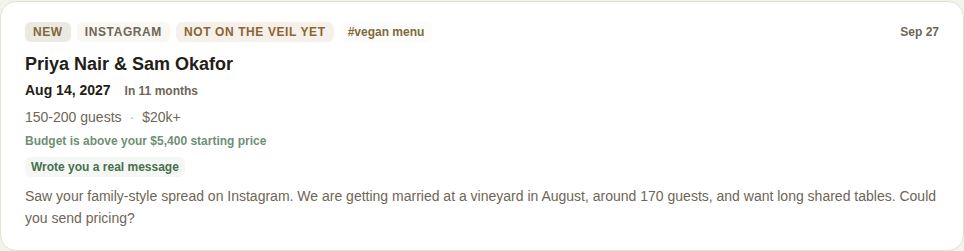
Each card is built to be read in a few seconds:
- Status in the top corner: New, Opened, Replied, Quoted, Booked or Closed, with the day it arrived on the right.
- Labels next to it: where it came from (for example Instagram or The Knot) when it didn't come through The Veil, Not on The Veil yet when the client has no account, the event type when it isn't a wedding, up to three of your tags, and the lost reason on an archived lead.
- The couple's names, or for a corporate or social event, the event's name with the company and contact under it.
- The date with how soon it is. Dates within 30 days are highlighted.
- Guests and budget as the couple chose them, and one line comparing their budget with your starting price, such as "Budget is above your $5,400 starting price". It only appears when both are known.
- Signals, up to three: whether they have booked other vendors here, whether a date or budget is missing, how long they have been planning on The Veil, and whether they wrote a real message.
- Their message, or their answers to your inquiry questions.
On a team, a last line shows who is looking after the lead and the last thing that happened on it.
Search across every stage
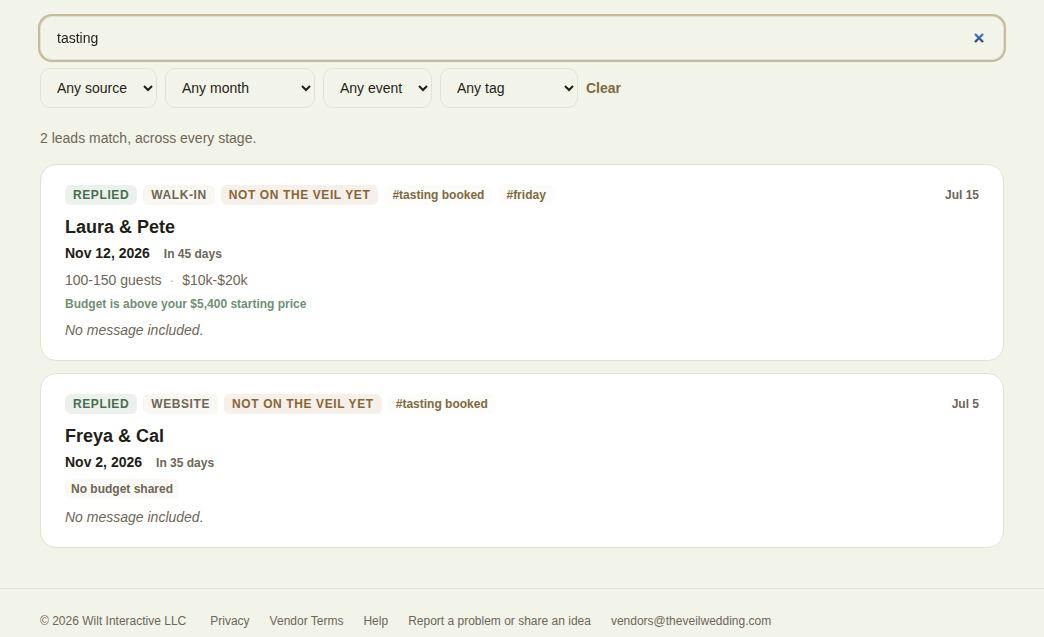
Type in Search by name, email, phone, date or tag. Search looks through every stage at once, because you rarely know which tab someone is on, and it tells you how many leads match "across every stage".
- Names, emails, event names and companies all match.
- Phone numbers match on the digits, so "(717) 555-0137" finds 7175550137.
- Dates match the way people type them: "2027-06-12", "6/12", "june 12" or "june 2027".
- Several words must all match, so "sam june" finds Sam's June wedding.
Filters
The drop-downs under the search box are built from your own leads, so they never offer a choice that returns nothing:
- Any source: where the lead came from.
- Anyone's (on a team): a colleague, Mine or Unassigned.
- Any month: the month of the event.
- Any event: wedding, corporate, social or other.
- Any tag: one of your tags.
Filters narrow every stage, and the pill counts change to match. Clear resets them all.
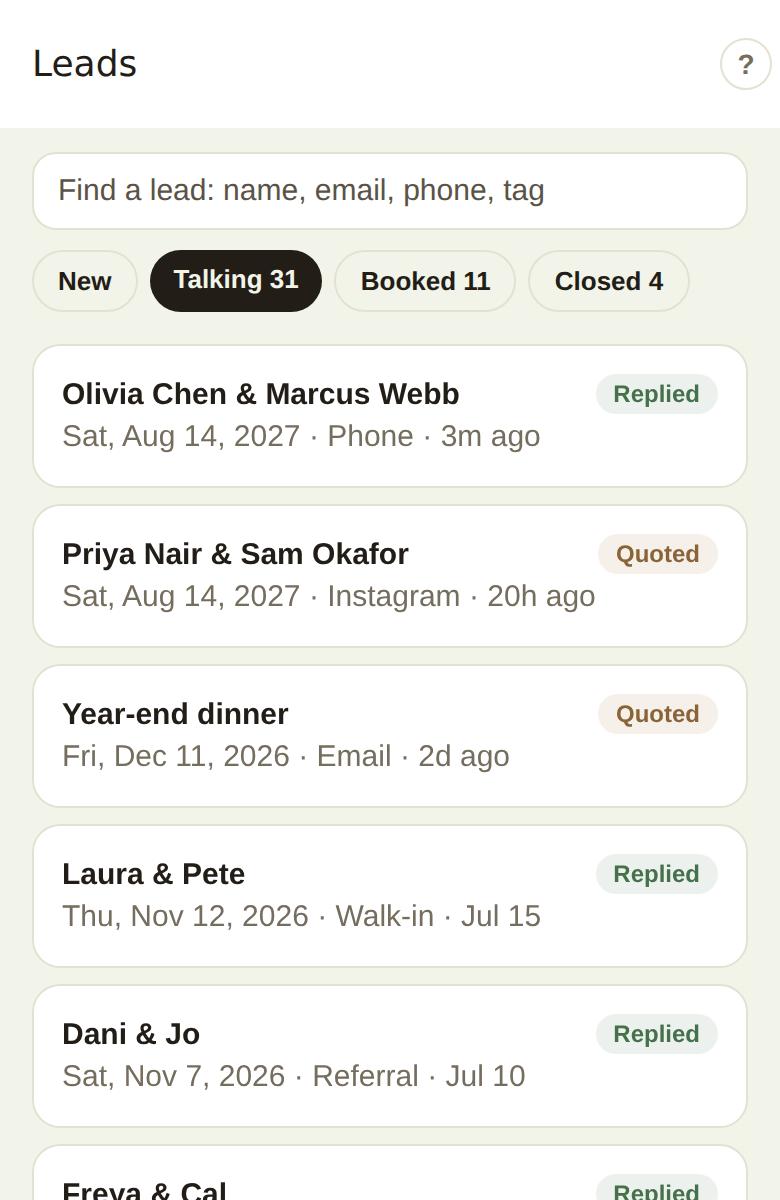
In the phone app
In The Veil Vendors app, the Leads tab has the same search (name, email, phone or tag) and four tabs: New, Talking, Booked and Closed. Pull down to refresh. Tap a lead to open it; see The lead page.
Good to know
- Day-of staff don't see Leads at all; they open on Today.
- On a team, coordinators see the leads assigned to them plus any nobody has picked up. See Your team, roles and who gets new leads.
- The Leads count in the side rail is new inquiries plus unread replies, and it updates while you are on the page.
Did this answer it?
Updated September 30, 2026