Help · For wedding businesses · Switch kit
Import your clients from a spreadsheet
Upload a CSV from HoneyBook, Dubsado or anywhere, match the columns, check the preview, and import up to 5,000 clients.
This brings your existing clients into Leads, as open leads, booked clients or lost ones. It's under Leads, Import or export, and owners and managers can use it.
Get your file
- From HoneyBook: Clients, Contacts, ⋯, Download spreadsheet. For event dates and stages, export a projects report instead.
- From Dubsado or anything else: export contacts or projects as CSV.
- A spreadsheet of your own: in Excel or Google Sheets, save or download it as CSV. The first row should be the column headings.
A file can be up to 10 MB and 5,000 clients. Bigger? Split it and import it in parts.
1. Your file
Choose the file under 1 · Your file.
2. Which column is which
We guess from your headings. Check each one, and leave anything you don't have as Not in my file.
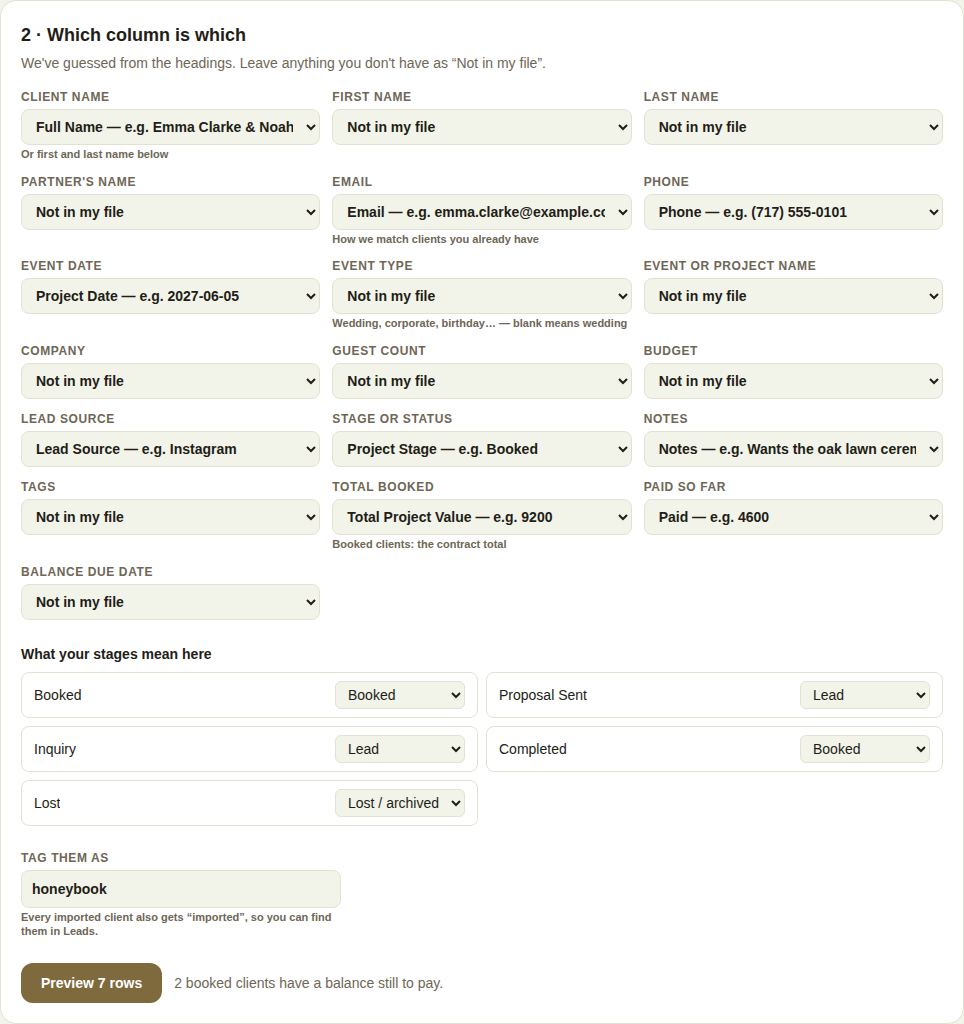
The fields you can fill:
- Client name, or First name and Last name, and Partner's name.
- Email: how we match clients you already have, so an import never makes a duplicate of someone already in Leads.
- Phone, Event date, Event type (wedding, corporate, birthday and so on; blank means wedding), Event or project name, Company, Guest count, Budget, Lead source, Notes and Tags.
- Stage or status.
- For booked clients: Total booked (the contract total), Paid so far and Balance due date.
You need at least the name or the email column.
What your stages mean here
Under What your stages mean here, each stage in your file gets one of Lead, Booked or Lost / archived. We guess, for example Inquiry as Lead and Completed as Booked; change any that are wrong.
Tag them
Tag them as labels everyone in this file, for example honeybook. Every imported client also gets "imported", so you can find them in Leads.
3. Preview
Choose Preview. Nothing is saved yet. The preview says how many new clients will be created, how many you already had will be updated, how many are booked, and how many will be skipped, with the reason for each flagged row:
- Also earlier in this file: a duplicate row, skipped.
- No name or email: skipped.
- Date not understood, Email not understood or Amounts not understood: imported without that one value.
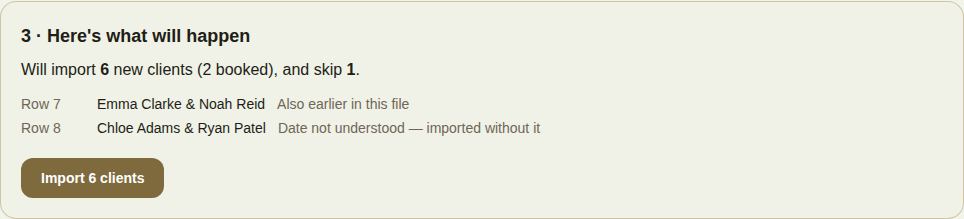
The line under the columns also tells you how many booked clients have a balance still to pay.
4. Import
Choose Import … clients. When it says Done, See them in Leads takes you there. Large files import in batches of 500; leave the page open until it finishes.
After the import
- Booked clients show what they've paid and what's still due. Set up their payment plan and client page from each lead.
- Search Leads for the tag to see everyone you brought across.
- Nobody was emailed. Invite clients to their client page when you're ready.
Troubleshooting
- "Pick the name or email column first." Match Client name, First name or Email.
- "That file has no rows under its header." Check the export includes data, not just headings.
- "Stopped at row …" The rows before it were imported. Fix that row in your file and import again; clients already imported are matched by email, not duplicated.
- Dates like "next spring" can't be read. The client is imported without a date, and you can add it on the lead.
Did this answer it?
Updated September 30, 2026