Help · For couples · Guests and RSVPs
Share guest details with your vendors
Addresses, seating, where guests are staying, introductions and your ceremony: write them once and share each on a switch.
Your stationer, DJ, officiant and transport company usually email you for the same few things. For your vendors keeps those in one place and shares each part only when you turn it on, and only with vendors you've booked and paid on The Veil.
Open Guests, then tap For your vendors.
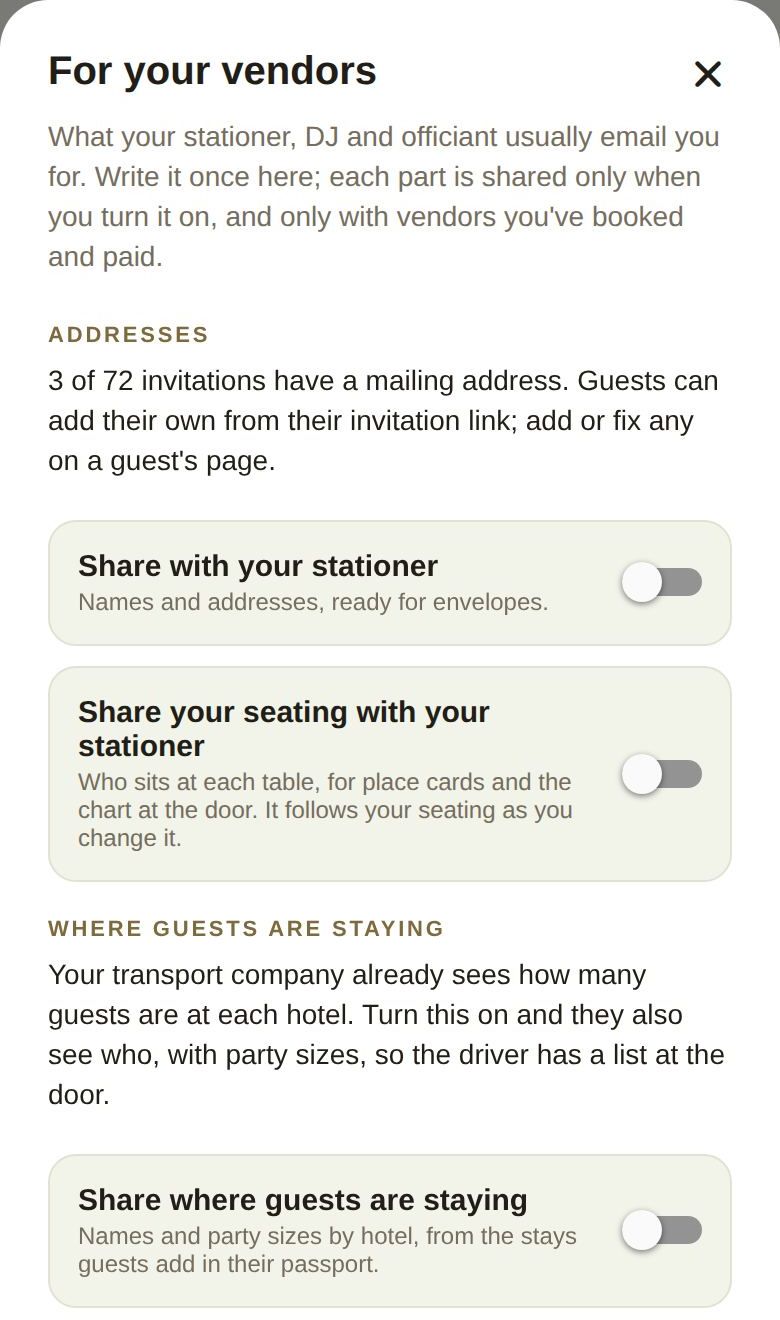
Addresses
The top line tells you how many invitations have a mailing address. Guests can add their own from their invitation link, and you can add or fix any on a guest's row.
- Share with your stationer: names and addresses, ready for envelopes.
- Share your seating with your stationer: who sits at each table, for place cards and the chart at the door. It follows your seating as you change it.
Where guests are staying
Your transport company can already see how many guests are staying at each hotel, as numbers only. Turn on Share where guests are staying and they also see who, with party sizes, so the driver has a list at the door. The stays come from what guests add in their passport. See Where guests stay and the shuttle.
Introductions
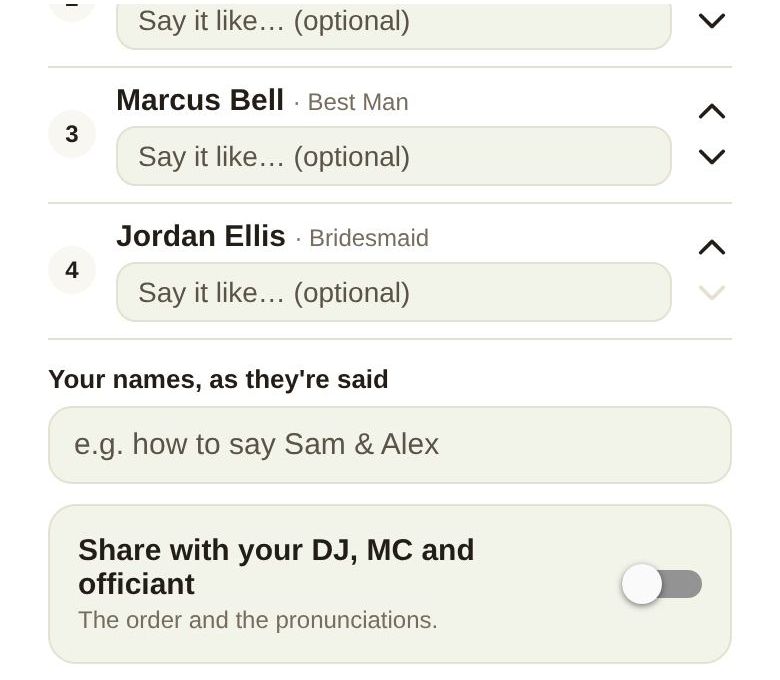
Everyone you've put in Maid of Honor, Best Man, Bridesmaid, Groomsman or Wedding Party appears here, ready to put in the order they walk in.
- Use the up and down arrows to set the order.
- Type how a name is said in Say it like... (optional) if it's easy to get wrong.
- Add Your names, as they're said.
- Turn on Share with your DJ, MC and officiant to share the order and the pronunciations.
The ceremony
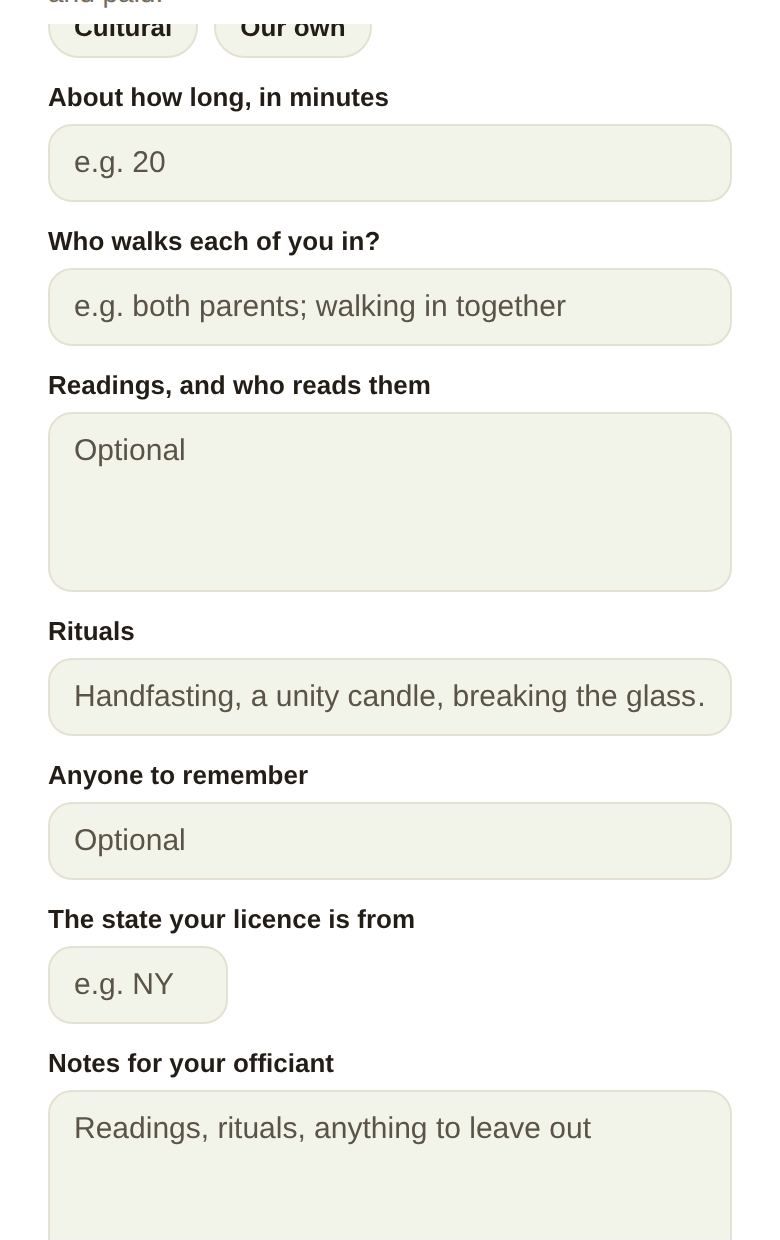
Everything your officiant usually asks for, in one form:
- Each of your vows, in its own box.
- What kind of ceremony?: Civil, Religious, Spiritual, Interfaith, Cultural or Our own.
- About how long, in minutes.
- Who walks each of you in?
- Readings, and who reads them.
- Rituals, like handfasting or a unity candle.
- Anyone to remember.
- The state your license is from, as a two-letter code.
- Notes for your officiant.
Turn on Share with your officiant to share your vows, these answers and your notes. Only the two of you can turn this one on; a co-planner can't.
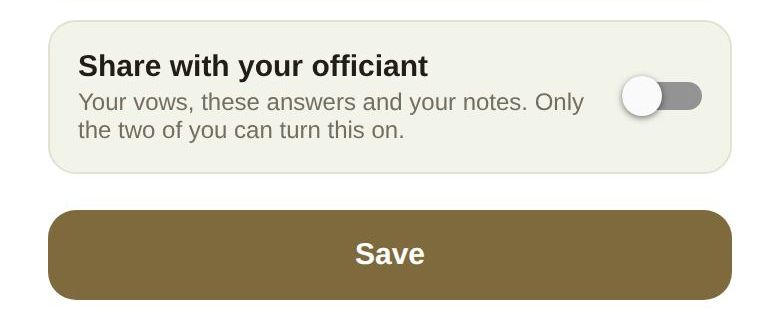
Save
Tap Save at the bottom to keep the introductions order, the pronunciations and the ceremony answers. The switches save as soon as you flip them.
Who sees what
- Nothing is shared until you turn its switch on.
- Only businesses with a paid booking with you can see a shared part.
- Turning a switch off stops sharing straight away.
Related
- The family photo list for your photographer: Build your family photo list.
- Your playlist for the DJ: Share your music with your DJ.
- Your floor plan for the caterer and rental company: Share your floor plan with your vendors.
Did this answer it?
Updated September 30, 2026