Help · For couples · Guests and RSVPs
Send save-the-dates and invitations by email
Pick a design, schedule the save-the-date and the invitation, set a reply-by date and let us send a reminder.
We can email every party their save-the-date and their invitation for you. Each email links to that party's own invitation page, with their name on it, the schedule, and a way to reply. Guests don't need an app or an account.
To start, open Guests, then tap Save-the-dates & invitations. You can do this as a couple, or as a co-planner who has access to the guest list.
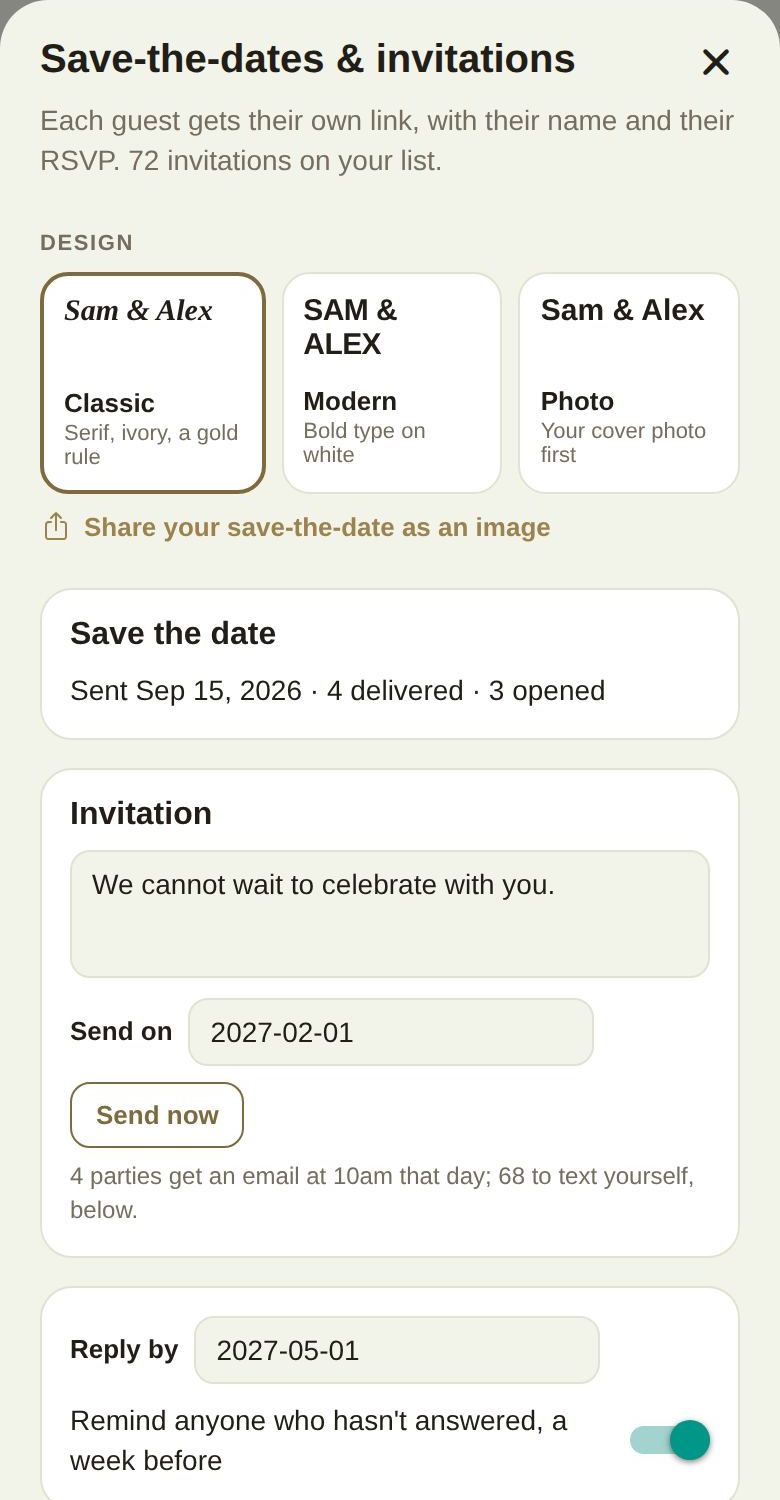
1. Pick a design
Under DESIGN, choose one of three looks. Each tile previews your names.
- Classic: serif type, ivory, a gold rule.
- Modern: bold type on white.
- Photo: your cover photo first.
The design applies to both emails and to the invitation page itself. Share your save-the-date as an image makes a picture of your save-the-date in the design you picked, ready for Stories or a group chat.
2. Schedule the save-the-date
In the Save the date card:
- Write an optional line of your own in the box, for example about travel, hotels or the town. Keep it under 600 characters.
- Type the day it should go in Send on, as YYYY-MM-DD. It goes out at 10am that day.
- Or tap Send now to send it right away.
The hint under the card tells you how many parties will get an email, and how many have no email address and will need a text from you instead.
3. Schedule the invitation
The Invitation card works the same way: an optional message, Send on, or Send now. The invitation has to go out after the save-the-date. If you pick an earlier date, we'll ask you to change it.
4. Set a reply-by date and a reminder
- In Reply by, type the date you need answers by. It can't be in the past or after your wedding.
- Leave Remind anyone who hasn't answered, a week before switched on if you'd like a nudge sent for you.
- Tap Save.
The reminder goes once, in the week before your reply-by date, and only after the invitation has gone out. It goes only to parties who still haven't answered and have an email address. Once it's gone, the card shows when it was sent and how many were delivered.
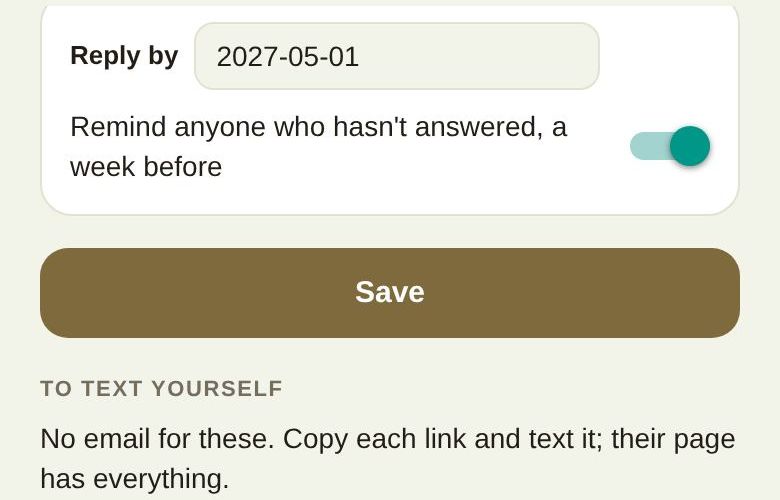
After something is sent
A card that has gone out stops being editable and shows what happened, for example Sent Sep 15, 2026 · 4 delivered · 3 opened. While emails are still going, it also shows how many are on the way.
Further down, WHO HAS WHAT lists every party with a small tag for each email: STD for the save-the-date, Invite, and Reminder, each marked opened, sent, sending, failed or no email. Once a party has answered, their answer shows as a tag too.
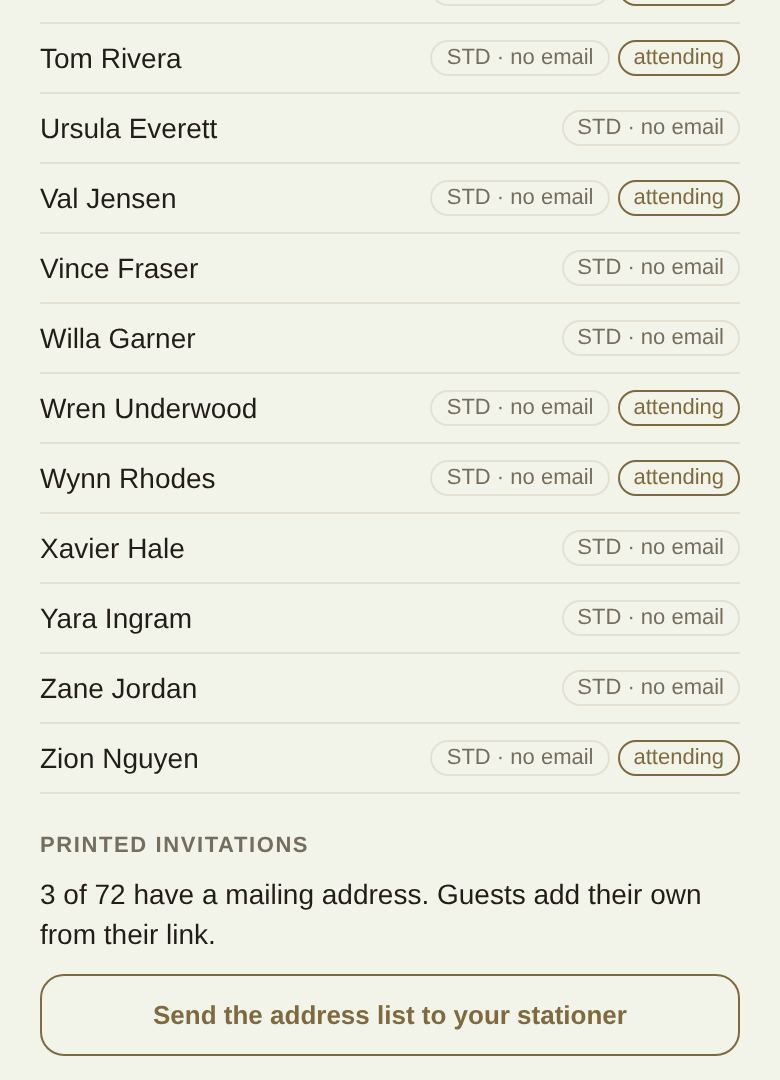
Parties without an email address
Parties with no email, and anyone who asked not to get emails from us, are listed under TO TEXT YOURSELF. Tap Copy link next to a name, then paste it into a text. Their page has everything the email would have. A guest who opted out is marked asked for no emails.
Who gets an email
- One email per party, to the primary guest. Plus-ones see the same invitation through that link.
- People waiting in a join request don't get anything until you add them.
- A guest can stop our emails from a link in any email. See Stop emails from The Veil.
Printed invitations too
The same sheet helps with paper invitations. See Printed invitations and mailing addresses.
Good to know
- Sending the save-the-date or the invitation ticks off the matching task on your checklist.
- Each card sends once. After it has gone, parties you add later get their link from their row on the roster, or from Copy link.
- If you see Only the couple, or a co-planner with the guest list, can send these, ask the couple to give you access to the guest list.
- Every email opens that party's own page, never a shared one, so their reply lands on their row.
Did this answer it?
Updated September 30, 2026