Help · For wedding businesses · Quotes, contracts and getting paid
Payment plans, autopay and late fees
Set your usual payment plan once, choose when payments become payable, and decide whether clients can pay automatically, pay a late fee, or choose their own plan.
Three places in Settings decide how you get paid over the months before an event: Your usual payment plan, Payment timing and How clients pay. Set them once; every booking uses them.
Your usual payment plan
Write how you normally take payment, for example 30% to book, 40% 90 days before, and the balance 14 days before.
- In Settings, find Your usual payment plan.
- Click + Add a payment. Give it a name (Deposit, Balance).
- Enter the amount and choose % of total or $ fixed.
- Choose when it's due: at booking, days before the event or days after booking, with the number of days.
- Add up to six payments. If the percentages don't add up to 100%, the editor tells you what they add up to.
- Click Save plan.
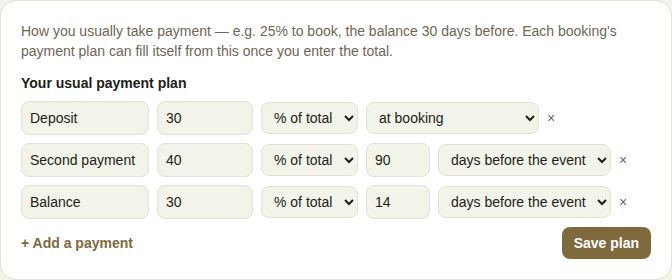
On a booked lead, enter the total and click Fill from it, and the booking's payments are laid out for you. See Confirm a booking and set its payment plan.
Payment timing
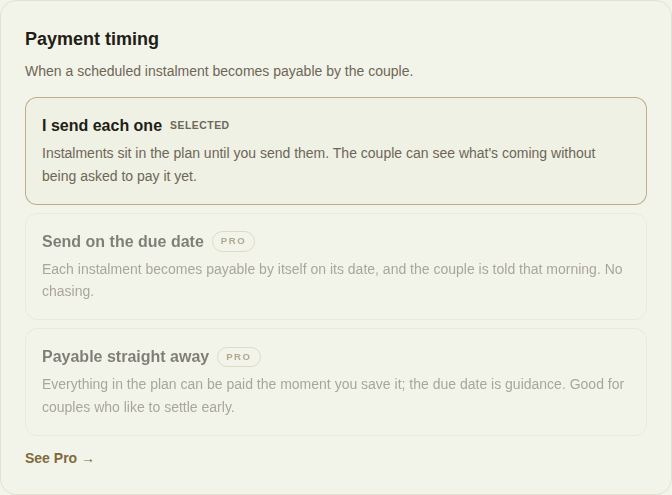
When does each scheduled payment become payable?
- I send each one: payments sit in the plan until you press Send now. The client can see what's coming without being asked to pay it yet. Available on every plan.
- Send on the due date (Pro and Studio): each payment becomes payable by itself on its date, and the client is told that morning.
- Payable straight away (Pro and Studio): everything can be paid as soon as you save the plan; the due dates are guidance.
If your paid plan lapses, your choice is kept but payments go back to waiting for you, and Settings says so.
How clients pay (Pro and Studio)
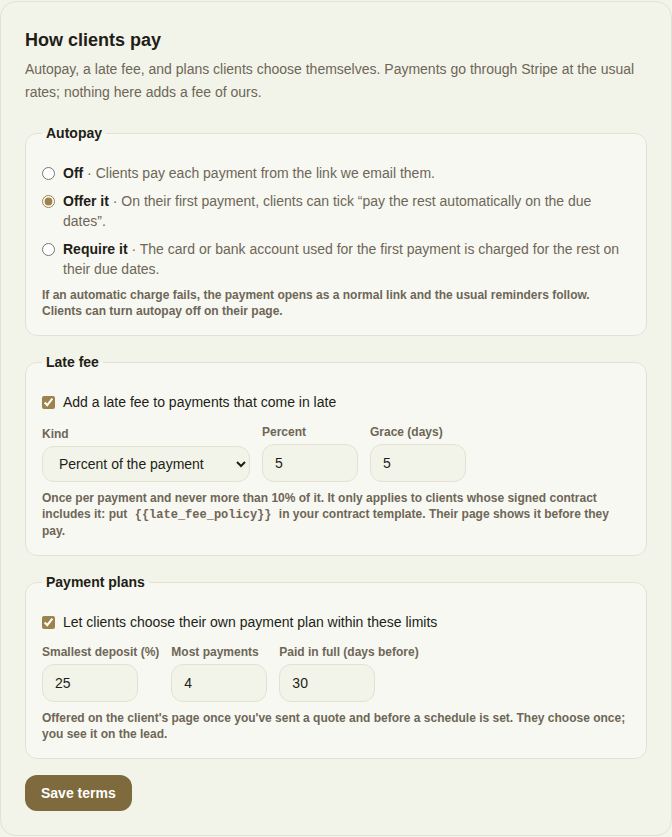
Owners and managers set three terms here. Payments go through Stripe at the usual rates; none of this adds a fee of ours.
Autopay
- Off: clients pay each payment from the link we email them.
- Offer it: on their first payment, clients can tick "pay the rest automatically on the due dates".
- Require it: the card or bank account used for the first payment is charged for the rest on their due dates.
If an automatic charge fails, the payment opens as a normal link and the usual reminders follow. Clients can turn autopay off on their page.
Late fee Tick Add a late fee to payments that come in late, then choose Percent of the payment (0.25% to 10%) or Flat amount ($1 to $10,000), and a Grace period of up to 60 days. The fee is added once per payment and is never more than 10% of it. It only applies to clients whose signed contract includes it: put {{late_fee_policy}} in your contract template. When you save, Settings shows the exact sentence your contracts will print. Clients see the terms on their page before they pay.
Payment plans Tick Let clients choose their own payment plan within these limits, then set the Smallest deposit (%), the Most payments (up to 12) and Paid in full (days before) the event (up to 365). Clients are offered the choice on their client page once you've sent a quote and before a schedule is set. They choose once, and the lead shows "They chose their own payment plan, within your limits."
Click Save terms.
On the lead
When any of these applies to a client, Payment terms appears above the conversation: "Autopay on", "They chose their own payment plan, within your limits", or "Late fee is in the contract sent; it applies once they sign."

Reminders
Payment reminders are emailed automatically before and after each due date. See Payment reminders.
Troubleshooting
- "A flat fee is $1 to $10,000; a percentage is 0.25% to 10%; the grace period is up to 60 days."
- "The deposit is 0–100%, up to 12 payments, the last up to 365 days before the event."
- "Owners and managers set this."
Did this answer it?
Updated September 30, 2026