Help · For wedding businesses · Quotes, contracts and getting paid
Contract templates and merge fields
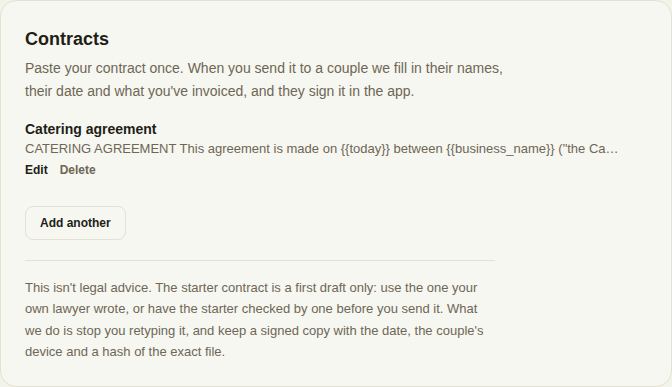
Paste your contract once and let The Veil fill in each client's names, date, total and your terms every time you send it (Pro and Studio).
Stop opening last month's Word file and retyping names. Save your contract in Settings once; every time you send it, it's filled in for that client.
Add a template
- Open Settings and find Contracts (Pro and Studio).
- Click Add your contract (or Add another).
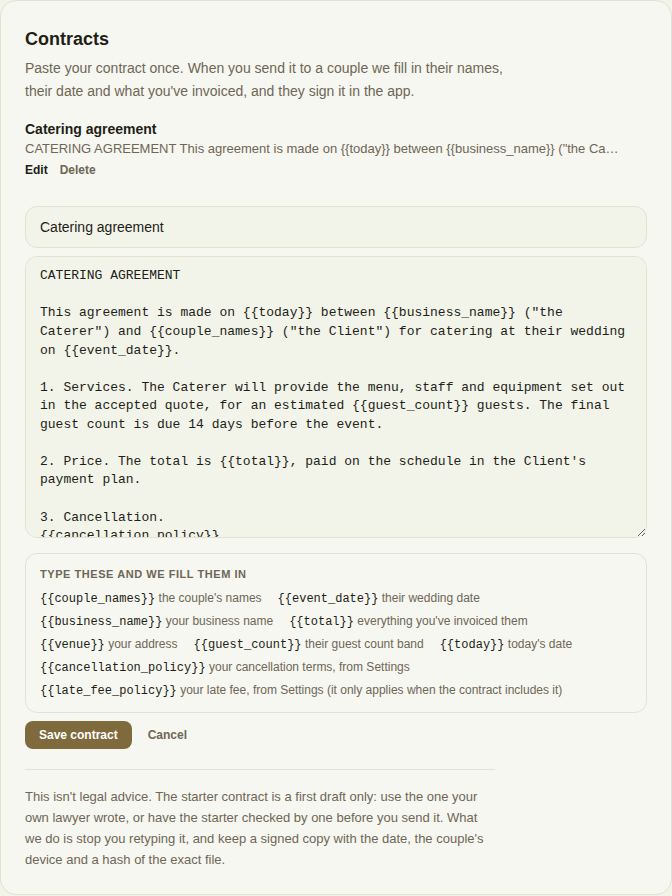
- Name it, for example "Full day photography".
- Paste your contract text.
- Put merge fields where the client's details go. Click any field under Type these and we fill them in to add it.
- Click Save contract.
You can keep up to six. Edit and Delete sit beside each one. Only owners and managers can change them.
The merge fields
- {{couple_names}}: the couple's names.
- {{event_date}}: their wedding date.
- {{business_name}}: your business name.
- {{total}}: everything you've invoiced them. When the contract goes with a quote, it's the quote's total.
- {{venue}}: your address.
- {{guest_count}}: their guest count band.
- {{today}}: today's date.
- {{cancellation_policy}}: your cancellation terms from Settings. See Cancel a booking.
- {{late_fee_policy}}: your late fee from Settings. It only applies to clients whose signed contract includes it. See Payment plans, autopay and late fees.
When a contract goes out with a quote, {{package}} and {{deposit}} are filled in too.
Sending one
On a lead, + Send for signature shows your templates. Pick one and it's filled in and shown for you to read and edit before it goes. See Contracts and e-signing.
Good to know
- The Veil doesn't supply legal wording. The starter kit in Settings can put in a first draft for your trade while your contracts are empty; use the contract your own lawyer wrote, or have the draft checked before you send it.
- A field with nothing to fill it (for example no date on the lead yet) is left as it is, so read the contract before you send.
- On the free plan, Settings shows Contracts under a Pro label. You can still send a contract as a PDF or Word file from any lead.
Did this answer it?
Updated September 30, 2026