Help · For wedding businesses · Quotes, contracts and getting paid
Contracts and e-signing
Send a contract from your templates or as a PDF or Word file, see when it's opened and signed, and keep a signed record that holds up.
Clients sign contracts on The Veil with a finger or a mouse: in the app if they're on The Veil, or on their client page if they aren't. You keep a signed record with the date, their device and a fingerprint of the exact file they signed.
Send a contract
- On the lead, click + Send for signature. (For a client without an account, use Send a contract on Their client page.)
- Name it, for example "Photography Agreement". This is what they see.
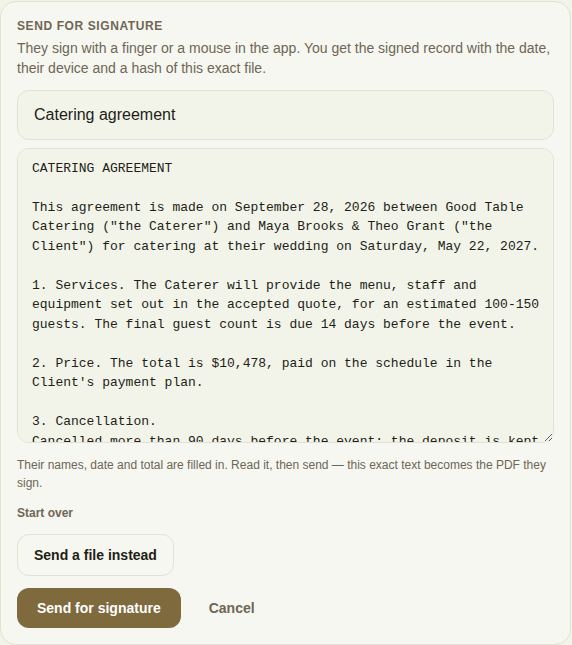
- Pick one of your saved contracts under Use one of your contracts, or click Choose a PDF or Word file to upload the contract you already have.
- If you picked a saved contract, it's filled in with their names, date, total and your terms, and appears in an editable box. Read it and change anything you need: this exact text becomes the PDF they sign. Start over clears it; Send a file instead switches to an upload.
- Click Send for signature.
You can also send a contract with a quote in one go: choose it under Contract in Send a quote. See Send a quote.
Follow it
The contract appears in the conversation marked Sent for signature, with Open document. Under it you see:
- Not opened yet, or Opened and when.
- Signed by the client once they sign, then Countersign and Download signed copy. See Countersign and the signed copy.
Changed your mind before they sign? Withdraw on the contract in the conversation takes it back; it shows as Withdrawn.
For a client without an account, the same lines appear under On their page, marked Waiting for signature, Signed or Signed by both.
What the client sees
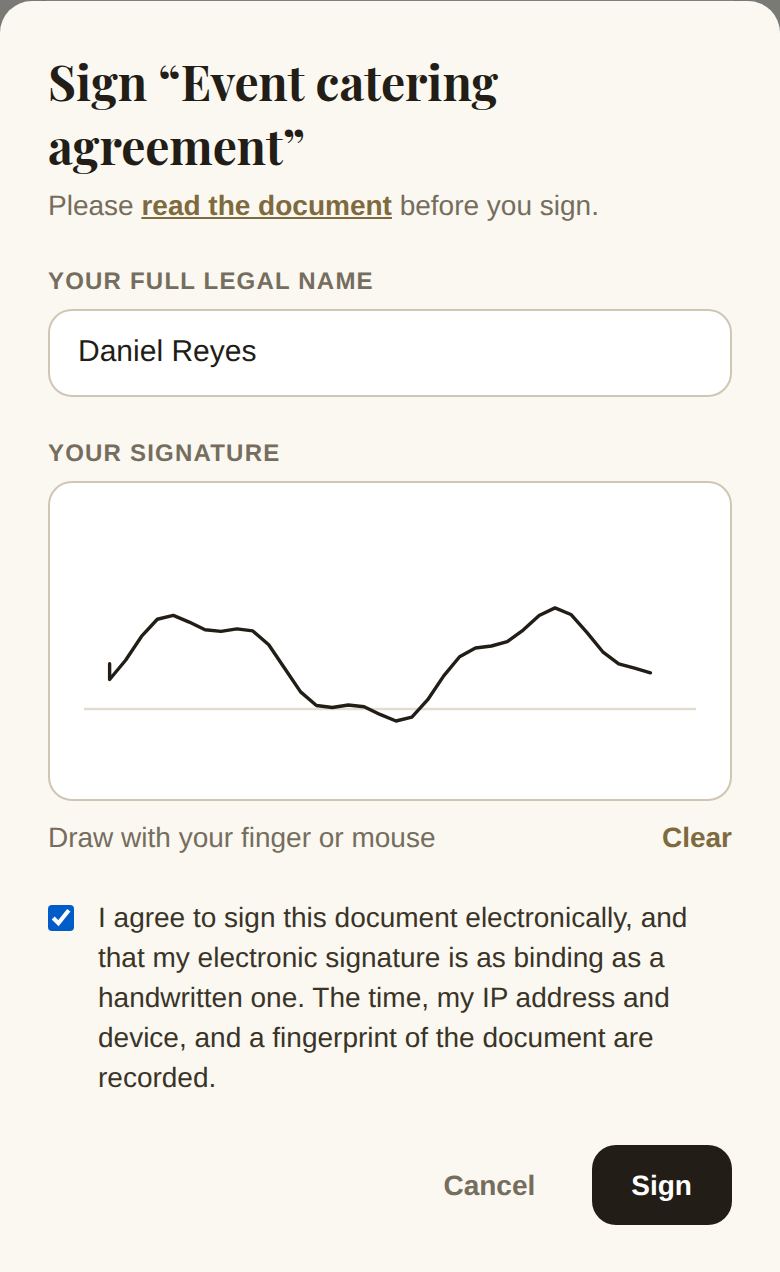
A couple on The Veil finds the contract in your conversation, waiting for their signature; a client without an account finds it on their page under To sign. They can read the document, then sign: they type their full legal name, draw their signature, and agree to sign electronically. The time, their IP address and device, and a fingerprint of the document are recorded.
The signed record
Once signed, the contract turns green with View signed record: the signature as drawn, their name, when they signed and on what kind of device. Show full audit trail adds the IP address, the full device details and the document's fingerprint. Print or save as PDF keeps a copy. If the stored file ever stops matching the one that was signed, the record says so in red and should be treated as unverified.
Late fees and cancellation terms
If your contract includes {{late_fee_policy}}, the late fee from Settings becomes part of this client's terms once they sign. {{cancellation_policy}} prints your cancellation terms. See Contract templates.
Troubleshooting
- Only the owner sees + Send for signature and the contract option on a quote: contracts go out in the owner's name. A manager or coordinator asks the owner to send it.
- "Choose the document to send, or pick one of your contracts.": nothing is attached yet.
- "Give it a name so the couple knows what they're signing."
- A field still shows in curly brackets, such as {{event_date}}: we don't have that detail yet. Type it into the box before you send.
Did this answer it?
Updated September 30, 2026