Help · For couples · Your vendors
Quotes, contracts and paying your vendors
Accept a quote, sign the contract and pay the deposit, all from the conversation.
When a vendor is ready to book you, three things arrive in your conversation with them: a quote, a contract to sign, and something to pay. Each has its own card with its own button, and you can do them in any order. Accepting a quote tells the vendor yes; paying the deposit is what books them.
A quote
A quote card shows the package name, what's included, the Total and, if they want one, the Deposit to book, plus any note from the vendor.
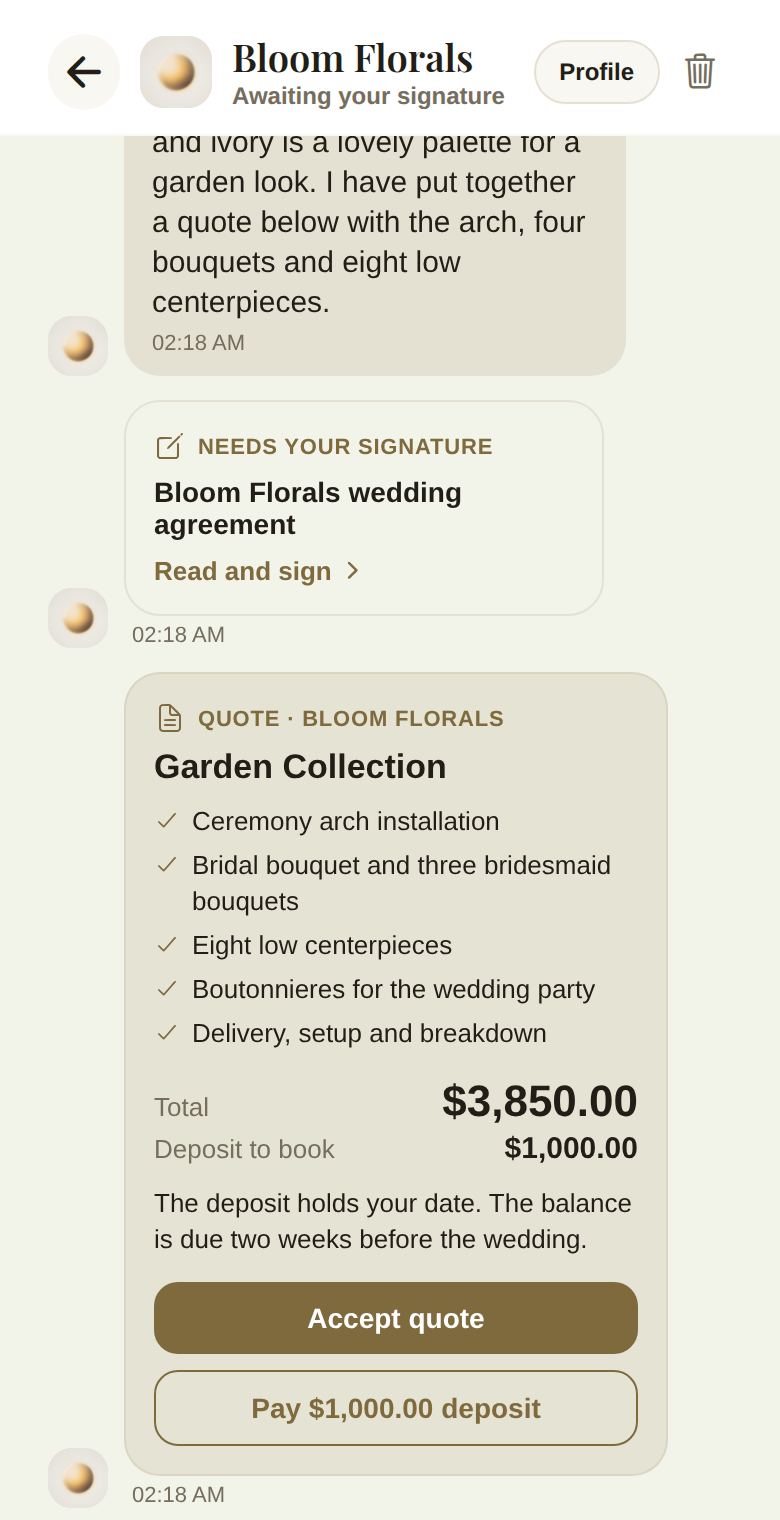
- Read it through. If something's missing, reply in the thread and the vendor can send a new one.
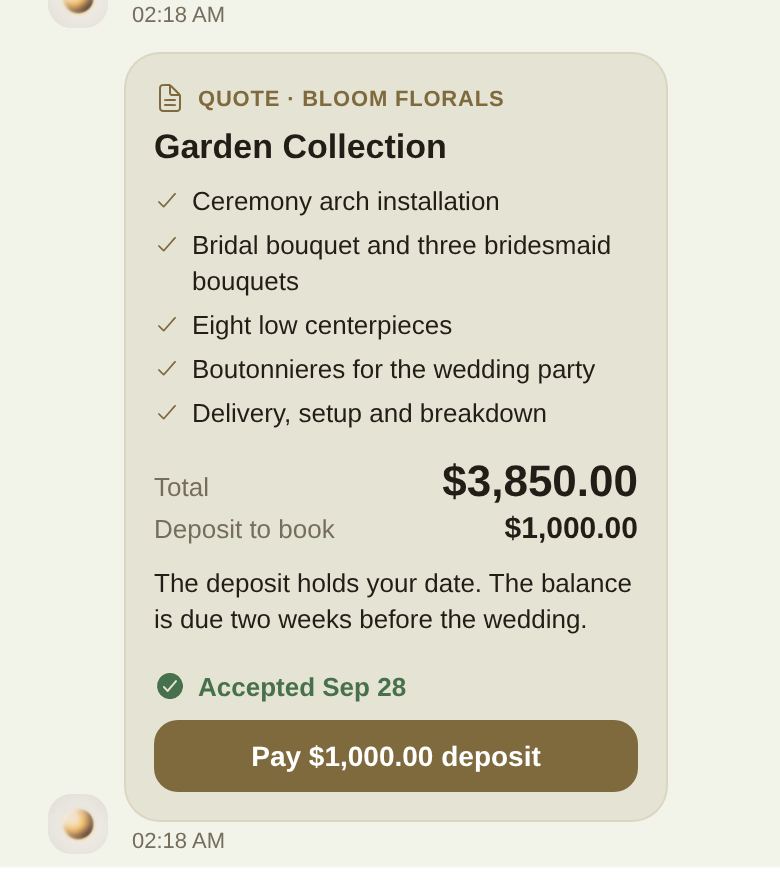
- Tap Accept quote. The card shows Accepted and the date, and the vendor sees it.
- Tap Pay $1,000.00 deposit (the amount the vendor set). A secure checkout page opens.
- When the payment goes through, the card shows Deposit paid, and the vendor is booked.
A contract
A contract card says Needs your signature. Tap Read and sign. Read the document with Read the document, type Your full legal name, draw your signature, tick the agreement, and tap Sign document. The full steps, and what's recorded, are in Sign a contract.
An invoice
Vendors can also send an invoice on its own, for a balance or an extra. The card shows the amount and what it's for. Tap Pay and the checkout opens. Once paid, the card shows Paid.
How you can pay
Checkout opens in your browser. You pay by card, or by bank account where your vendor accepts it. The amount always comes from what the vendor sent, and there's no fee added for you. You get a receipt from the checkout.
Paying the rest automatically
Some vendors offer autopay. Above the pay button you'll see Pay the rest automatically on the due dates with a switch. Turn it on before you pay, and the card or bank account you pay with now is saved and charged on each later due date. If the vendor requires it, you'll see a line saying so instead of a switch.
If the vendor charges late fees, the card shows Late payments: with their policy.
Choose your payment plan
If your vendor lets you choose how to spread what's left, open Budget, then Vendors, and tap their card. Under How you pay you'll see Choose your payment plan:
- Pick how many payments, from In full up to the most the vendor allows.
- Set how much you'll pay Today. It must be at least the vendor's smallest deposit.
- Check the schedule that appears, then tap Use this plan.
You choose once. The first payment is due today and the rest appear with their dates. If autopay is on, the same place shows Autopay is on and a Turn off link.
Where it all shows
Everything you pay a vendor through The Veil appears under Budget, then Vendors, with the contract and every payment on their card. See Your vendor list.
Good to know
- Accept quote doesn't charge you. Paying the deposit does.
- A vendor can withdraw a contract. It then shows Withdrawn and can't be signed.
- If checkout says the invoice can't be paid, it may already be paid or withdrawn. Reopen the thread, or ask the vendor.
- Booked a vendor who sends you a link instead? A vendor can also give you your own page to pay and sign on, no account needed.
- Your deposit and payments go to the vendor. Questions about refunds or cancellations are for the vendor first; if you're stuck, ask us.
Did this answer it?
Updated September 30, 2026