Help · For couples · Your vendors
Compare saved vendors side by side
Put the vendors you've saved in one category next to each other: price, reviews, your date, where things stand and your notes.
When you've saved two or more vendors in the same category, the shortlist board lines them up in one table so you can decide on what actually matters. Everything lines up row by row, so you can scroll sideways and compare.
Open the board
- Open Vendors from Home.
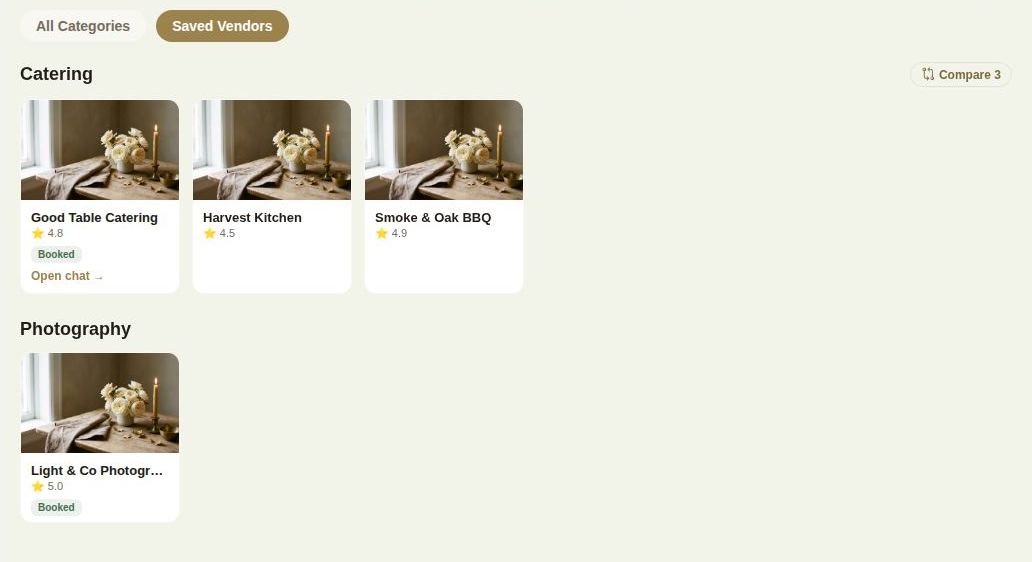
- Tap Saved Vendors. Your saved vendors are grouped by category.
- Tap Compare and the number beside a category, like Compare 3. It appears once you've saved at least two in that category.
To save a vendor in the first place, see Find and compare vendors.
What each row tells you
The board is titled with the category, like Catering: side by side, and For your wedding date.
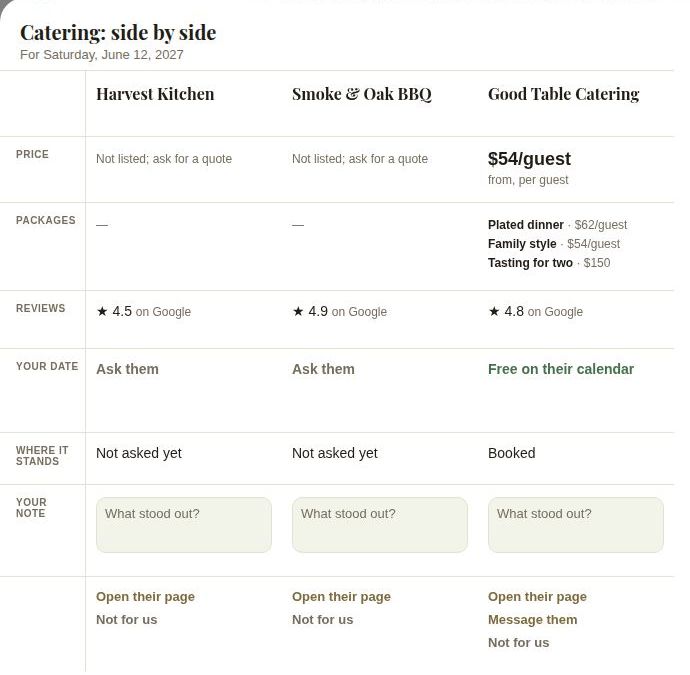
- Price: the lowest price on their page. Per-guest prices show as "$54/guest" with from, per guest; otherwise from or starting at. If they don't list prices: Not listed; ask for a quote.
- Packages: up to three of their packages with prices.
- Reviews: a star rating from the number of couples who booked them on The Veil, or their Google rating, or No reviews yet.
- Your date: Free on their calendar, Taken, or Open, with an offer with the offer itself. Ask them means they don't keep their calendar on The Veil. If you haven't set a wedding date, it says Add your date to check.
- Where it stands: your conversation with them. Not asked yet, Asked, waiting, They read it, They replied, Quote sent, Booked or Closed.
- Your note: type what stood out, in What stood out? It saves when you tap away. Up to 500 characters.
Actions
At the bottom of each column:
- Open their page to see everything about them.
- Message them if you've already been in touch.
- Not for us sets them aside. Their column fades, but your note stays, so you remember why. Tap Back on the list to bring them back.
Good to know
- Your notes and "not for us" marks are private. Vendors never see them.
- Co-planners can look at the board but can't change notes or set vendors aside.
- When you've chosen, send an inquiry from their page. See Find and compare vendors.
Did this answer it?
Updated September 30, 2026