Help · For couples · Your vendors
Sign a contract
Read your vendor's contract, sign it on your phone, and keep the signed record.
Vendors send contracts through The Veil so both of you have a signed record in one place. You sign on your phone or computer, with your finger or mouse.
Sign
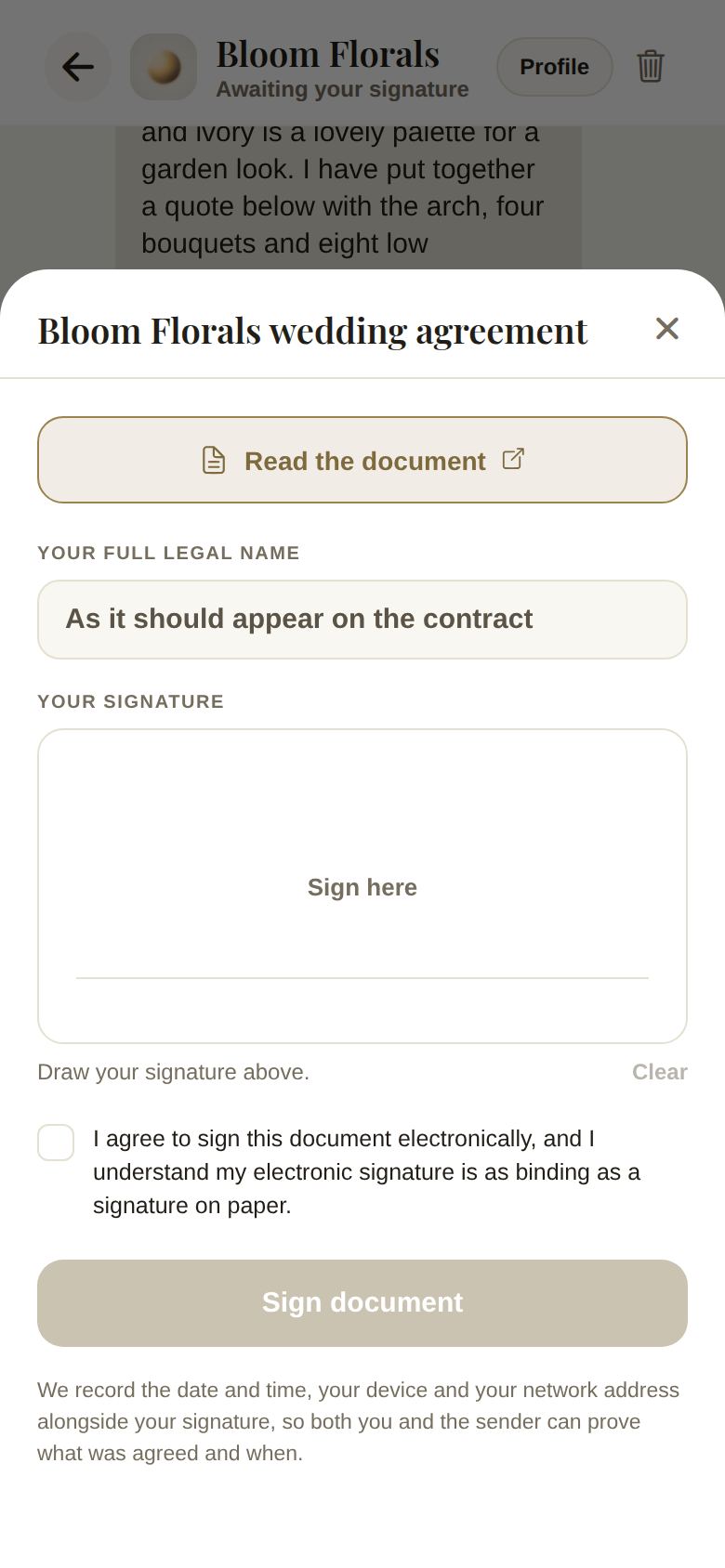
- In your conversation with the vendor, find the card that says Needs your signature, and tap Read and sign. (A quote can carry its contract inside it; the button is the same.)
- Tap Read the document. It opens the vendor's file so you can read it in full. The vendor can see that you opened it.
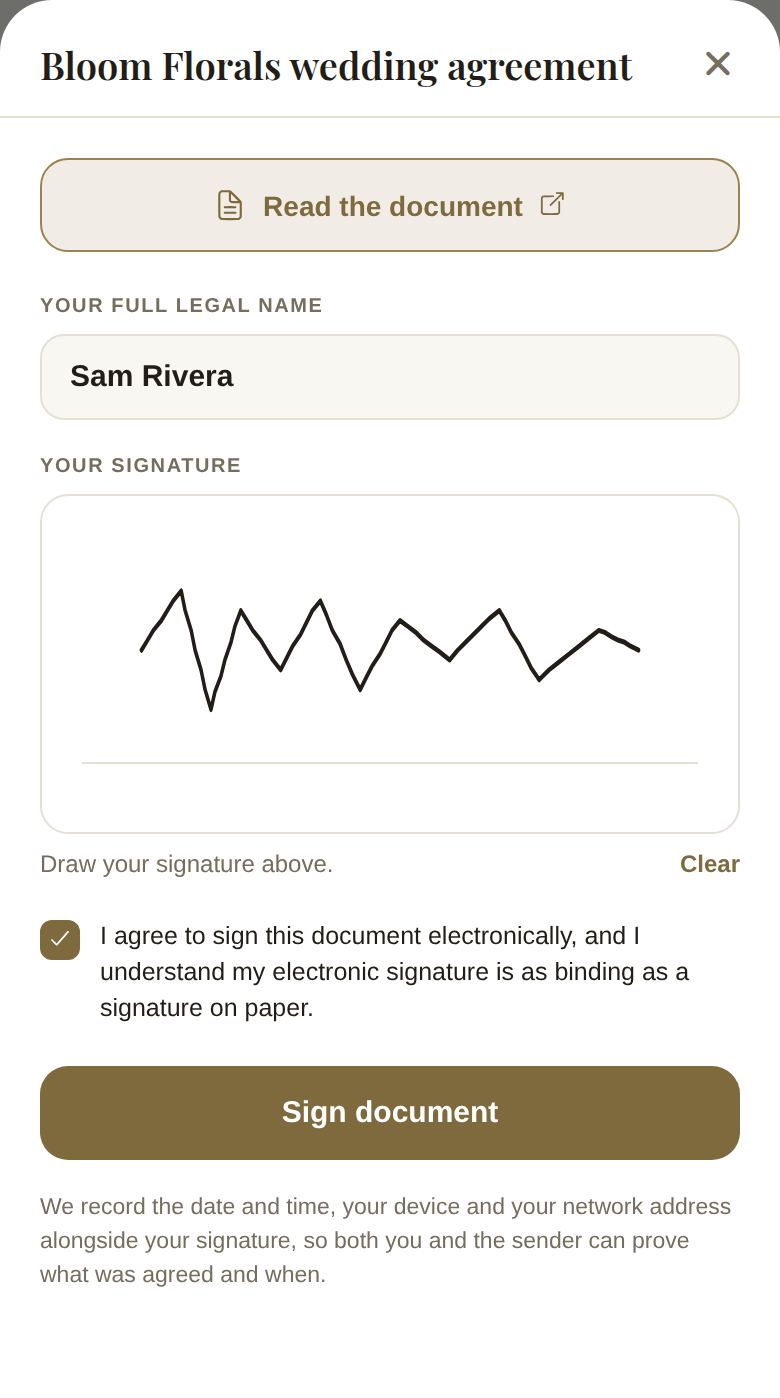
- Under Your full legal name, type your name as it should appear on the contract.
- Under Your signature, draw your signature in the box. Clear starts again.
- Tick I agree to sign this document electronically, and I understand my electronic signature is as binding as a signature on paper.
- Tap Sign document. The button only works once all three are done.
Your signed record
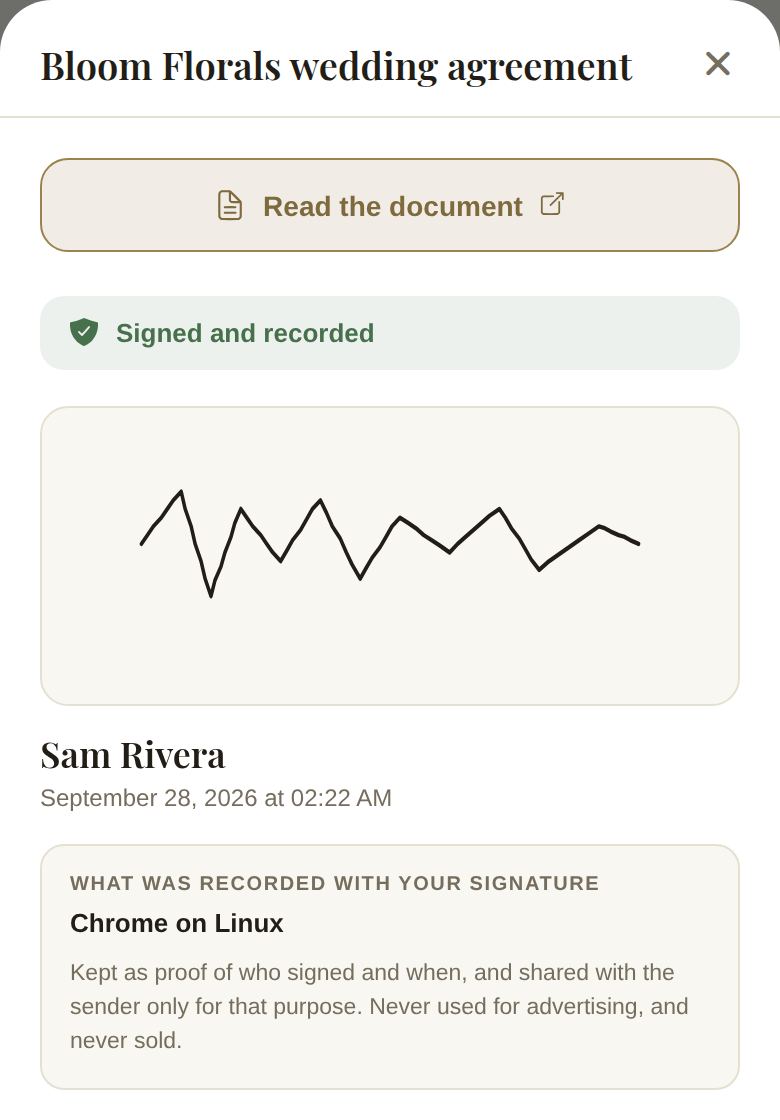
The card now says Signed. Tap View the signed record any time to see your signature, your name, the date and time, and What was recorded with your signature: the device and browser you used, and your network address. We record these so both you and the vendor can prove what was agreed and when. They're kept for that purpose only: never used for advertising, and never sold.
Signed contracts also appear on the vendor's card under Budget, then Vendors, in Documents, with Signed and the date. Tap one to open the file.
Good to know
- Only the person the contract was sent to can sign it, from their own account.
- Withdrawn means the vendor took the contract back before it was signed. Ask them to send the new one.
- If a contract is waiting, your vendor list shows One document is waiting for your signature. at the top.
- Read it properly before you sign. We don't write or check your vendor's contract; if something's unclear, ask them in the thread.
Did this answer it?
Updated September 30, 2026