Help · For wedding businesses · Your team
Invite your team
Add people by email, choose their role and title, and what they see when they accept.
Owners and managers add people under Team, Add someone. Each person chooses their own password; you never see it.
Seats
Seats at the top of Team says how many logins you have.
- Studio includes everyone who works there, with no charge per person.
- Pro includes one login, and up to two extra at $250 a year each ($25 a month on monthly), prorated from today. The owner adds them with Add a seat. See Change your plan, add logins or cancel.
- Free has one login. Go Pro to add logins appears instead.
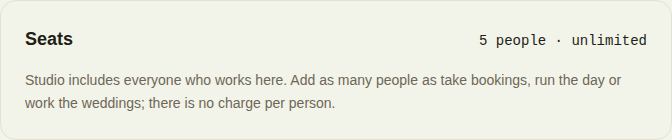
A pending invitation holds its seat until it's accepted or cancelled.
Send an invitation
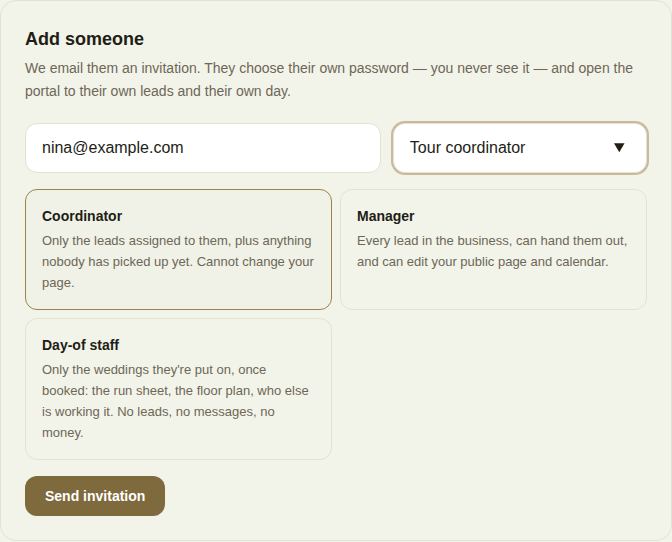
- Enter their email.
- Add a Job title if you like, up to 60 characters. Suggestions for your trade appear as you type, such as Events manager or Day-of lead.
- Choose the role: Coordinator, Manager or Day-of staff. Each card says what that role sees.
- Choose Send invitation.
- If they already sign in to The Veil, they see the invitation in their bell and by email, and they're in as soon as they accept.
- If they're new, they get an email to set their own password and land on their own Today page.
What they see when they accept
The invitation opens You're joining {your business}, with who added them and what their role can see. They enter their first and last name (how they appear on leads and in the activity feed) and, if they're new, choose a password of at least 8 characters with a letter and a number. Then Join.
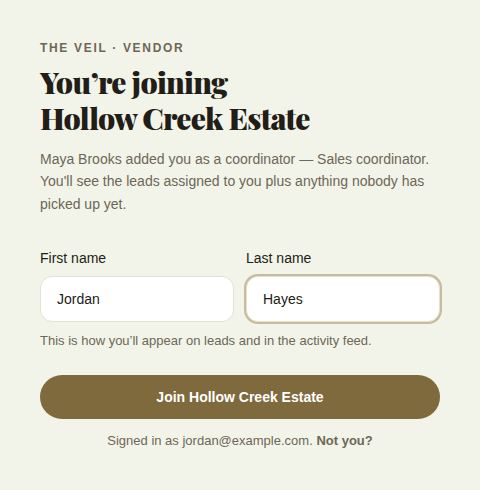
If the page says No invitation waiting, the invitation went to a different email. Ask your team to check the Team page.
The team list
Everyone is listed with their email, role, title and how many open leads they have, so you can see who's free before you hand out the next lead.
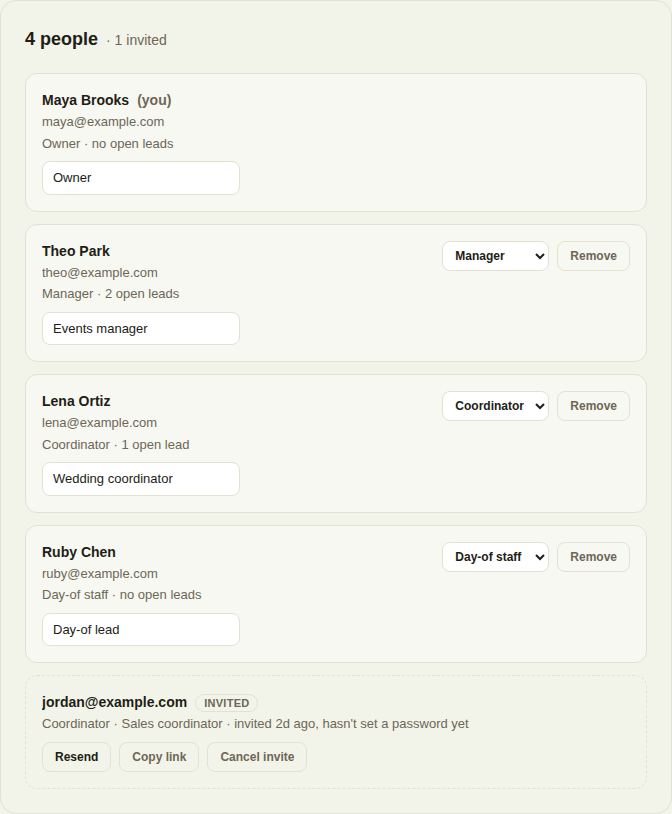
- Change a role with the menu beside a person.
- Edit a job title in the box under their name; it saves when you click away.
- A pending invitation shows Invited and "hasn't set a password yet", with Resend, Copy link (the page where they accept; they still sign in as themselves) and Cancel invite.
Troubleshooting
- "Every seat on your plan is taken." Add a seat on Pro, move to Studio, or remove someone.
- "They're already on your team." Check the list; they may have been invited earlier.
- "The invitation email couldn't be sent just now." Try again in a minute, or use Copy link and send it yourself.
Did this answer it?
Updated September 30, 2026