Help · For wedding businesses · Your team
Run more than one location
Several venues or brands from one login on Studio: add a location, switch between them, and what each one keeps.
On Studio, one login can run up to 25 locations: a second venue, a sister brand, or another city. Each location has its own page on The Veil, its own leads, calendar, rooms, invoices and team. The plan is paid once, on your main business.
See your locations
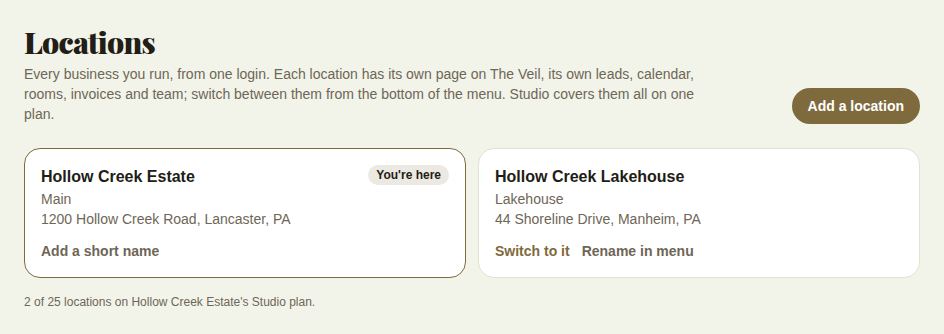
Open Locations from the location menu at the bottom of the portal menu (Manage locations). The one you're in says You're here; others show how many new leads they have.
Add a location
Only the owner can add one.
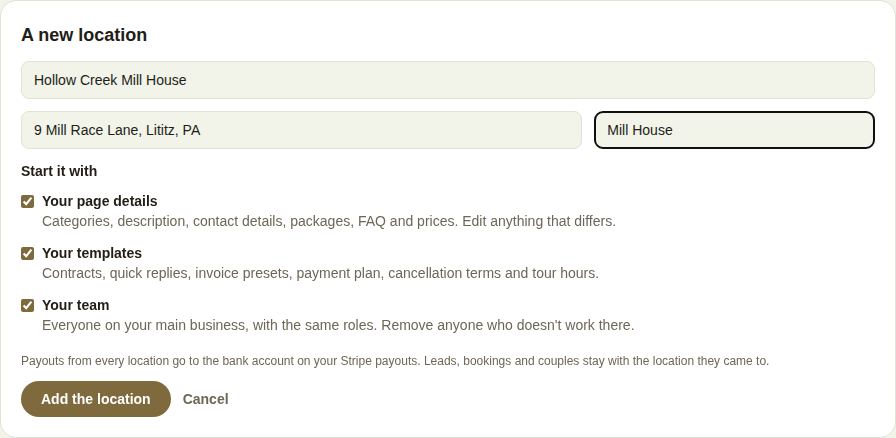
- Choose Add a location.
- Enter its name as couples see it, its address, and a short name for the menu, such as Lake.
- Under Start it with, choose what to copy from your main business:
- Your page details: categories, description, contact details, packages, FAQ and prices.
- Your templates: contracts, quick replies, invoice presets, payment plan, cancellation terms and tour hours.
- Your team: everyone on your main business, with the same roles.
- Choose Add the location.
Then Open its page to finish its storefront, or Go to its leads. Its leads and calendar start empty, and couples can't find it until its page is finished.
Switch between locations
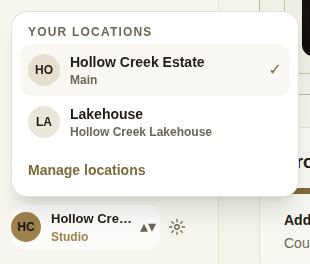
Choose your business name at the bottom of the menu to open Your locations, and pick one. The portal reloads in that location. In the app, use More, Locations.
What's shared and what isn't
- Shared: the plan and its billing, and the bank account your payouts go to.
- Per location: the page, leads, bookings and couples, calendar, rooms, invoices and team. A couple stays with the location they came to.
- Each location can have its own team. Remove anyone who doesn't work there.
Rename in the menu
Owners and managers can choose Add a short name or Rename in menu on a location. The short name is only for your menu; couples see the full name.
Good to know
- On Free or Pro, Locations shows More than one location is part of Studio, with See Studio.
- To change the plan, switch to the main business. A location's Billing says whose plan it's on.
- Delete a location before its main business: the main business can't be removed while it has locations.
Did this answer it?
Updated September 30, 2026