Help · For couples · Budget, checklist and timeline
Add, reorder and regenerate tasks
Write your own tasks, put the list in your order, delete what doesn't apply, and ask the AI for a fresh list safely.
Your checklist starts from the AI, but it's yours to shape. This guide covers the controls on the Live Checklist screen.
Add your own task
At the bottom of the checklist, type into Add a task… and press return or tap +. The task goes to the end of the list with no due date.
Tasks you add are yours: the checklist never moves them when your date changes, never ticks them off for you, and never deletes them when you regenerate.
Reorder the list
- Tap the three-line button at the top right. It turns solid and reads Done.
- Drag tasks by the handle on their left into the order you want.
- Tap Done to finish.
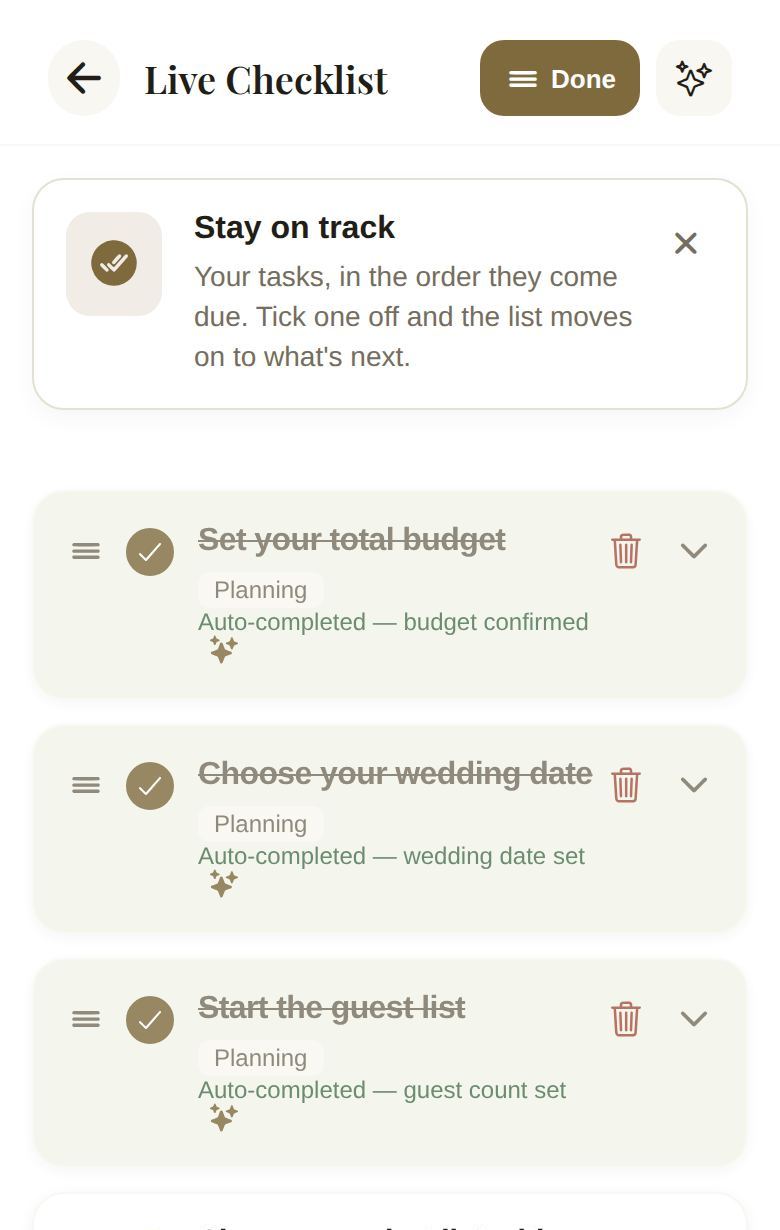
The new order is saved for everyone who plans with you.
Open and delete tasks
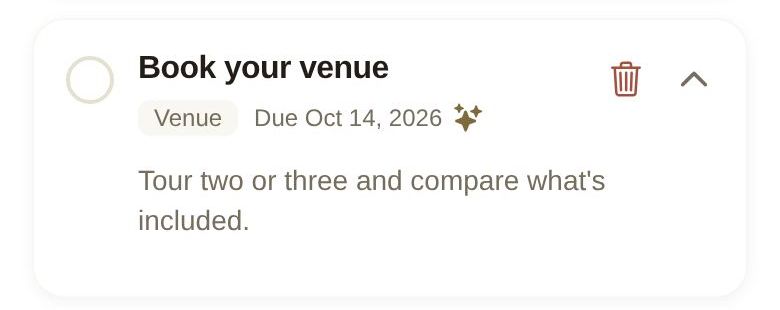
- Tap a task, or the arrow on its right, to see its description and any Estimated Cost. If there's nothing more, you'll see No additional details provided.
- Tap the trash icon, then Delete in Delete task?, to remove a task for good.
Regenerate with AI
Tap the sparkle button at the top right to ask the AI for a fresh checklist, for example after a big change of plan. It's careful about your work:
- It replaces only the plan's own tasks that aren't finished yet.
- It keeps every task you've completed, every task you added yourself, your DIY build days, and the follow-ups your booked vendors brought.
On a computer
In a wide window, a progress card sits beside the list with your tasks done, like "3/20 Tasks done", and a bar.
Troubleshooting
- "Could not add that task" or "Could not delete that task": check your connection and try again. Nothing was lost.
- "Failed to generate AI checklist": try again in a moment. If the AI can't be reached, a shorter starter list is used so you're never left empty.
- A lock over the checklist means someone else who plans with you is making changes right now. It shows their name; tap to go back and try again shortly.
Did this answer it?
Updated September 30, 2026