Help · For couples · Floor plan and seating
Edit your floor plan
Add pieces, move, turn, copy and arrange them, fine-tune sizes and seats, and undo anything.
Once your plan exists, everything on it can be changed: add pieces, drag them, turn them, resize them, and line several up at once.
Add a piece
- Tap Add in the toolbar.
- Add to the plan opens with pieces in real rental sizes, grouped by type: Guest tables, Head tables, Cocktail & lounge, Ceremony, Food & drink, Music & fun, Welcome & details, Outdoor & tents, The room, and Labels & zones.
- Tap a piece to drop it into a free spot on the plan.
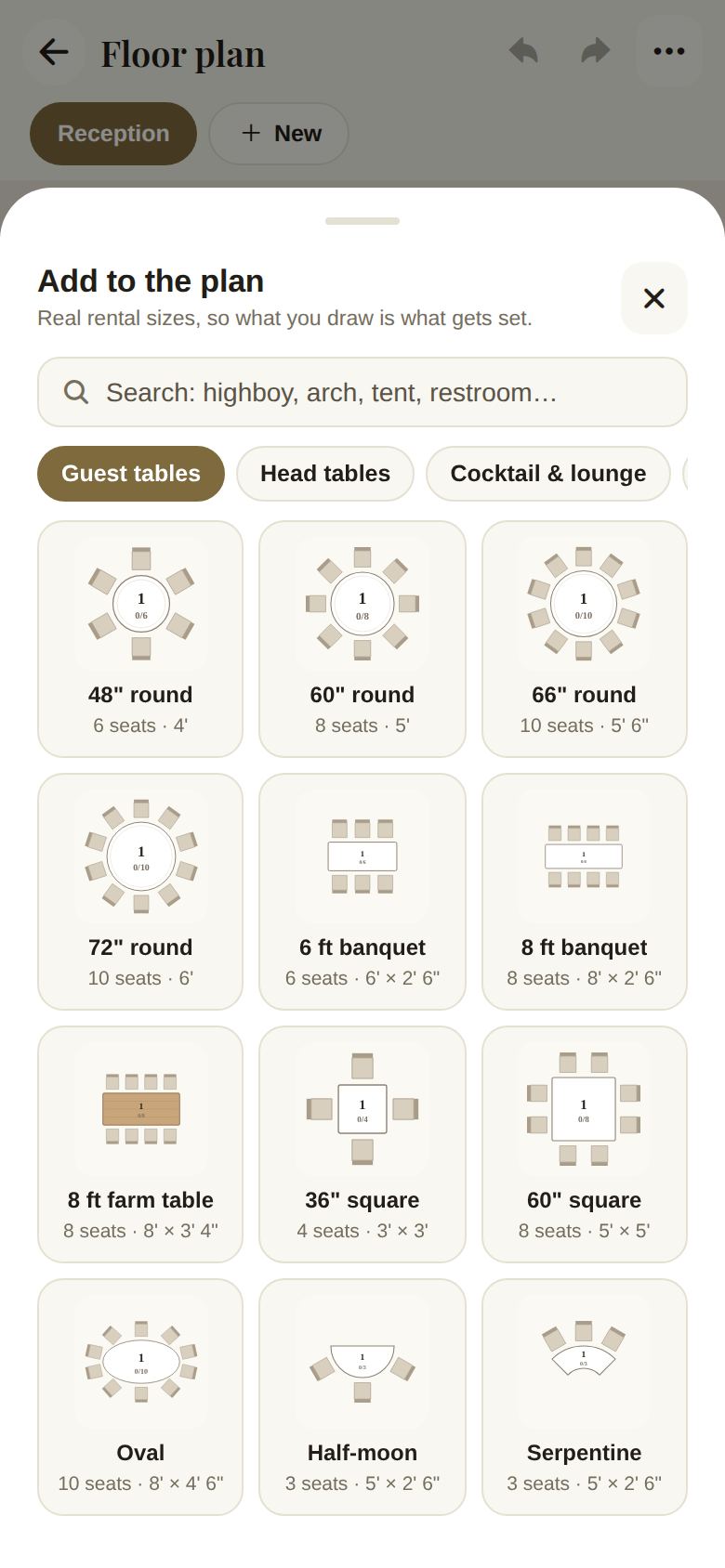
Each tile shows how many seats it has and its size, for example 60" round, 8 seats, 5'. To find something specific, type in Search, like highboy, arch, tent or restroom. If nothing matches, add a Zone from Labels & zones and name it yourself.
Select and move
- Tap a piece to select it. Drag it to move it.
- To select several, tap the select-several button on the right, then drag a box around them.
- A bar appears at the bottom with the name of what you selected and what you can do with it.
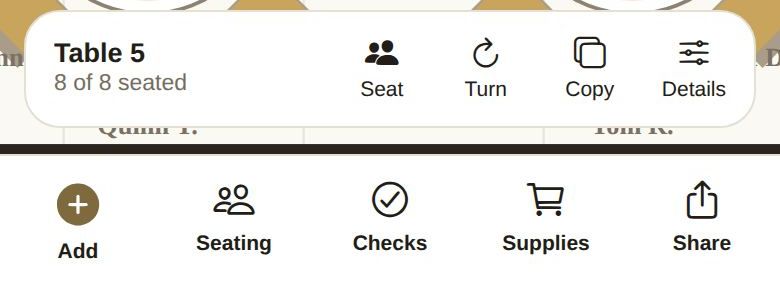
For one piece: Seat (for tables), Turn (45 degrees at a time), Copy, and Details. For several: Arrange, Copy, Remove and Clear.
Arrange several pieces
Select two or more, tap Arrange, and choose:
- Line up the tops or Line up the left edges.
- Center in a row or Center in a column.
- Space evenly across or Space evenly down (three or more pieces).
- Set out in a grid.
Details
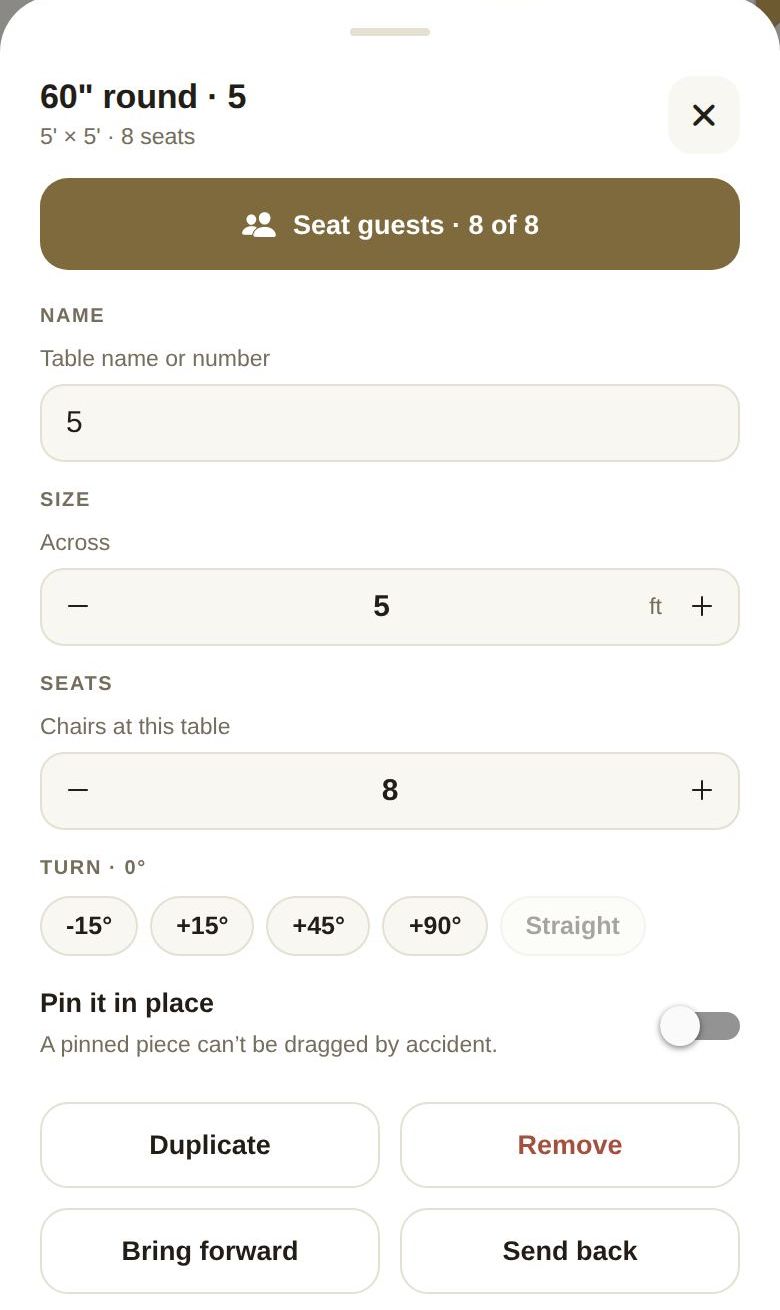
Tap Details to fine-tune one piece:
- Name: for a table, Table name or number. A number shows as "Table 5" in seating.
- Size: across, width, length or depth in feet, depending on the piece. Tents offer Standard tent sizes and Frame tent or Pole tent.
- Seats: Chairs at this table. If you change it, a link tells you what that size usually seats, so you can put it back.
- For rows of chairs: Rows, Per side, and Aisle width, or No aisle.
- Turn: -15°, +15°, +45°, +90°, or Straight.
- Pin it in place: a pinned piece can't be dragged by accident.
- Duplicate, Remove, Bring forward and Send back.
Undo, zoom and names
- Undo and redo are at the top right.
- Zoom with the + and - buttons, or fit the whole plan with the fit button.
- The person button shows or hides guest names on the seats.
When you're working in your venue's room
Pieces that belong to the venue (the room itself, the bar, the stage) can't be moved directly. Dragging one sends your venue a suggestion instead. See Plan in your venue's room.
When a co-planner edits
A co-planner with floor-plan access works on a private copy. A banner tells them their changes go to you for review, with a Send button. You see their changes and can apply them in one tap. Your day-of coordinator edits the plan directly.
Good to know
- Removing a table with guests seated at it asks you to confirm first, and tells you how many guests will need new seats.
- The plan's options, under ... at the top, include Rename, Change the space's size, Share for Stories, and Delete this plan.
Did this answer it?
Updated September 30, 2026