Help · For wedding businesses · Calendar and tours
Sync with the calendar you already use
Send your blocked dates, bookings and tours out to Google, Apple or Outlook, and bring your busy days in.
You don't have to keep two calendars. The bottom of Availability has three sections: one that publishes out, and two that read your other calendars in.
Out: The Veil in your own calendar
Under In the calendar you already use is a private subscribe link. Subscribe to it and your own calendar shows:
- every date you've blocked on The Veil,
- the weddings you've been booked and paid for,
- your booked tours, tastings and calls, as timed events. A group tasting shows as one event with every couple on it.
- Tap Copy link. If your browser won't copy, the link is shown in full so you can select it.
- Open How to add it for the steps. In Google Calendar: Other calendars, then +, then From URL. In Apple Calendar: File, then New Calendar Subscription (on iPhone: Calendars, Add Calendar, Add Subscription Calendar). In Outlook: Add calendar, then Subscribe from web.
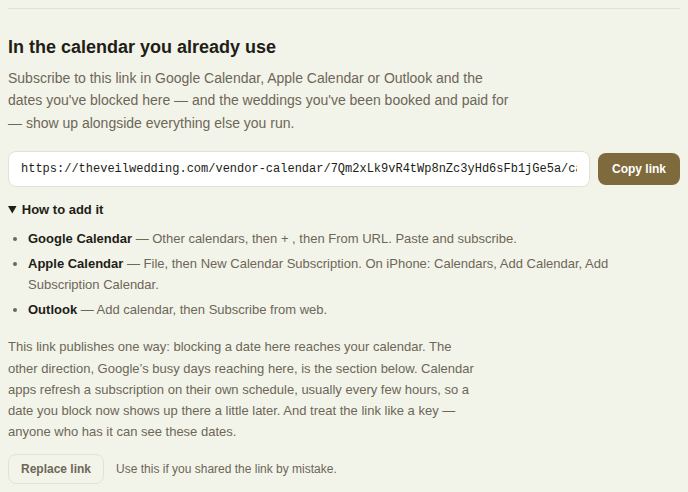
Calendar apps refresh a subscription on their own schedule, usually every few hours, so a date you block now appears there a little later.
Treat the link like a key: anyone who has it can see these dates. If it was shared by mistake, tap Replace link, then Yes, replace it. Every calendar subscribed to the old link stops updating, including your own, so subscribe again with the new one.
Owners and managers see the link. Coordinators see a note that an owner or manager sets it up.
In: block what Google already knows (Pro)
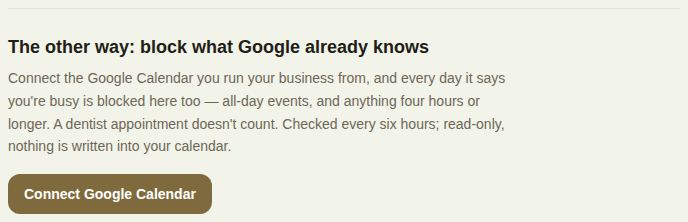
Under The other way: block what Google already knows, tap Connect Google Calendar and sign in with the Google account you run your business from.
- A day counts as busy if it has an all-day event, or any event four hours or longer. A dentist appointment doesn't block your Saturday.
- It's read-only. Nothing is written into your Google Calendar.
- It checks every six hours. Once connected you'll see the account, Last checked and how many days are blocked from Google, with Sync now to check straight away.
- Disconnect, then Yes, disconnect, frees every day Google blocked. Your own blocks stay.
A Google-blocked day shows the event name only to you. To free one, change the event in Google; it clears here on the next sync.
In: Outlook, iCloud and your other calendars (Pro)
Under Outlook, iCloud and your other calendars:
- Connect Outlook signs in with Microsoft.
- Paste a calendar link takes the private link of any other calendar: iCloud, Calendly, HoneyBook, Dubsado, or a calendar Outlook publishes. Add a name like "iPhone" so you know which is which, then tap Add. It's read straight away and tells you how many busy days it found.
- Where do I find this link? explains each one. For iCloud: in Calendar, tap the calendar's info button, turn on Public Calendar, then Share Link and copy it.
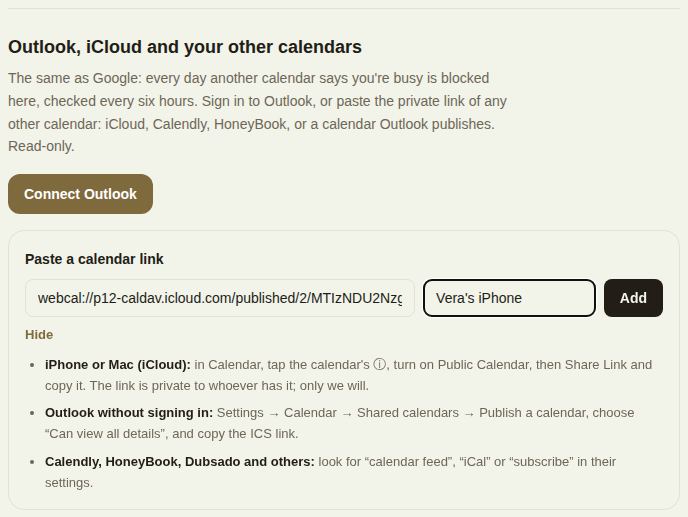
The same rule applies as Google: all-day events and anything four hours or longer block the date, checked every six hours, read-only. Each connected calendar is listed with when it was last checked, how many days it blocked, and any error. Sync now re-reads them all. Remove, then Yes, remove, frees only the days that calendar blocked.
Good to know
- The link out is available on every plan. Reading calendars in (Google, Outlook and pasted links) is part of Pro.
- Owners and managers connect and disconnect calendars. Everyone else sees what's connected.
- You can connect up to 10 calendars.
- If a sync keeps failing, the reason shows in red under the calendar. Disconnect and connect again, or for a pasted link, check it's still published.
Did this answer it?
Updated September 30, 2026