Help · For wedding businesses · Your business
QuickBooks Online
Connect QuickBooks and every invoice, payment, fee and refund goes into your books by itself. Bring your customers and Products & Services across when you switch (Pro and Studio).
Connect QuickBooks Online and your books keep themselves: every invoice you send, every payment (card, bank, cash or check), Stripe's fees and every refund goes into QuickBooks on the right customer, once. It's in Settings for owners and managers, and part of Pro and Studio.
Connect
- In Settings, find QuickBooks Online and click Connect QuickBooks.
- Sign in to QuickBooks and allow access.
- You come back to Settings with "QuickBooks is connected."
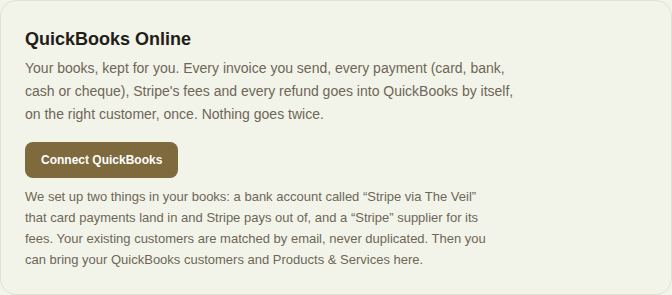
We set up two things in your books: a bank account called "Stripe via The Veil" that card and bank payments land in and Stripe pays out of, and a "Stripe" supplier for its fees. Your existing customers are matched by email, never duplicated.
Once connected
The card shows your QuickBooks company, when something was last sent, how many entries are in your books, how many are on the way and how many need a look.
- Sync now sends anything waiting straight away.
- Pause holds new entries until you Resume.
- Disconnect (then Yes, disconnect) stops sending. Your books keep everything already sent.
Where things go in your books
Four accounts: Sales, Card and bank payments ("Stripe via The Veil"), Cash and checks (Undeposited Funds) and Stripe and booking fees. Change lets you pick different ones from your chart of accounts; new entries post there from then on.
When Stripe pays you, record it in QuickBooks as a transfer from "Stripe via The Veil" to your bank. After fees and refunds, that account nets to exactly what Stripe paid out.
Bring your QuickBooks across
Switching from QuickBooks invoicing? Click See what's there.
- Customers become clients here. Anyone already here is matched by email, and you're told how many would be new, matched or skipped before you click Import customers as clients. Open balances are noted on each client.
- Products & Services: tick the ones you want and click Add … to my price list. They appear under + From your price list in the invoice builder, and lines from it post to the same item in QuickBooks. See Invoices.
Catch your books up
Only what happens after you connect goes by itself. To send what you invoiced and were paid before, pick a date and click Send everything since. Nothing already sent goes twice, and history you imported from another tool stays out.
What was sent
A log lists each entry (Invoice, Payment, Fees, Refund, Void) with its amount and status: In your books, On the way, Not needed or Failed, with the reason. Retry tries one again; Retry everything that failed retries them all.
Reconnecting
QuickBooks signs apps out every 100 days, or if access is removed. The card then says Reconnect. Nothing is lost: click Connect again and everything waiting goes.
Did this answer it?
Updated September 30, 2026