Help · For wedding businesses · Settings and account
Disconnect or delete your business
Wiping your business from The Veil while keeping your login, or deleting your account entirely from the app.
There are two ways to leave, and neither can be undone. Export your data first: see Export your data.
Disconnect this business (portal)
At the bottom of Settings, Disconnect this business removes your business from The Veil along with its claim history, and releases its Google listing so it can be claimed again. Your login stays active, and you land back on the claim screen.
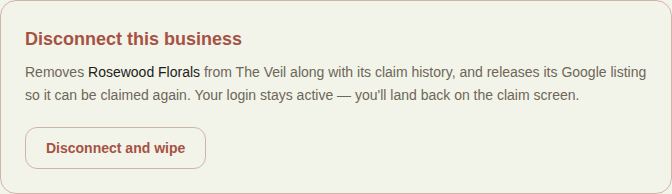
- Choose Disconnect and wipe.
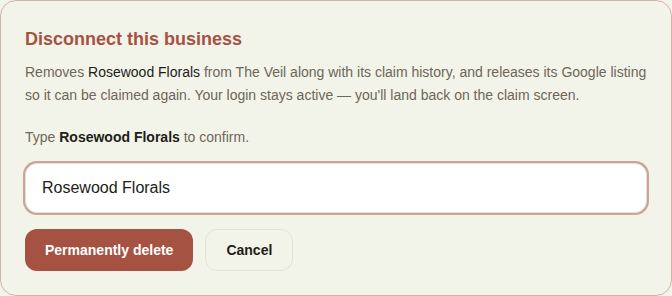
- Type your business name exactly as shown.
- Choose Permanently delete, or Cancel.
If your business has other locations, remove those from Locations first. The main business goes last.
Delete your account (app)
In The Veil Vendors app, More, Delete account removes your account and your business listing, its leads, invoices and messages. The app asks twice: Delete this account?, then Really delete? with Delete for good. After that you're signed out.
Before you go
- Cancel your plan under Billing, Manage subscription, so you're not charged again.
- Settle any open invoices with your clients.
- If you're moving your business to a new owner, write to us under Help instead. A founding rate doesn't transfer.
Good to know
- If you only want a break, turn on Out of office instead. See Automations and away.
- If you're a team member, not the owner, ask the owner to remove you from the team. See Remove someone from your team.
Did this answer it?
Updated September 30, 2026