Help · For wedding businesses · Your team
Remove someone from your team
Take someone off, hand their open leads to a colleague or the pool, and keep their history.
When someone leaves, an owner or manager removes them under Team. Nothing is deleted, and couples never see a gap.
Remove a person
- On Team, find them in the list and choose Remove.
- If they have open leads, choose where they go under Their … open leads go to:
- The unassigned pool, anyone can pick them up, or
- a named colleague. The list shows each person's title and how many open leads they already have.
- Choose Remove again to confirm, or Cancel.
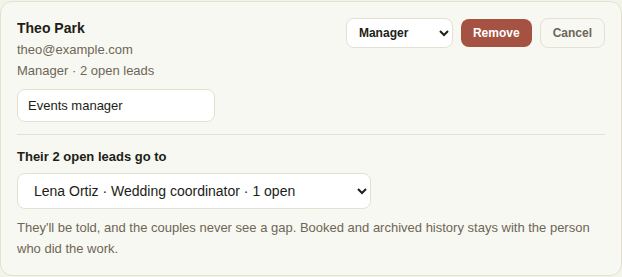
The colleague who takes them over is told. Booked and archived history stays with the person who did the work, so your reports stay right.
Cancel an invitation
For someone who hasn't accepted yet, choose Cancel invite. The seat is free again.
What the person sees afterwards
They stop seeing your business the next time they open the portal or the app. Their Veil login still works; if they also run a business of their own or plan a wedding, that's untouched. Messages and notes they wrote on your leads stay, with their name.
Change a role instead
Someone moving from sales to the day itself? Change their role with the menu beside their name instead of removing them. For example, from Coordinator to Day-of staff.
Good to know
- The owner's seat can't be removed.
- Removing someone doesn't delete their Veil login. They simply stop seeing your business.
- On Pro, removing someone frees a seat. To stop paying for it, the owner chooses Remove a seat under Seats.
Did this answer it?
Updated September 30, 2026