Help · For wedding businesses · Settings and account
Notifications: email, the bell and your phone
Which events notify you, turning on notifications in your browser, installing the portal, and the bell.
A couple books the vendor who answers first far more often than the cheapest one, so The Veil tells you the moment something needs you.
What notifies you
Under Settings, Notifications, three switches, all on by default:
- New inquiries: a couple asks about your services. Email and push.
- Couple replies: a couple responds in an existing conversation.
- Bookings confirmed: a couple pays one of your invoices.
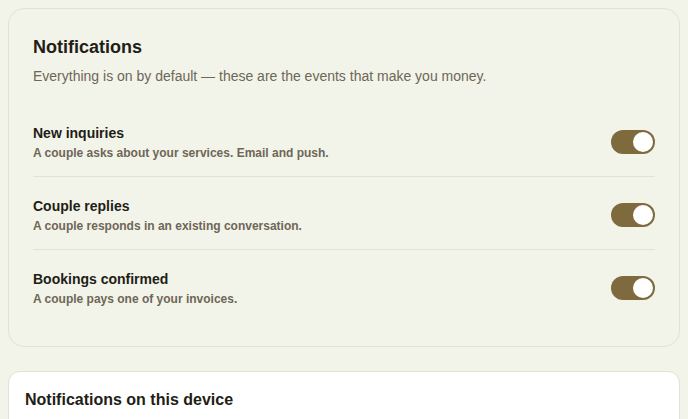
Each switch saves as soon as you tap it. Each person on a team sets their own.
The bell
The bell at the top of the portal menu shows a count of what's new. Open it to see each notification; tap one to go straight to it. Clear all empties the list, and Leads opens Leads.
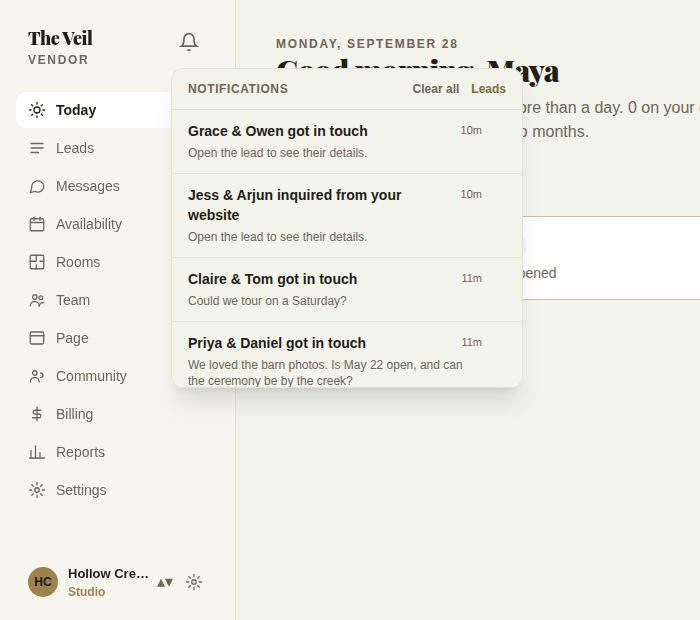
Team invitations, support replies and updates on problems you reported also arrive here.
Notifications on your computer or phone browser
Under Notifications on this device, choose Turn on notifications and allow them when your browser asks. It then says it's on for this device, with Turn off on this device.
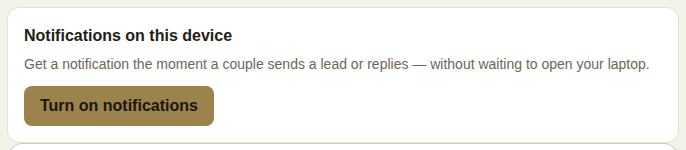
- Turn it on separately on each computer or phone you use.
- If you blocked notifications for the site earlier, the portal can't ask again. Allow them for theveilwedding.com in your browser settings.
- If your browser can't show notifications, you still get an email for every new lead.
On iPhone: add the portal to your Home Screen
Apple only allows website notifications from the Home Screen. In Safari, tap Share, then Add to Home Screen, open the portal from there, and then Turn on notifications.
Install the portal
On a computer or an Android phone, Install the portal (in Settings and on Leads) adds it as an app that opens in its own window and keeps your notifications. Once installed, it says so.
Or use The Veil Vendors app
The phone app sends its own notifications for new leads and messages, and tapping one opens it. See The Veil Vendors app.
Good to know
- New lead emails go to the contact email on your setup screen.
- Turning New inquiries off stops both the email and the push for new leads.
Did this answer it?
Updated September 30, 2026