Help · For couples · DIY Workbench
Create and share your own DIY project
Build a project with photos, materials, steps and a video, then share it with other couples if you like.
Making something that isn't in the catalog? Create your own project. It works just like the catalog ones, and you can share it with other couples. The DIY workbench is part of The Veil Plus.
Start
Tap Add Custom Project (on Discover), or + Add or Create custom project in My Projects. The wizard has five steps: Basics, Photo, Materials, Video and Review.
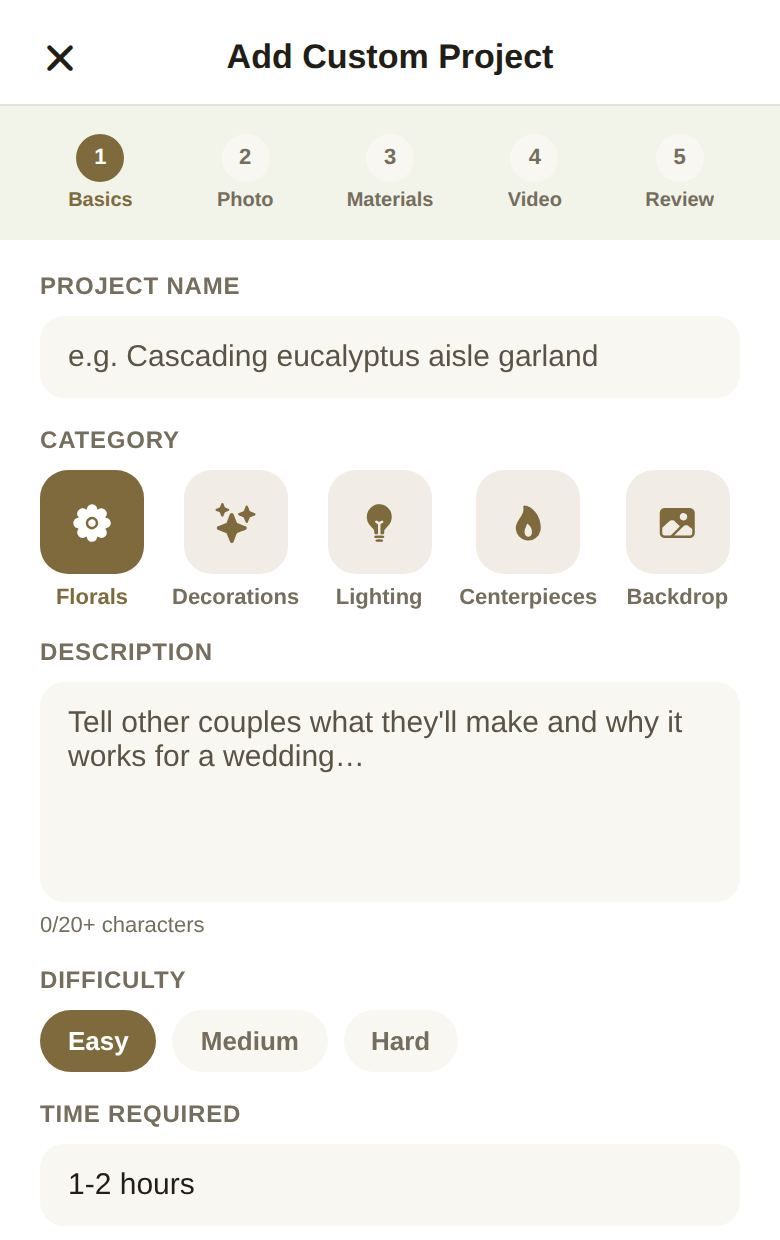
1. Basics
- Project name: at least 4 characters.
- Category: Florals, Decorations, Lighting, Centerpieces, Backdrop or Favors.
- Description: at least 20 characters. The counter shows how many you've typed.
- Difficulty: Easy, Medium or Hard.
- Time required, like "2-3 hours".
Continue lights up when the required fields are filled.
2. Photo
Tap Tap to choose a photo to add a cover picture. Skip it and, if your materials have product photos, the cover becomes a collage of them.
3. Materials
For each material:
- Product link: paste a product page and tap Parse to fill in the details for you.
- Label, Qty, Unit and Unit cost.
Tap Add another material for more. At least one material needs a label. Add a Step-by-step guide with one step per line.
4. Video
Paste a Video guide URL. It needs to be a YouTube or Vimeo link.
5. Review and save
Check the preview, then choose whether to share:
- Share with Other Couples off, then Save Project: the project is yours only.
- Share with Other Couples on, then Save & Share: it's saved, and sent for review. You'll see Submitted for review, or Shared successfully if it's approved straight away. Approved projects appear under Verified Community Projects with your name.
You can share up to three projects a week. The switch shows how many you've used.
After you share
- Edit a shared project and save with Save & Update Share to update the public version.
- Turn sharing off and tap Save & Unpublish, or use Unlist in My Projects, to take it down. It stays in your own list.
- If review doesn't approve it, you'll see Not approved for sharing with the reason. It's still saved privately.
Good to know
- Shared projects show your name as the maker.
- Every custom project lands in My Projects with its materials and costs, ready to use.
Did this answer it?
Updated September 30, 2026