Help · For couples · Account and help
Notifications
Choose what you're notified about, and find everything you've been sent.
Choose what you hear about
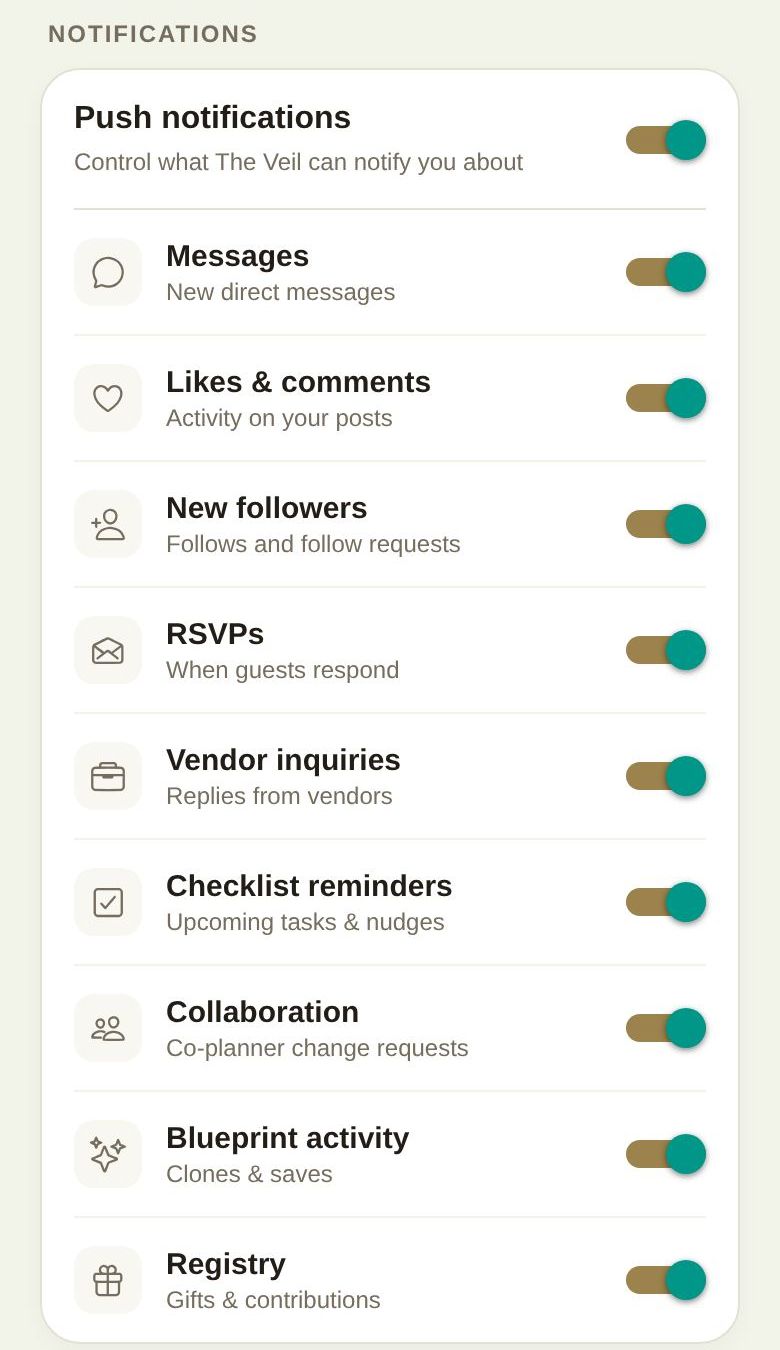
Open the ☰ menu, Global Settings, then NOTIFICATIONS.
- Push notifications is the master switch. Turn it off and your phone stops buzzing for The Veil altogether.
- Below it, one switch per kind:
- Messages: new direct messages.
- Likes & comments: activity on your posts.
- New followers: follows and follow requests.
- RSVPs: when guests respond.
- Vendor inquiries: replies from vendors.
- Checklist reminders: upcoming tasks and nudges.
- Collaboration: co-planner change requests.
- Blueprint activity: when people clone or save your blueprints.
- Registry: gifts and contributions.
Changes save as you switch them. With the master switch off, the others are greyed out.
Everything you've been sent
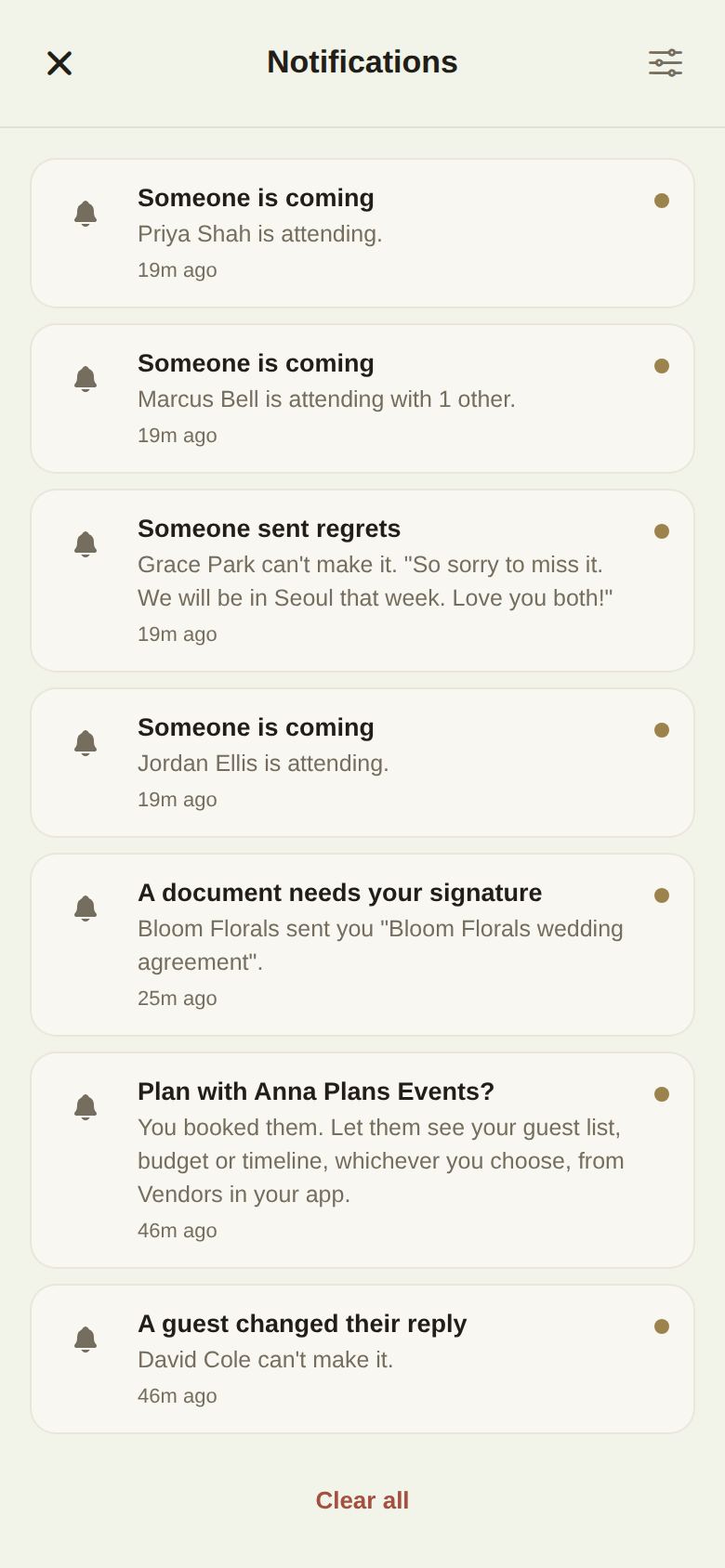
The ☰ menu's Notifications (with a count of unread ones) opens your history, newest first, even for things you chose not to be buzzed about. A dot marks the ones you haven't seen.
- The settings button at the top right jumps to your notification switches.
- Clear all empties the history. It doesn't change what you're notified about.
Good to know
- Notifications also depend on your phone's settings. If nothing arrives, check that notifications are allowed for The Veil in your phone's settings.
- Emails from The Veil (like replies to a help request) come regardless of these switches.
- On the wedding day, schedule updates reach your helpers and guests however you've set your own switches.
Did this answer it?
Updated September 30, 2026